
Add your first product
A product has a title, a price and at least one variant. New products start as drafts, so nothing is for sale until you make it active.
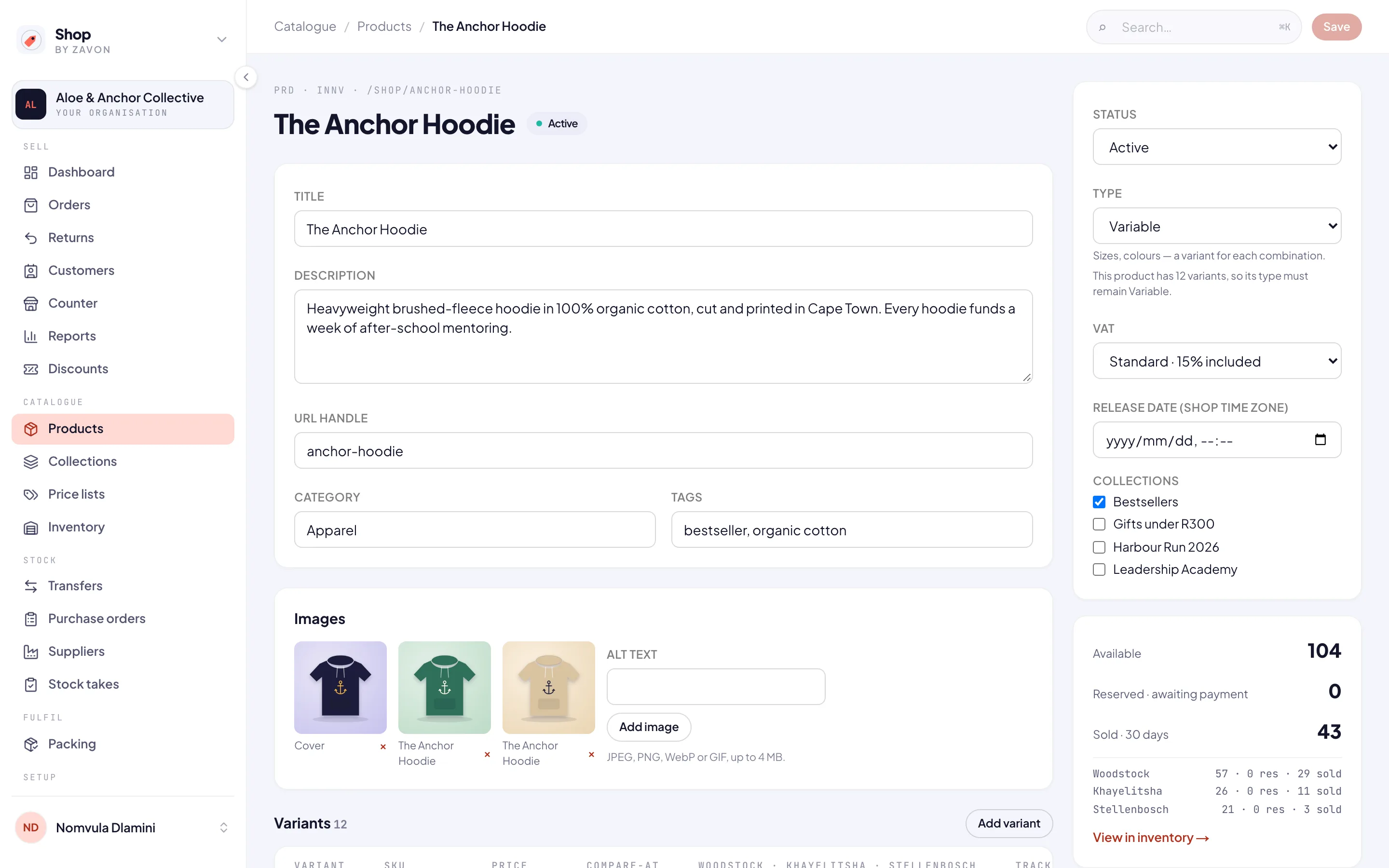
Create the product
Start a product
Choose Add product on the Dashboard, or open Products and choose Add product.
Describe it
Enter the Title and Description. The URL handle is made from the title. Add a Category and Tags if you use them.
Price it
Under First variant, enter the Price (R), a SKU if you use them, and a Compare-at price (R, optional) to show a sale. Leave Track stock ticked to count stock.
Type and VAT
In the side panel, check the Type — Simple for one version, Variable for sizes or colours — and the VAT setting.
Create it
Choose Create product. The full editor opens.
Finish it
Pictures
Under Images, write the Alt text and choose Add image. The first image is the cover. Each image is saved straight away.
Options and variants
For a Variable product, set up to three options under Options — Option 1 might be Size, with its values — and choose Save options. Add or change versions under Variants.
Make it active
Set Status to Active and choose Save. Only active products appear in your store.
Add stock
Open the inventory
In the sidebar, under Catalogue, choose Inventory.
Adjust
Choose the product’s count at a location and choose Adjust. Choose Restock, enter the quantity and a Reason, and confirm.
Good to know
Products can also come in from a CSV file: Import sits beside Add product on the Products screen. To announce a product before it can be bought, see Coming soon and Notify me.