
Snooze
Overview
Snooze hides an item until a date. Use it when you are waiting for something, such as a document that has not arrived.
A snoozed item stays where it is. On the date, it comes back by itself.
Before you start
You can snooze items on workflow boards, applications, the approvals queue and My work.
To snooze an item on a board or a list, you need the permission to move or review it. In My work, you snooze only your own tasks.
Snooze an item
Open the actions
On the card or row, select Actions › Snooze.
Pick when
Select Tomorrow, Next week or 2 weeks. To pick a day, select A date… and set the date.
Check
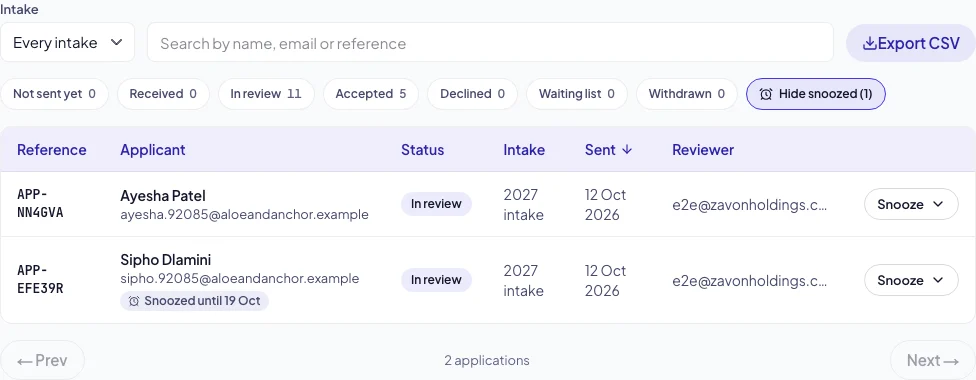
Look for Snoozed until and the date on the item.
Show the snoozed items
Show them
Select Show snoozed. The number in brackets is how many are hidden.
Hide them again
Select Hide snoozed. The screen keeps your choice in this browser.
Wake an item early
Show it
Select Show snoozed to see the item.
Wake it
Select Actions › Wake. The item comes back now.
Troubleshooting
If Snooze is greyed out, the item is finished. A decided or closed item has nothing to wait for.
If a date is refused, pick a date in the future and at most two years ahead.
Good to know
Moving wakes it. When an item moves to another step, its snooze ends.
Counts. With snoozed items hidden, the counts at the top count only the items shown.
My work. Your snooze hides a task from you only. Other people it waits for still see it.
Step requirements: fields an item needs before it moves on.
Approvals: the approvals queue in Pages.
Programmes and applications: intakes and decisions in Pages.