
Blocks reference
Overview
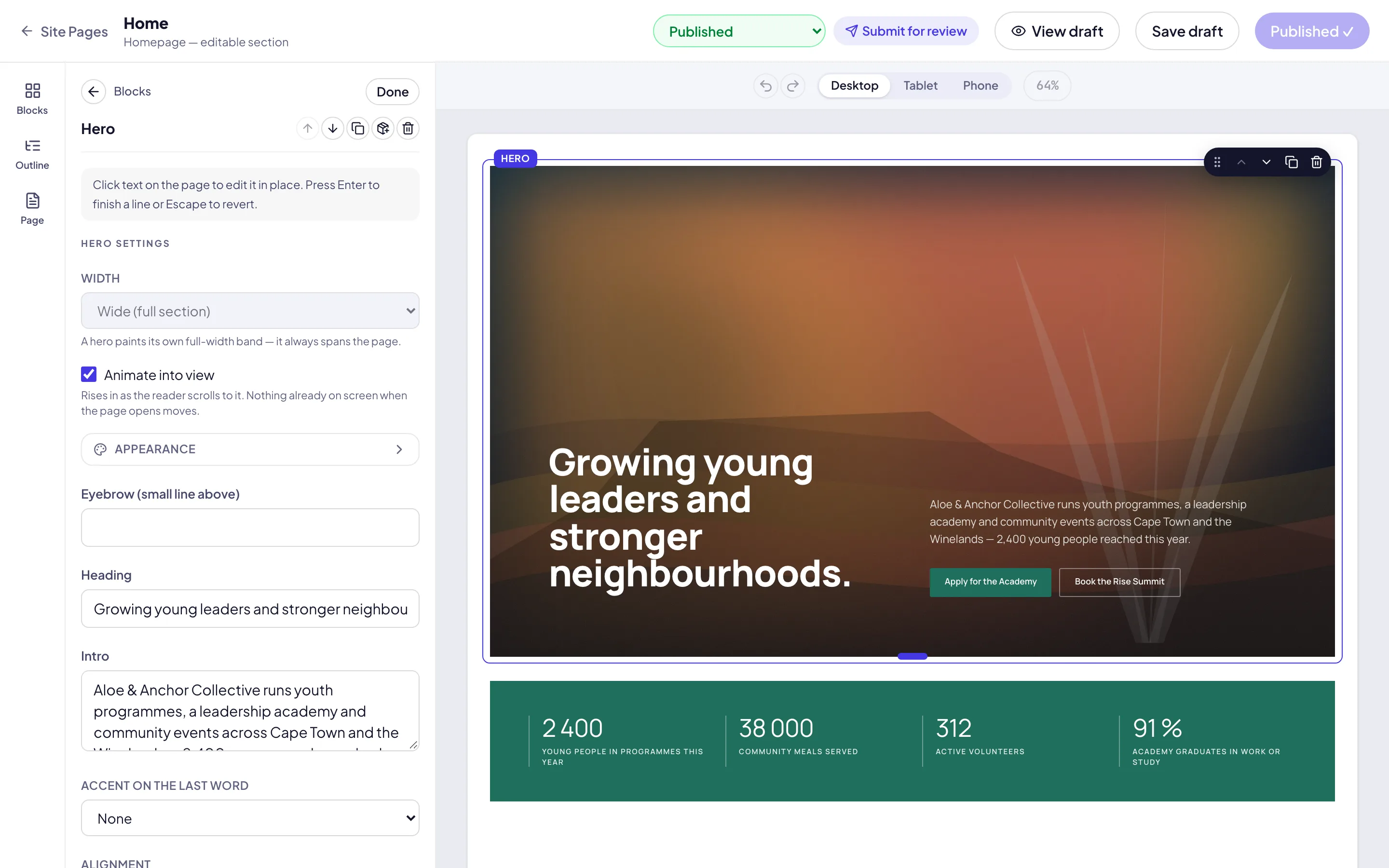
Editors build every page from blocks. This guide covers the blocks and options people ask about most. Add a block from Blocks in the editor’s left rail; the selected block’s settings open in the panel on the right. To start a page, see Create a page.
Blocks
Tabs. Blocks under labels, one panel at a time. Name each tab under Tabs, then add blocks to each under Blocks in each tab. Visitors switch tabs with a click or the arrow keys.
Form. One of your surveys, answered on the page. Choose the Survey (surveys are built under Surveys in Reach) and the Message after sending.
Calendar subscribe. Links to subscribe in Apple Calendar, Google Calendar or Outlook. Choose the Calendar: Every event on the site, One location’s events or One programme’s events.
Instagram feed. Your latest posts, once Instagram is connected in Site settings. Choose Posts shown, Columns and the Profile link label. Until it is connected, the block shows a link to your profile.
Contact form. Under Extra fields, add a Drop-down, with options from The list below or Your programmes, or a Tick box, with an optional link such as your terms. Mark a field Required if it must be answered. Answers arrive in the message, each with its label.
Embeds
The Embed block shows a form, calendar, playlist or map from a trusted service. Paste the Embed address: the panel names the service, or says why it will not show. Services include YouTube, Vimeo, Google Maps, Google Forms, Google Calendar, Typeform, Calendly, published Outlook calendars and Microsoft Forms. Add a Title (for screen readers) and set the Height (px).
Options on blocks
Emphasis in headings. Type an asterisk either side of a word in a heading to set it apart. How it looks is the theme’s Emphasis in headings setting on the Theme screen: a slant, a colour or a mark (underline, circle or highlight).
Button colours. A Button block’s Style is Primary, Secondary or Custom colours, with a Fill and a Text colour. Text that would be hard to read on the fill is replaced with a readable colour, and the panel says so.
Carousels. Upcoming-events blocks and several card blocks offer an Arrangement of Grid or Carousel. Advance automatically moves a carousel on by itself.
Profile links. On People cards, add each person’s Profile links, such as a website, LinkedIn or Instagram. Each is shown as an icon.
Facts and tags. Feature cards can carry Facts (an icon, a label and a value, such as Starts: January 2027) and Tags, short labels shown as chips.
A picture beside a list. Values / pillars can show a Picture beside the list, on the side you choose.
A video button. A Hero can carry a Video button: a Button label, such as Watch introduction, and a YouTube, Vimeo or MP4 Film that opens over the page.