
Product tours and What’s new
Overview
Pages, Reach and Shop each have a short tour of their main screens. What’s new tells people who already know an app about its new features. Your progress in each tour is kept with your Zavon account, so it is the same on every device and browser.
Before you start
You need to be signed in to your Zavon account. No special role is needed.
The account menu is at the foot of the sidebar in each app. It shows your name or your photo.
Take the tour
Open the app
Open Pages, Reach or Shop for the first time. Its tour starts by itself. Each step points at one part of the screen.
Move through the steps
Select Next or Back. Select Learn how to open the guide for a step in a new tab.
Finish or stop
On the last step, select Done. To stop at any step, select Skip tour, or use the Esc key. The tour does not start by itself again.
Restart a tour
Open the account menu
At the foot of the sidebar, select your account menu.
Restart it
Select Restart tour. The tour starts again at the first step.
See what is new
Look for the dot
Look at your account menu. A dot on it shows that there are new features that you did not see.
Open What’s new
Open the account menu and select What’s new. The list shows the new features of this app, and of every Zavon app.
Show me
Select Show me to see a short tour of the feature. Not every feature has one.
Find out more
Select Find out more to open the feature’s guide in a new tab.
Dismiss
Select Dismiss to remove a feature from the list. It does not come back, in this app or in another.
Your account page
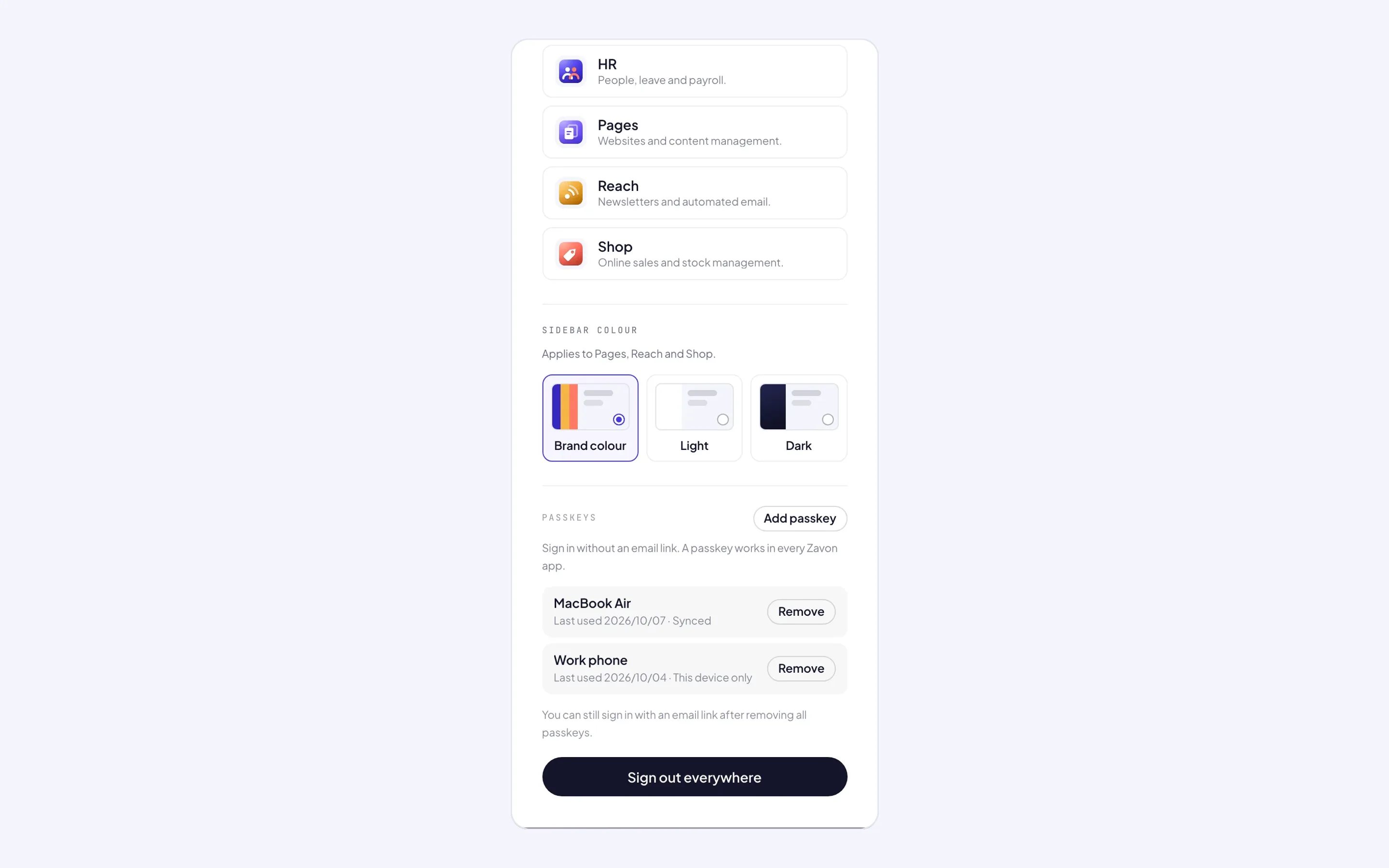
Your account page at accounts.zavonpages.com/account also lists What’s new, for the features that concern every Zavon app.
Troubleshooting
If the tour starts again on a computer that you share, make sure you are signed in with your own account. Progress belongs to the account, not to the computer.
If Show me does not show a step, the screen for that step is not available to your role. Select Find out more to read the guide.
If What’s new is empty, there are no new features for you. The list says No new features yet.
Good to know
Who sees new features. What’s new is for people who completed the app’s tour before the feature arrived. If you take the tour later, the tour already shows the app as it is now.
Big features. For a big feature, a small note can show once, after the first page that you open on a day. Close it, or select Show me. You see at most one note a day.
Some features are for some people. A feature for administrators shows only to people who manage users. Some features show only to some types of organisation.
Offline. If the app cannot reach Zavon, your progress is kept in the browser. It is sent when the connection comes back.
Accounts: getting started: your account page and your settings.
Pages: getting started: the Pages console.
Reach: getting started: the Reach console.
Shop: getting started: the Shop console.