
Cohorts and graduation
Overview
A cohort is a group of people who start a programme together. An accepted application gives the applicant a place in a cohort. A schedule can open the next cohort for you.
When people finish, you graduate them. Reach then tags each graduate, so you can send news to the graduates of a cohort.
Before you start
To add cohorts and set a schedule, your role needs Edit on Applications. To enrol, move and graduate people, it needs Review applications for that programme. See Roles and access.
The programme must exist first. See Programmes and applications.
Add a cohort
Open the cohorts
In the sidebar, select Site › Programmes. Open the programme. Select Cohorts.
Start a cohort
Select New cohort.
Details
Type the Name. If you want a short code, type a Code. Select Next →.
Dates and places
Set Starts and Ends. Set Places, or select Unlimited. Set the Status. Select Next →.
Graduates
To show the graduates’ names on your site, turn on List graduates on the site. Select Next →.
Add it
On the Review step, select Confirm and add to and the programme name. The cohort shows in the list.
Set a schedule
Start the schedule
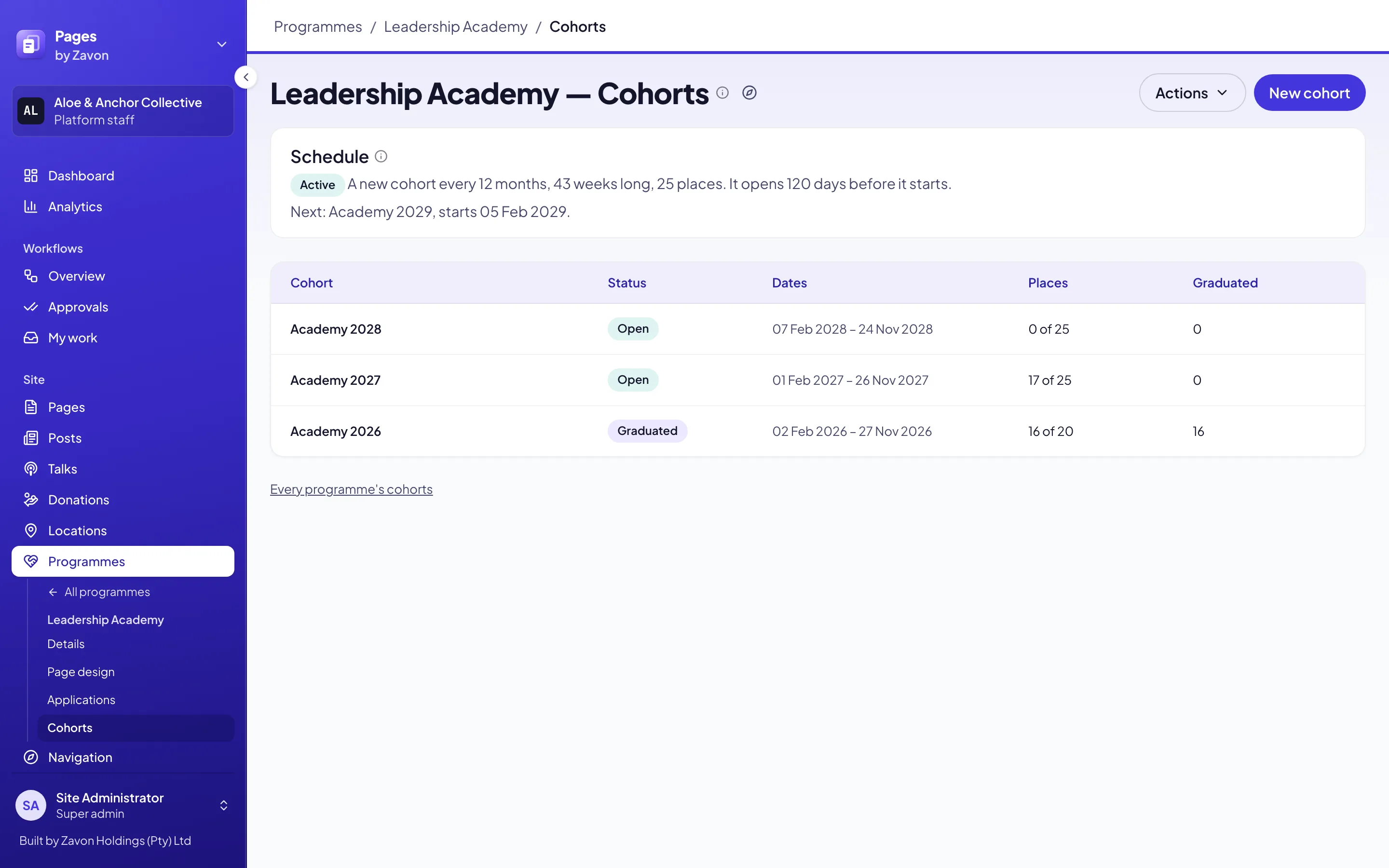
On the programme’s Cohorts tab, select Actions › Set a schedule.
Rhythm
Set Next start. Set Repeats every (months) and Length (weeks). Select Next →.
Each cohort
Type the Name pattern with
{year},{month}or{n}. Set Places and Opens before start (days). Select Next →.Status
Turn on Schedule active. Select Next →.
Save it
On the Review step, select Confirm the schedule for and the programme name. The Schedule card shows the next cohort.
Link an intake to a cohort
Open the intake
On the programme’s Applications tab, select Change on the intake.
Set the cohort
On the Dates and places step, set Cohort for accepted applicants.
Save it
On the Review step, select Confirm and save. Applicants accepted from this intake join that cohort.
Accept an applicant into a cohort
Open the application
In the sidebar, select People › Applications. Open the application. Select Accept.
Give a place
Keep Enrol in a cohort selected. To use another cohort, set Cohort.
Confirm
Select Confirm decision. The Cohort card shows the cohort and the status Enrolled.
Enrol, move and graduate people
Open the cohort
In the sidebar, select People › Applications › Cohorts. Open the cohort.
Add a person
Select Enrol a person. Type the Email and the Name. Select Enrol. The person shows as Enrolled.
Change one place
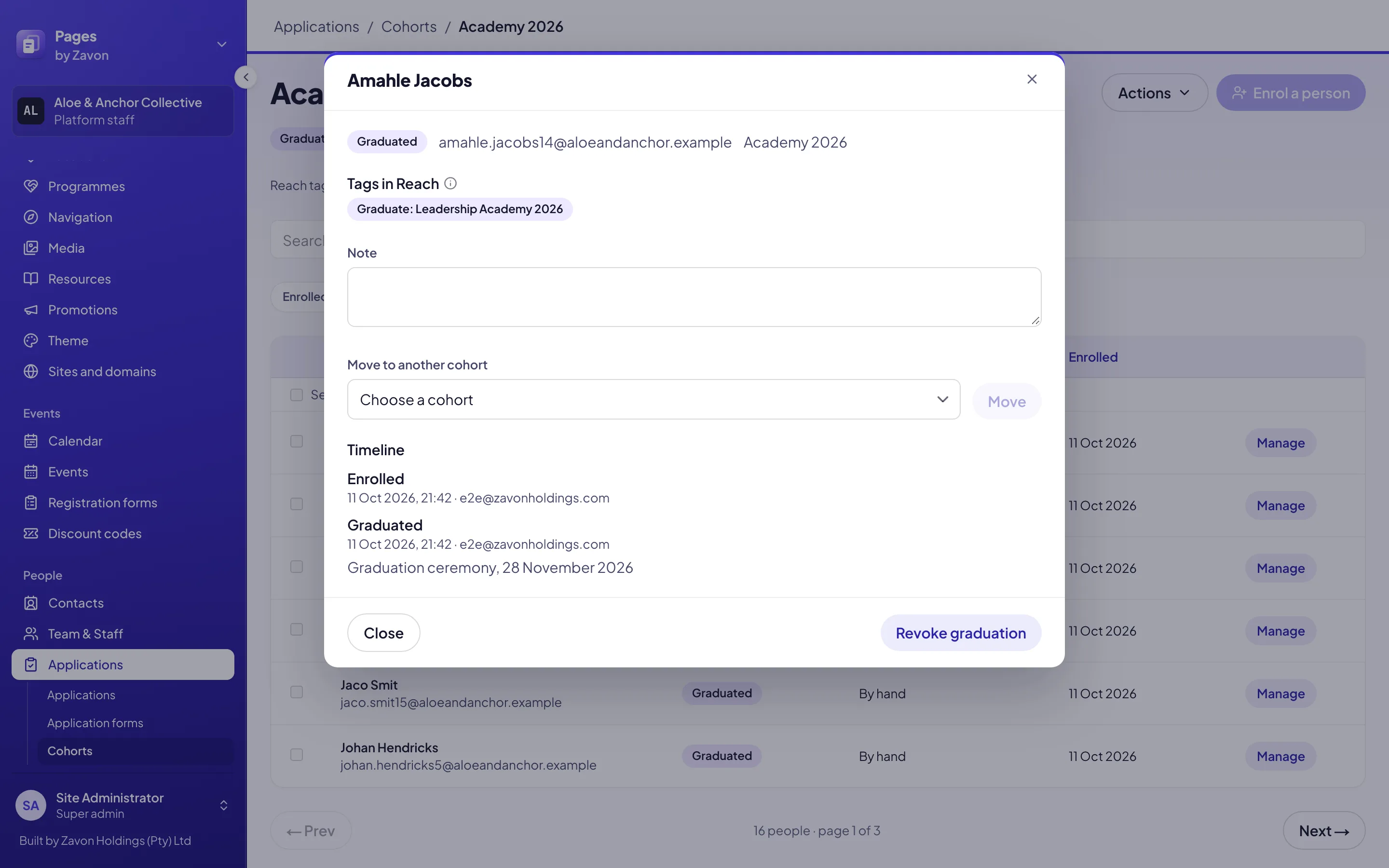
Select Manage on the person’s row. Select Graduate, or select Actions for Defer and Withdraw.
Move a person
In Manage, set Move to another cohort. Select Move. The person shows in the other cohort.
Graduate some people
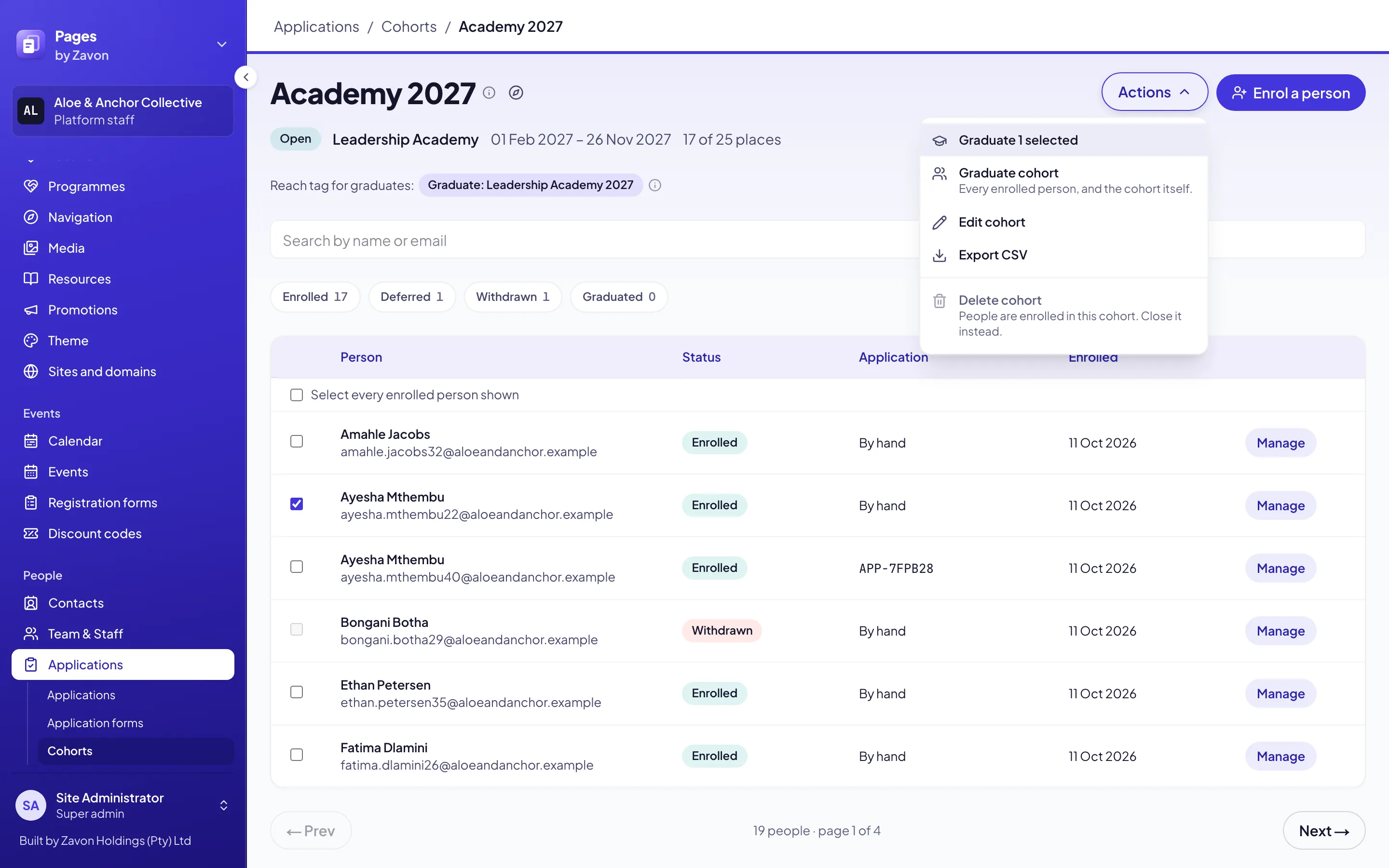
Select the check box on each row. Select Actions › Graduate selected. Select the Graduate button to confirm.
Graduate the cohort
Select Actions › Graduate cohort. Select Graduate cohort. The cohort’s status changes to Graduated.
Reach the graduates
Reach adds the cohort’s graduate tag to each graduate, for example Graduate: Academy 2026. The cohort page shows the tag before you graduate anyone.
Reach also adds each graduate to the cohort’s graduates list. It makes an audience property with the same people, for example Graduates: Academy 2026.
To send to the graduates, aim a newsletter section, a campaign or an event at that property. See Audience properties.
Troubleshooting
If a decision says the cohort is full, increase its Places or set another Cohort.
If a decision says no cohort is open, add a cohort or open one. You can also clear Enrol in a cohort.
If Enrol a person is not available, the cohort is closed or graduated. Set its Status to Open.
If you cannot lower Places, more people hold places than the new number.
If Delete cohort is not available, people are enrolled. Set the Status to Closed instead.
If the schedule opens no cohort, check that Schedule active is on. A cohort opens on the day set by Opens before start (days).
Good to know
Places. Enrolled and graduated people hold a place. Deferred and withdrawn people do not.
Dates change the status. After its start date, an open cohort shows Running. After its end date, it shows Closed. Graduation is never automatic.
An acceptance taken back. If you move an accepted application back, its place is withdrawn. A graduation stays.
A graduation taken back. In Manage, select Revoke graduation. Reach removes the tag.
History. Each enrolment, move and graduation shows in People › Activity.
Programmes and applications: forms, intakes and decisions.
Audience properties: send to the graduates in Reach.
Contacts and tags: the graduate tag on a contact.
Roles and access: who may graduate people.