
Collaborative newsletters
Overview
A newsletter is often written by several people. In Reach, the owner of a newsletter asks a person to write one section of an issue. The person writes it, and the owner reviews it before it goes into the issue.
While a person writes a section, it is locked. Other editors cannot change it. Reach records every request, reminder and decision on the issue’s timeline, and keeps every version of every section.
Before you start
To ask a person to write a section, you need a role that can assign sections. The Editor and Organisation administrator roles can.
The person you ask does not need a role in Reach. Zavon Accounts gives them access to their section only. If they are new to your organisation, Zavon Accounts sends them an invitation.
An issue that is planned or booked gives each due date a starting point. See Send a newsletter.
Ask a person to write a section
Open the People panel
Open the issue and select Edit design. In the rail, select People. Each section of the issue shows who writes it.
Assign the section
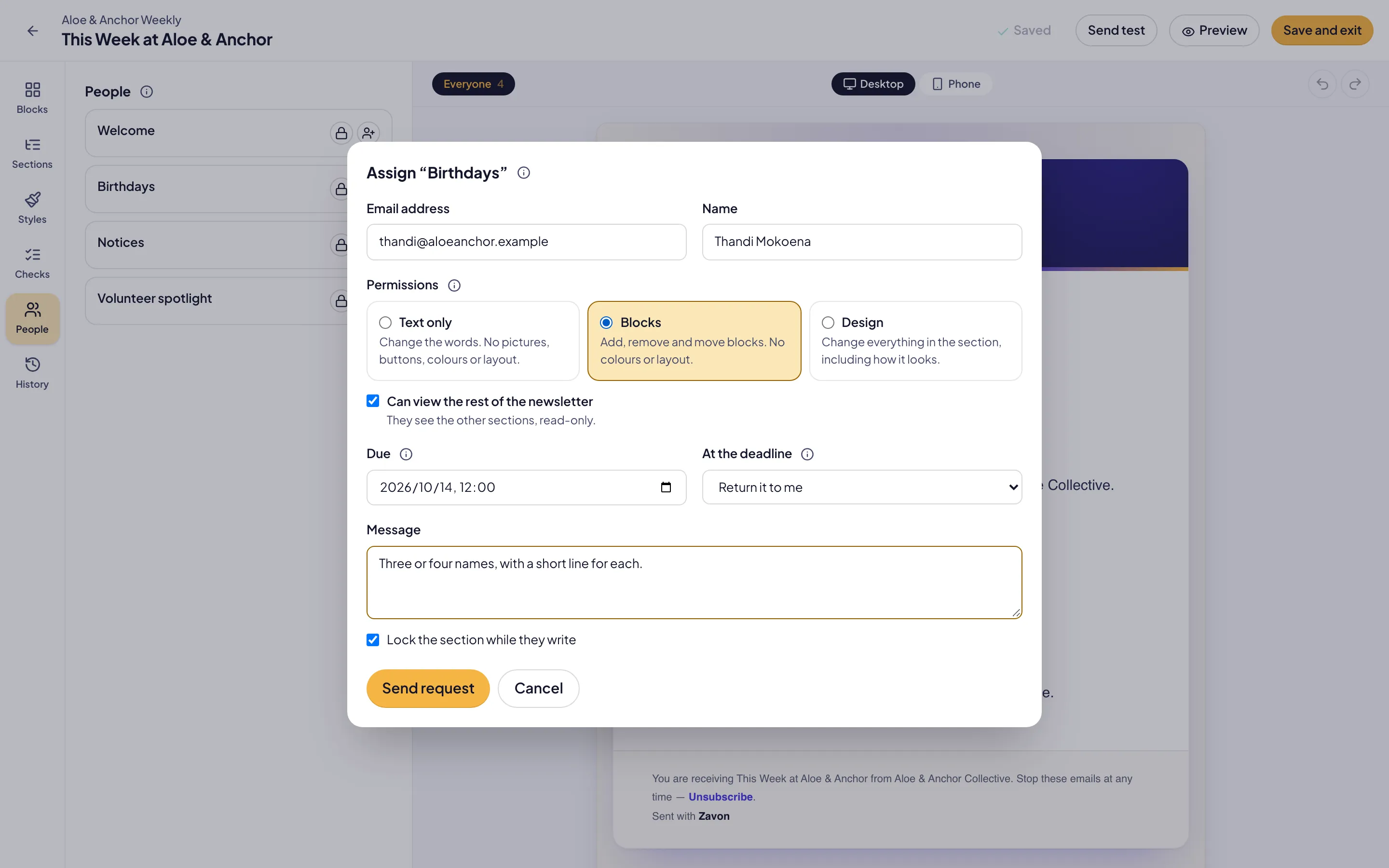
Beside the section, select Assign. Type the person’s Email address, or select a person from the list.
Set the permissions
Under Permissions, select Text only, Blocks or Design. Text only changes the words. Blocks also adds pictures and buttons.
Set what they can see
Select Can view the rest of the newsletter to show them the other sections, read-only. Clear it to show their section only.
Set the due date
Check the Due date. A recurring section suggests one from its rule. Set At the deadline to what happens if nothing arrives.
Send the request
Type a Message if you want to. Keep Lock the section while they write selected. Select Send request.
Write your section
Open your section
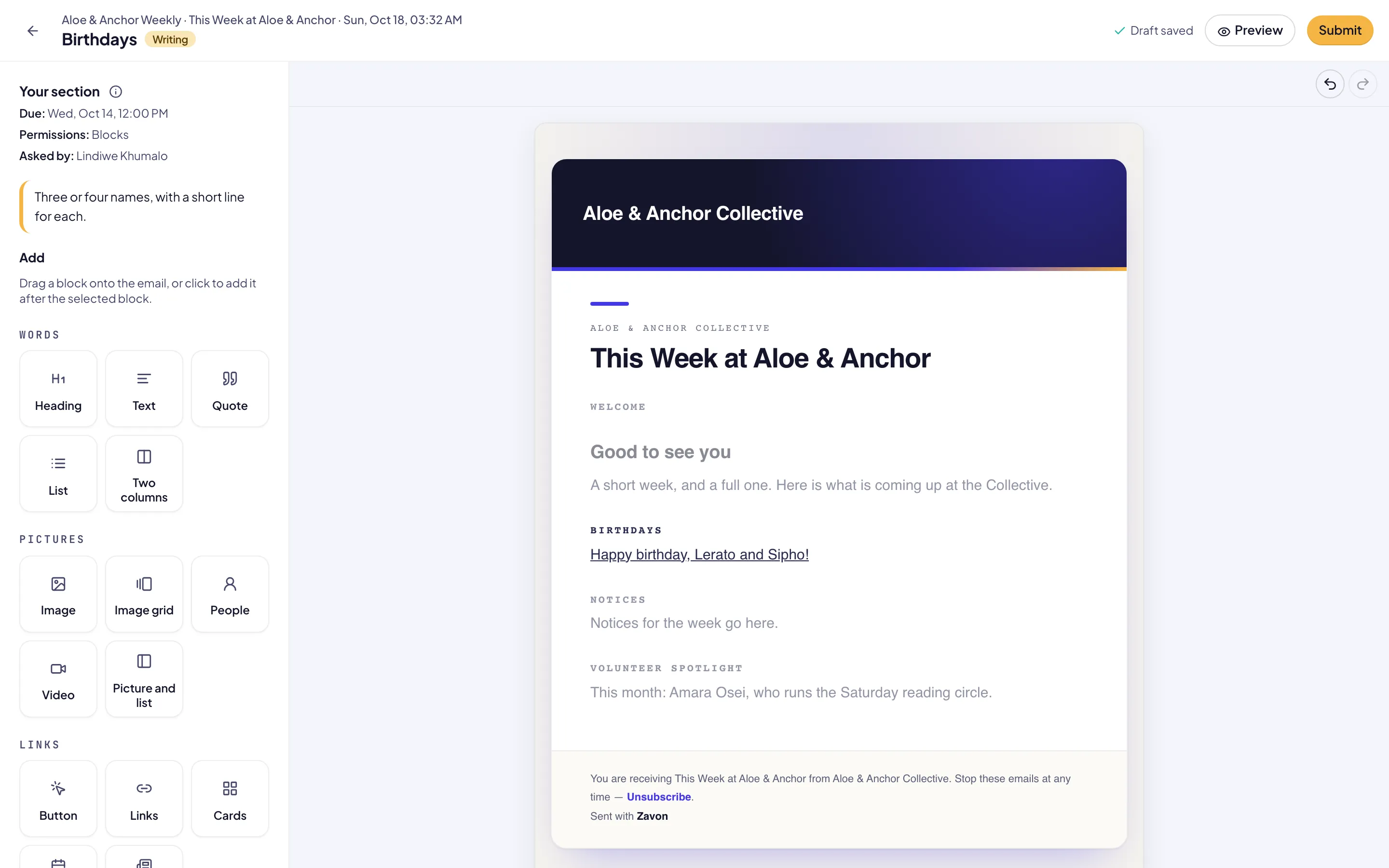
Select Open your section in the request email. Sign in with the address the email went to.
Find it later
In the sidebar, select You › My sections. The request is also in My work.
Write it
Select a block in your section, then select it again to type. Use the format bar for bold, italic, underline, strikethrough and links.
Add blocks
Under Add, select a block. Text only offers headings, text, quotes and lists.
Preview it
Select Preview. To see the copy an audience gets, set As.
Submit it
Select Submit. Type a Note to the owner if you want to. Select Submit.
Review a section
Find what is ready
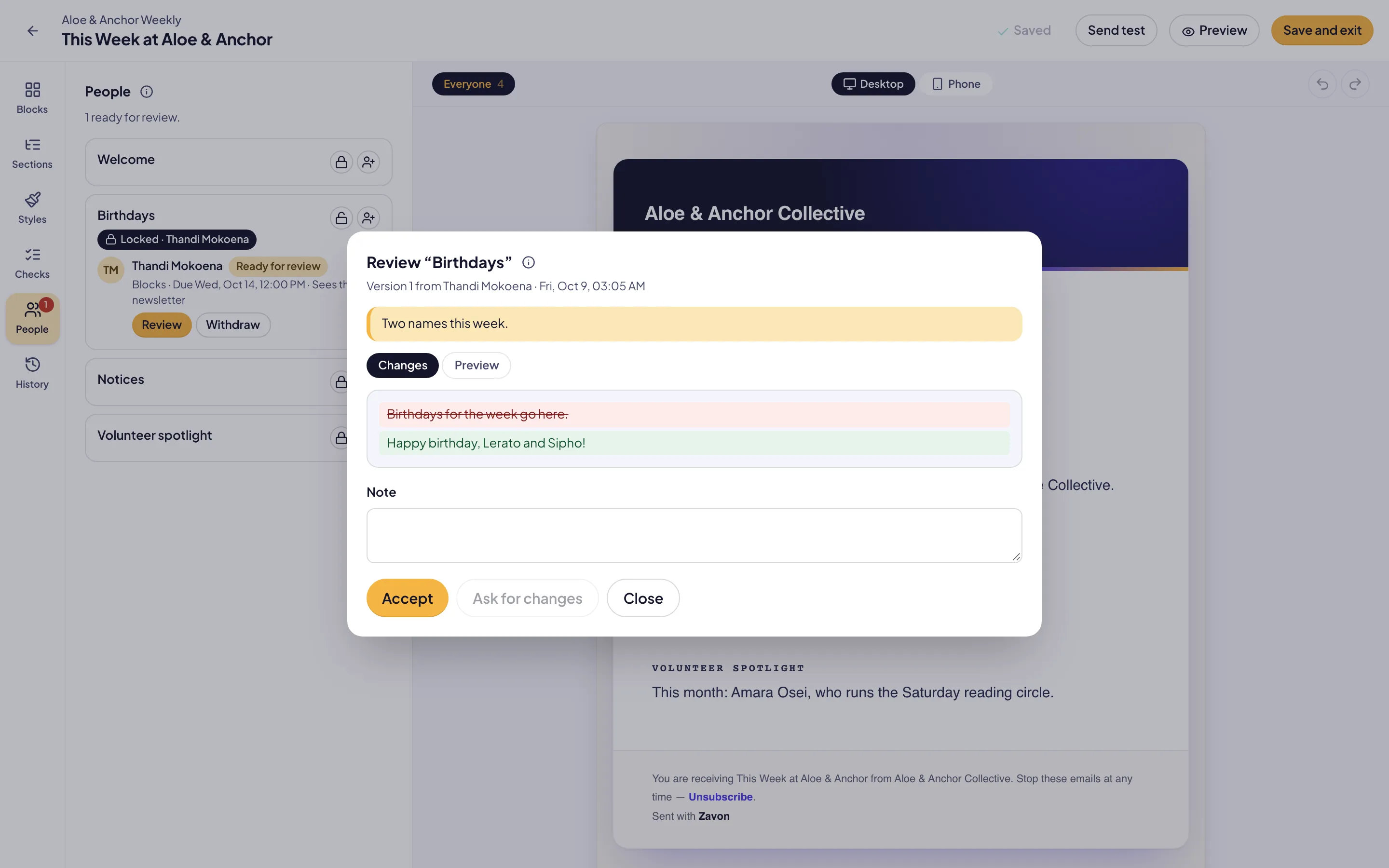
Open People. A section that is ready shows Ready for review. It is also in your My work.
Compare
Select Review. Changes shows what the new version adds in green and takes out in red. Select Preview to see it in the email.
Accept it
Select Accept. The version goes into the issue, and the section unlocks.
Or ask for changes
Type a Note. Select Ask for changes. The person gets your note, changes the section and submits it again.
Deadlines and reminders
Let the reminders go
Leave the reminders to Reach. It reminds the person two working days before the due date, four hours before, and at the deadline.
Remind by hand
In People, select Remind. You can remind a person once every 12 hours.
Decide on an overdue section
Look for Overdue in People. A section shows it when nothing arrives by the deadline. Select Decide.
Give more time
Set a New due date. Select Nudge with the person’s name. The reminders start again.
Or take it back
Select Write it yourself, Use a placeholder, Leave the section out or Use the last issue’s.
History and restore
See what happened
In the rail, select History. Timeline lists each request, reminder, decision, restore and send.
Compare a version
Select Versions, then select a version. Green is what restoring puts back. Red is what it takes out.
Restore it
Select Restore this version. The restore is a new version, so you can undo it the same way.
Troubleshooting
If you cannot change a section, hold the pointer over it. A locked section shows who writes it. Ask the owner to unlock it.
If you own the newsletter and change a locked section, Reach asks Unlock or edit anyway?. Select Unlock or Edit anyway.
If a request shows No access in Zavon Accounts, ask an administrator to add the person to your organisation.
If the issue does not send, check People for an Overdue section. Decide what to do with it, then send again.
If Submit is not available, change something in your section first.
Good to know
Drafts stay drafts. What a person writes is saved as a draft. It never changes the issue until you accept it.
Fonts and colours stay. A newsletter’s fonts and colours belong to the publication. A person with Text only or Blocks cannot change them.
Access ends. When you accept, withdraw or take back a section, Reach removes the access it gave.
Nobody else is told. An overdue section returns to the owner only. Reach records it on the timeline.
Send a newsletter: create a publication, then write, test and send an issue.
Approve a newsletter before it is sent: submit an issue for review, then send what was approved.
Plan newsletter issues: copy an issue to future dates with its contributors.
Invite your team: give people access to your organisation.
Reach: getting started: find your way around Reach.