
AI settings
Overview
Organisation admins see the AI credits and the usage of their organisation in Accounts. They set a monthly limit, choose who may use AI assistance, and accept the privacy notice.
Before you start
You must be an organisation admin in Accounts. See Roles and access.
Zavon turns on AI assistance for your organisation. Zavon also records each top-up of credits.
Accept the privacy notice
Open the AI page
In Accounts, select AI assistance.
Read the notice
Read the privacy notice. It says what is sent, to whom and for how long.
Accept
Select Accept. Your name and the date are recorded.
Set a monthly limit
Set the limit
On the AI assistance page, set Monthly limit in credits. Set 0 for no limit.
Save
Select Save. The limit applies to Pages, Reach and Shop together.
Choose who may use AI assistance
Open the role
In Accounts, open Roles. Then open the role.
Give the permission
Turn on AI assistance for each product that the role may use it in.
Save
Select Save. The AI buttons show for people with the role.
Troubleshooting
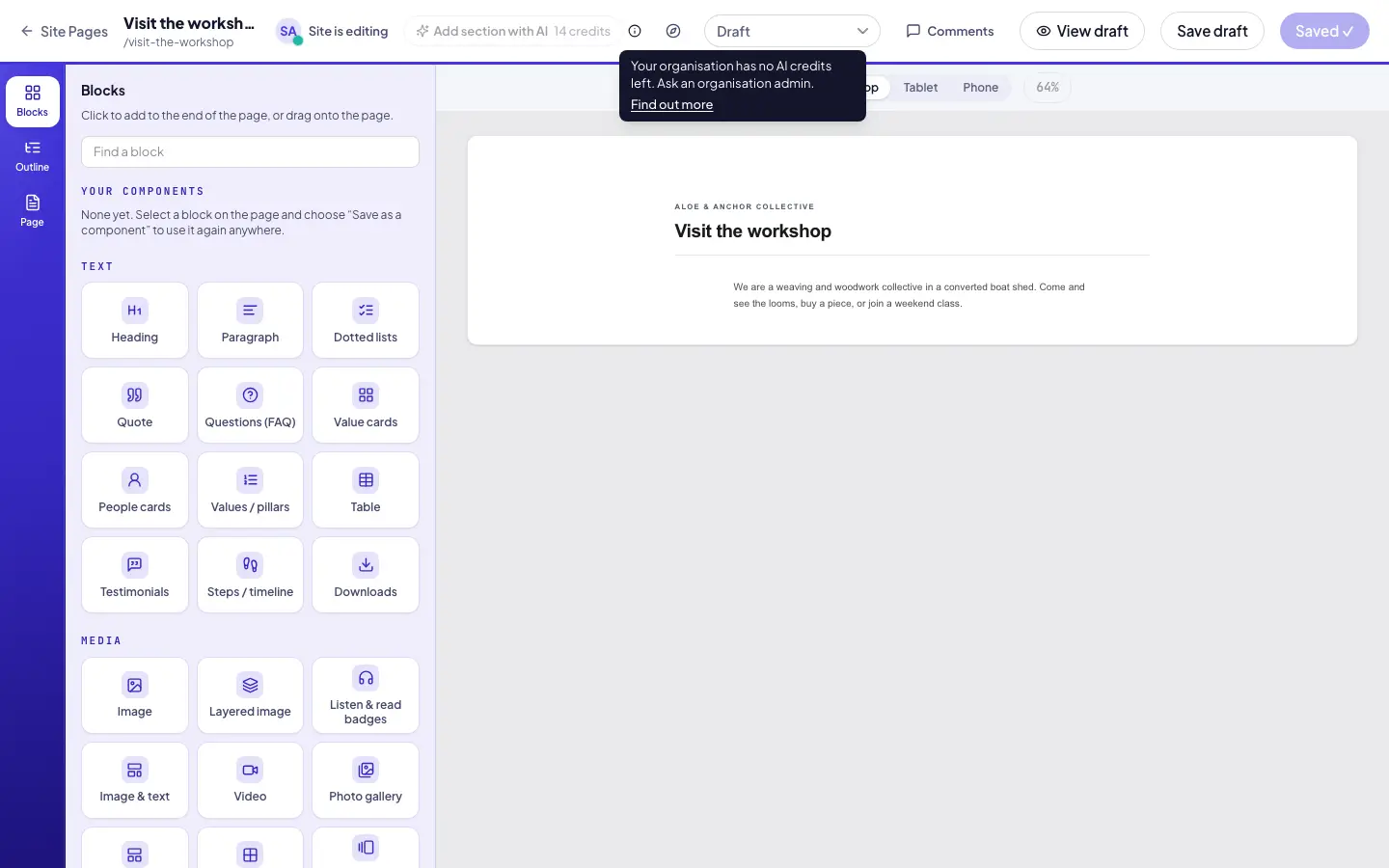
If the balance is 0, ask Zavon for a top-up. The AI buttons stay grey until credits are added.
If people reach the monthly limit, raise the limit or wait for the next month.
If a person cannot see the AI buttons, check that their role has AI assistance for that product.
Good to know
Admin roles. The AI assistance permission is in the Admin role templates only. Add it to other roles when you want to.
Alerts. At 50%, 80% and 100% of the monthly limit, the AI buttons show a notice.
Usage. The page shows the balance, usage by tool and usage by person, and credits released after failed requests.
Promotional credits. Promotional credits are used before paid credits. They expire after 365 days.
AI assistance: what AI assistance does and how your text is kept private.
Roles and access: roles and permissions.