
AI page drafts
Overview
In Pages, AI assistance drafts a block, a section or a whole page from a short description. It also suggests theme colours from a logo, search text and alt text. Editors check every draft before they save it.
Before you start
Zavon must turn on AI assistance for your organisation. See AI assistance.
You need a role with Pages: edit and AI assistance. To suggest colours, the role must also edit the theme. To suggest alt text, it must also edit media. See Roles and access.
Change a block
Select the block
In the page editor, select the block that you want to change.
Open the block settings
In the block’s settings, select Change with AI. Heading, text and button blocks have it.
Describe the change
Type the change in Describe what you want, such as “Make this shorter”.
Confirm the cost
Select Generate. The price shows on the button.
Apply the draft
Review the draft in AI suggestion. Select Apply to put it in the block, or Discard.
Save the page
Select Save draft. Then publish the page or submit it for review as usual.
Add a section
Open the page
Open the page in the page editor.
Start the section
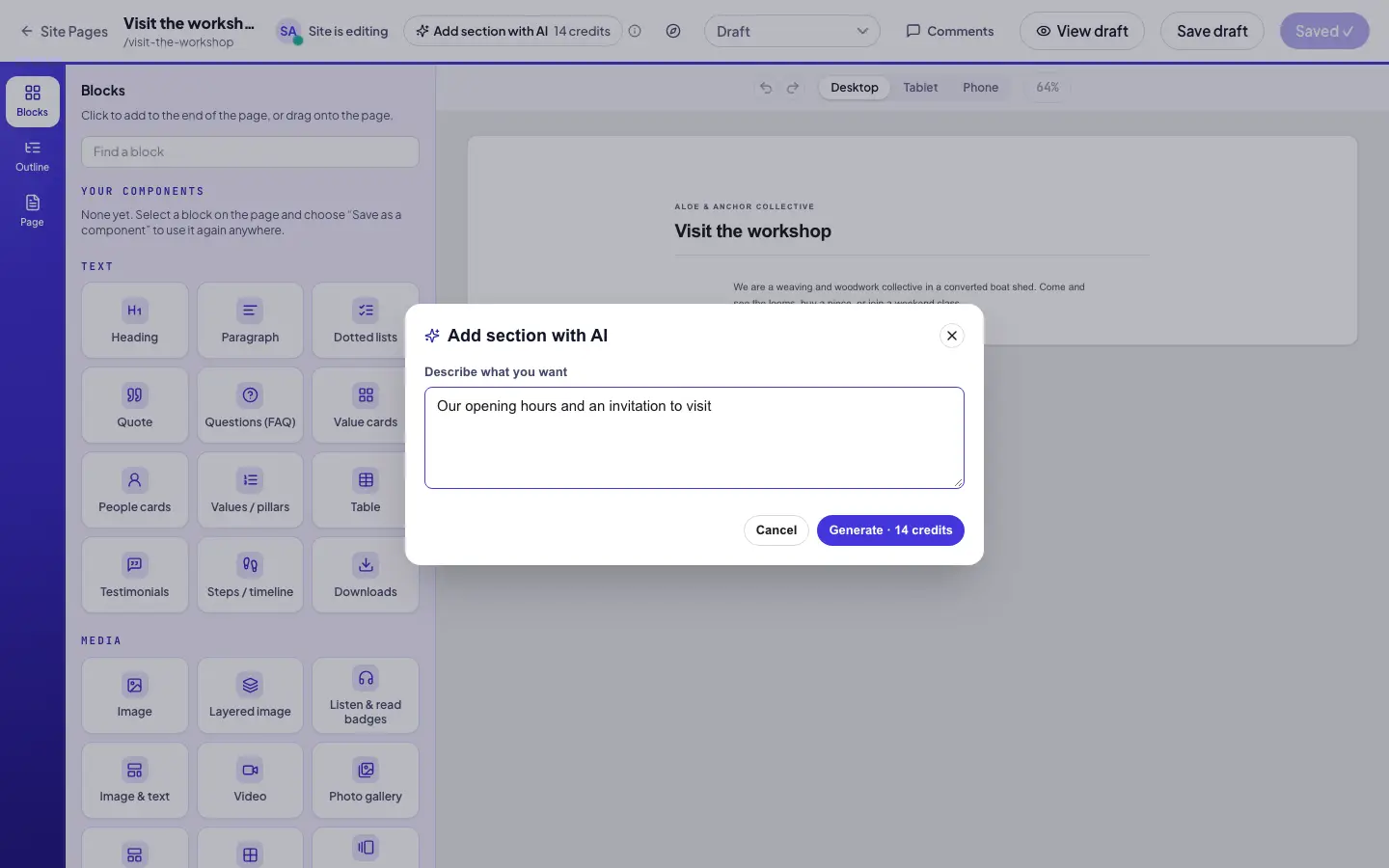
Select Add section with AI. On a phone, it is in the Blocks panel.
Describe the section
Type what the section is about in Describe what you want. Then select Generate.
Apply the blocks
Review the blocks in AI suggestion. Select Apply to add them after the selected block, or at the end.
Draft a new page
Open the pages
In the sidebar, select Site › Pages.
Start the draft
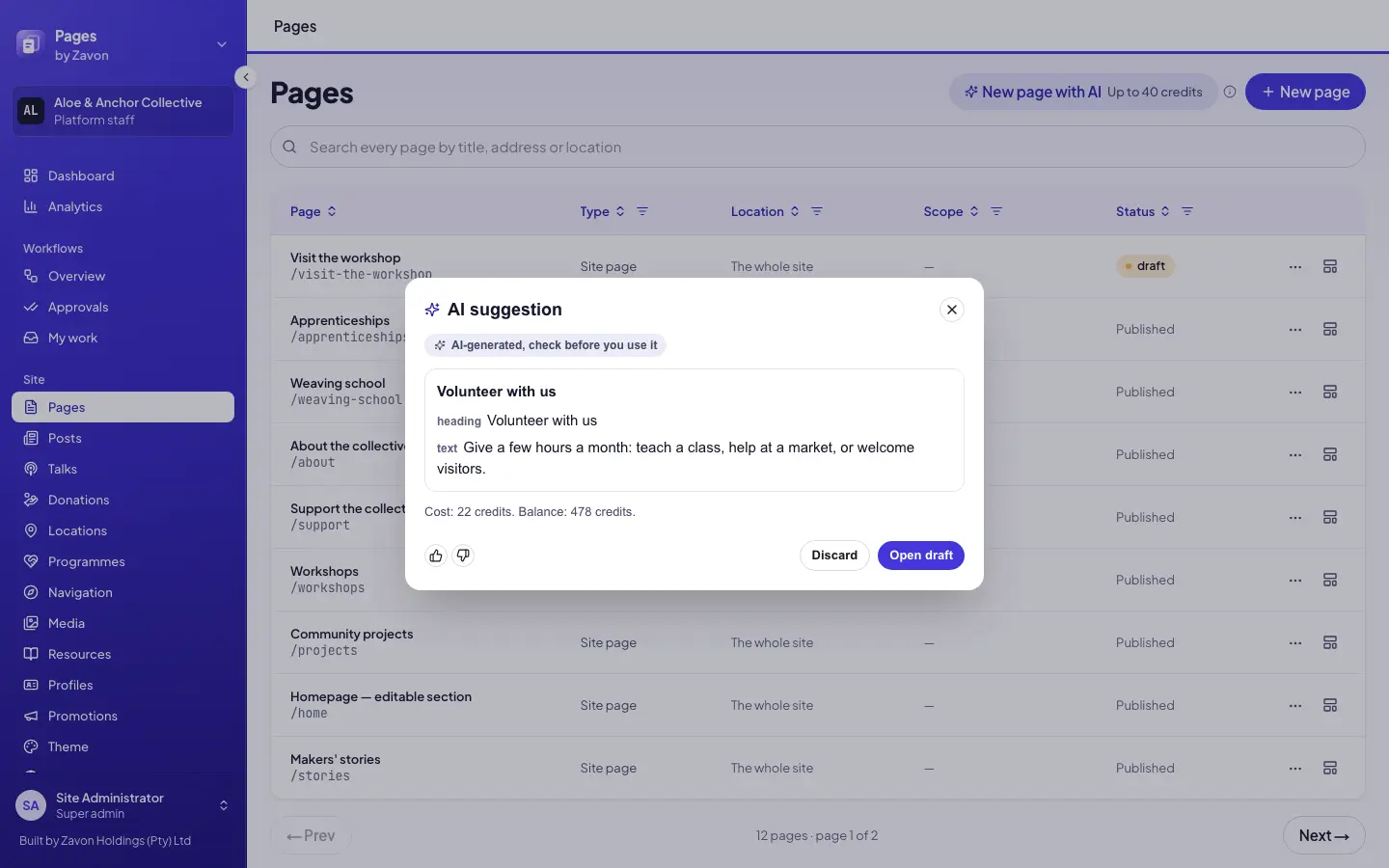
Select New page with AI.
Describe the page
Type the purpose of the page in Describe what you want. Then select Generate.
Wait for the draft
Wait while AI assistance writes the draft. This can take up to two minutes.
Open the draft
Select Open draft. The new page opens in the editor as a draft.
Suggest colours, search text and alt text
Colours from a logo
In the sidebar, select Site › Theme. Then select Suggest colours from logo.
Apply the colours
Review the colours in AI suggestion. Select Apply, then select Save theme.
Search text
In the page’s Search and sharing settings, select Suggest title and description.
Alt text
In the sidebar, select Site › Media. Open a picture, then select Suggest alt text.
Save the fields
Review the suggestion and select Apply. The fields are filled but not saved. Select Save.
Troubleshooting
If you do not see the AI buttons, AI assistance is off for your organisation. See AI assistance.
If a button is grey, hold the pointer on the information icon. It gives the reason.
If the result says that the draft could not be used, type a shorter description. Then select Generate again.
If AI assistance says that there is no logo, add a logo to the site settings first.
Good to know
Your blocks only. AI assistance uses the blocks of your block library. Pages checks every drafted block before you see it.
Drafts. A drafted page is saved as a draft. It is not published, and it goes through review like any other page.
Undo. After Apply, Undo in the page editor takes the change back.
Tour. In the page editor, select Tour AI assistance. Or select Show me in What’s new. The tour shows each AI button that is on the screen. A new AI button shows a New marker until you use it.
AI assistance: credits, permissions and privacy.
Create a page: save, review and publish.
Search engine settings: titles and descriptions.
Theme: colours and fonts.
Media library: pictures and alt text.