
Comments
Overview
Your team can comment on a post or a page in the Pages console, as in a shared document. A comment can be on words, on a block, or on the whole post.
Colleagues reply in the same thread. When the work is done, any of them can resolve the thread.
Before you start
You can comment on a post or a page when your role lets you view it. An administrator can give a role the Cannot comment restriction. See Roles and access.
Add a comment
Open the post or page
In the sidebar, select Site › Posts or Site › Pages. Open the post or the page.
Select what it is about
In a post, select the words or put the cursor in a paragraph. On a page, select a block.
Open the comments
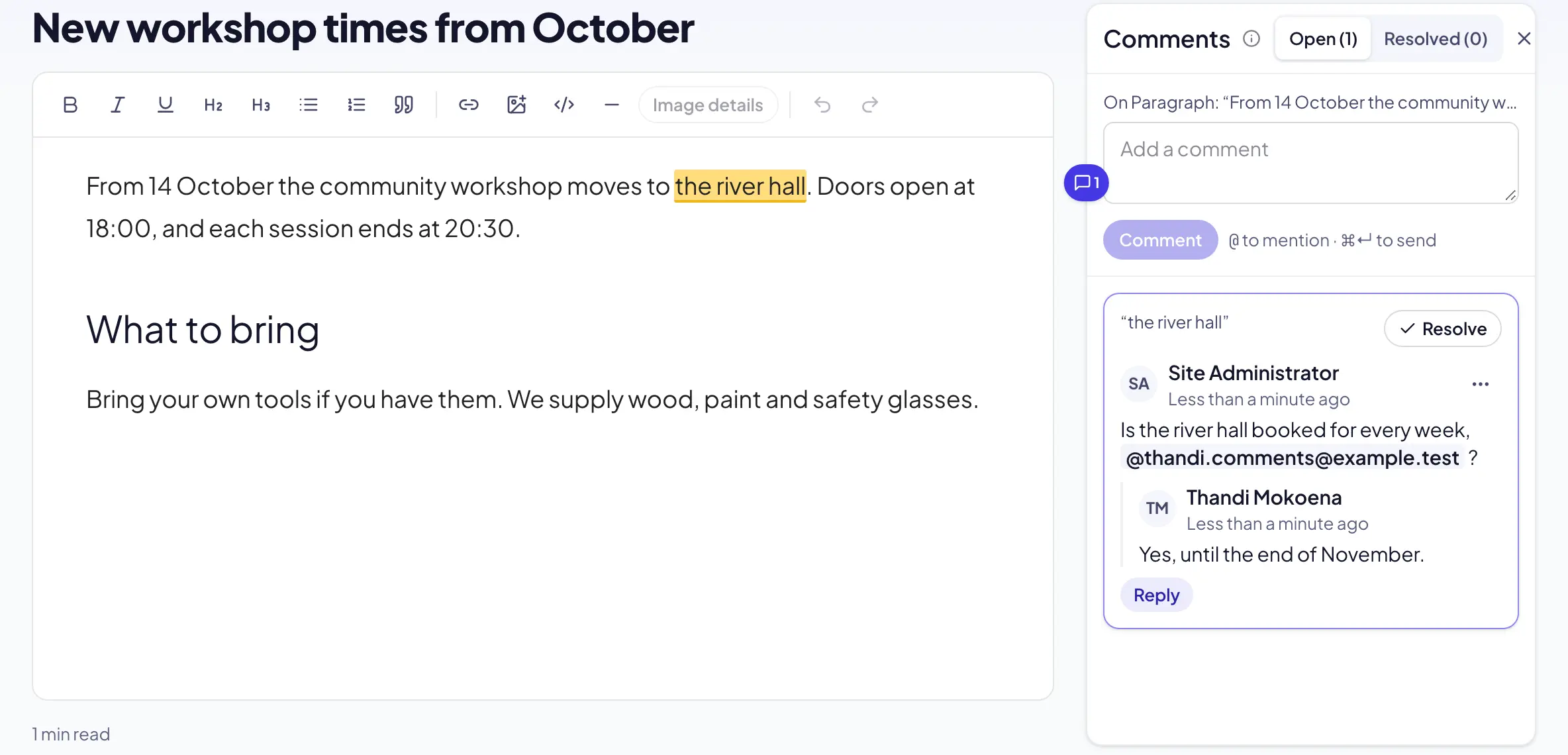
Select Comments in the header. The comments open beside the editor.
Write the comment
Check the line above the box. It names the words or the block. Type the comment in the box.
Mention a user
To ask a user, type @ and the start of their name. Select the user in the list.
Send it
Select Comment. The words or the block get a highlight and a mark with the number of comments.
On a phone
Open the comments
Select the comments icon in the header, beside More. The comments open from the bottom of the screen.
Close them
Drag the sheet down, or select Close.
Troubleshooting
If the box says your role does not allow comments, a role you hold has the Cannot comment restriction. Ask an administrator.
If a user is not in the list, they cannot open this post or page. Give them access in Accounts first.
If a comment shows On a removed block, someone deleted that block. The comment stays, so you can still read it.
If a new paragraph cannot take a comment, wait until the editor saves your draft. Then try again.
Good to know
Mentions. A mentioned user gets an email and a task in My work. The task closes when they reply, when someone resolves the thread, or when they select Mark as done.
Versions. A comment stays on its block when you move it, edit it, or restore a version that has it.
Other pages. Location pages and section pages have comments too. Open the page in its designer and select Comments.
Lists. The Posts list and the Pages list show how many open comments each row has.
Activity. The Activity screen records each comment, edit, deletion and resolution.
Write a blog post: the post editor.
Create a page: the page builder.
Comments on a newsletter: the same in Reach.
Roles and access: who can view and comment.