
Target WhatsApp and SMS
Overview
A campaign’s WhatsApp and SMS messages can go to some of a list only, for example the young adults on your members list. Each message can also list the reader’s own upcoming events. Reach counts and charges only the people the message reaches.
Before you start
Make the audience properties first, under People › Audiences. The campaign must go to a list.
Narrow a campaign’s audience
Open the campaign
In the sidebar, select Send › Campaigns, then open the campaign.
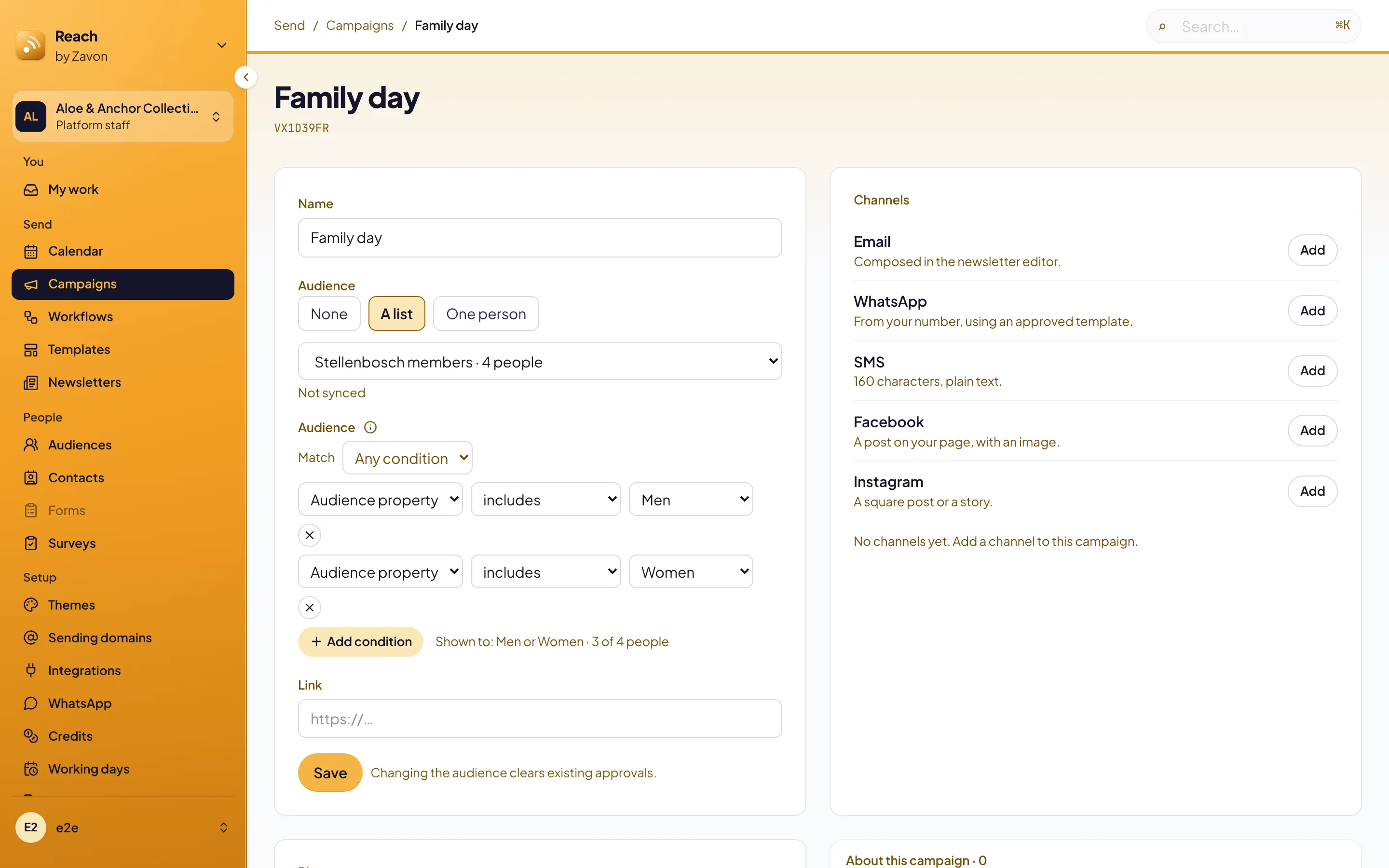
Choose the list
Under Audience, select A list, then select the list.
Add the filter
Under Audience filter, select Add condition. Set the property or the location.
Save
Select Save. The line beside Add condition shows who the message reaches and how many.
List each reader’s events
In an SMS
Type
{{events.upcoming}}in the message. Each reader gets their next three events in fourteen days.In a WhatsApp template
Set a template parameter to Upcoming events for the reader. It fills one line.
Troubleshooting
If a post goes back to Draft, its audience changed after approval. Ask for approval again.
If {{events.upcoming}} is empty, the reader has no events in fourteen days. The rest of the message still goes.
Good to know
Consent still applies. The filter narrows the list. Opt-outs, quiet hours and the weekly limit still apply to each person.
Plan a campaign: time messages around an event.
Audience properties: the names messages are aimed with.
Tickets on WhatsApp: tickets for registered attendees.