
Notes and tasks
Overview
Notes keep what happened with a person: a call, a meeting, a visit or a message. A task gives a colleague something to do about the person. Tasks show in that colleague’s My work.
Before you start
To read notes, you need a role that can read notes. To write them, it must edit notes. To add a task, it must edit tasks.
A mention or a task can only go to a colleague who may read about the person.
Write a note
Open the notes
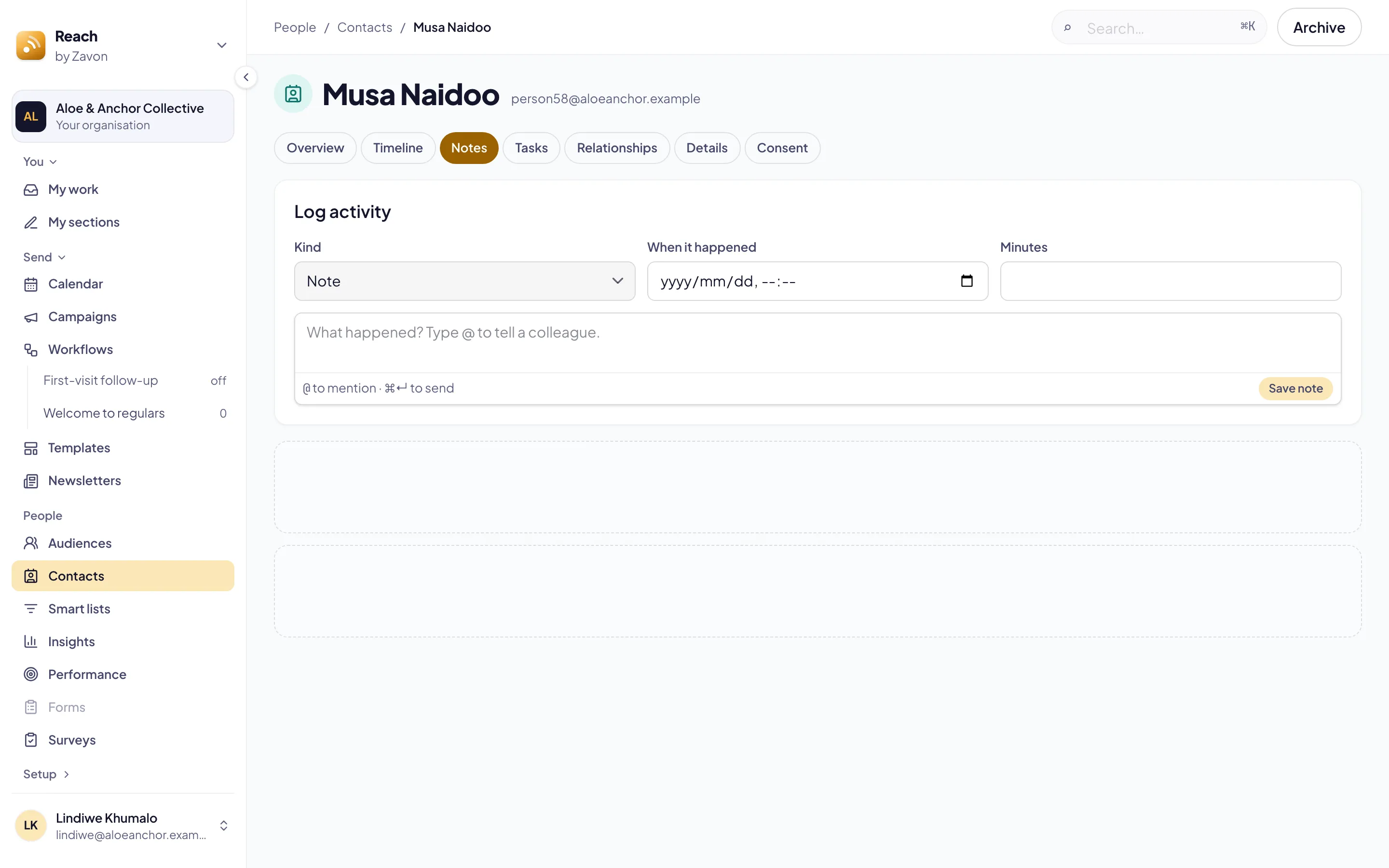
Open the person. Then select the Notes tab.
Set the kind
Set Kind to Note, Call, Meeting, Visit, WhatsApp, Email or SMS.
Write what happened
Type the note. To tell a colleague, type @ and select their name.
Set when
Set When it happened. For a call or a meeting, type the Minutes.
Save
Select Save note. The note shows in the list, and on the timeline.
Add a task
Open the tasks
Select the Tasks tab.
Describe the task
Type the Task. Then set Assigned to.
Set when
Type the Due in days. Type a Note if the colleague needs more.
Add it
Select Add task. The task shows in the colleague’s My work.
Find actions in a note
Start
On a note, select Find actions. The button shows the price in credits.
Read the actions
Read the summary and the actions the note names.
Make tasks
Select the actions that should become tasks. Then select Create tasks.
Troubleshooting
If Save note is grey, write something first.
If Add task is grey, type the task and set who does it.
If a colleague is not offered after @, they may not read notes about this person.
Good to know
Every version is kept. Only the author edits a note. Each saved version stays in its history.
Deleting a note. The author or an organisation administrator may delete a note. The deletion is recorded.
Draft message. On the Overview tab, Draft message writes a first email, SMS or WhatsApp message in your organisation’s voice. Type the Purpose and set the Channel. An SMS or WhatsApp draft shows on a phone, with the segment count for an SMS. Select Copy, then send it the usual way.
A person’s profile: the overview and the timeline.
AI writing help: the writing voice that drafts use.
Contacts and tags: find the person.