
Insights
Overview
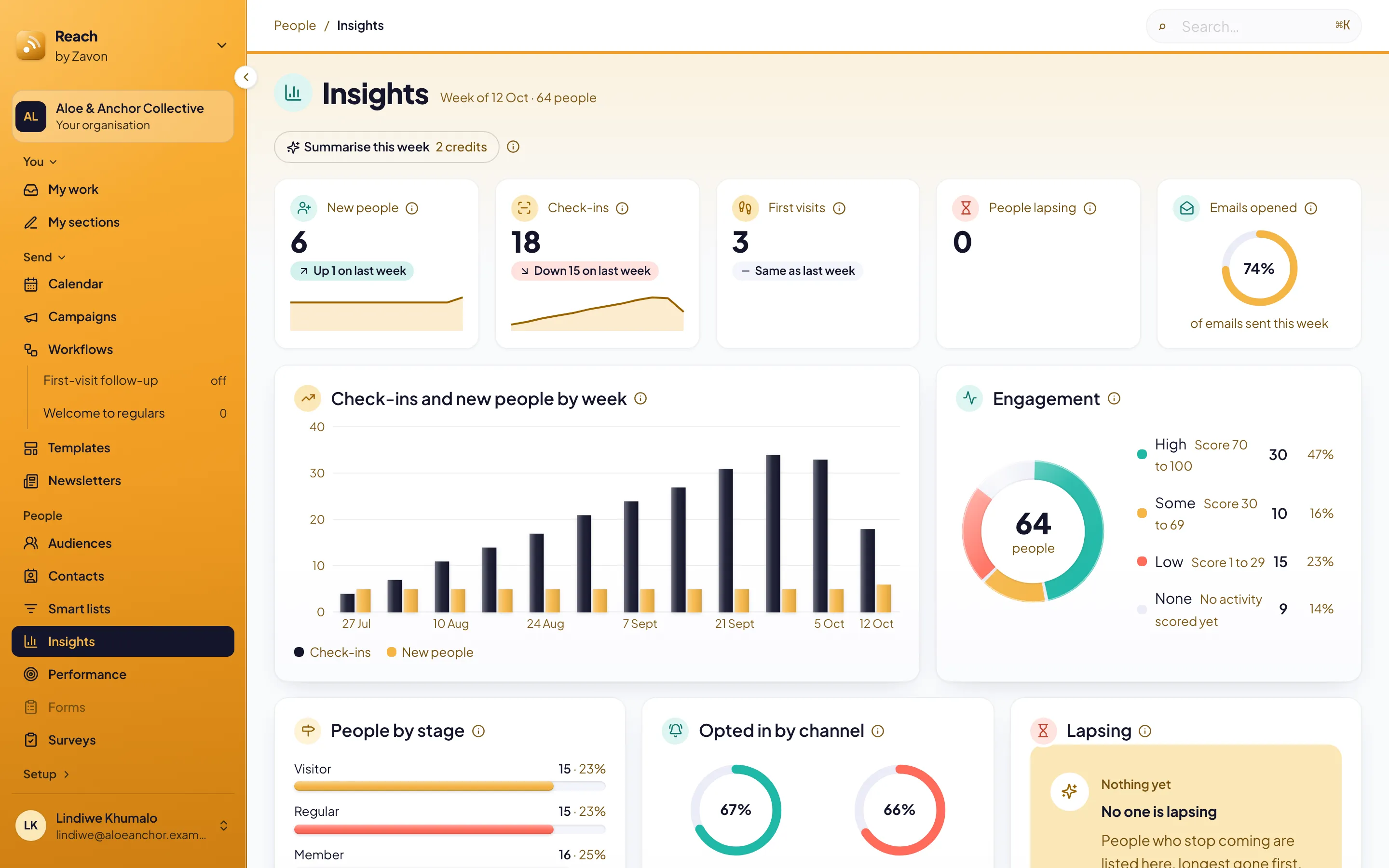
Insights shows how your community is doing this week. It shows new people, check-ins, first visits, people lapsing and emails opened, each compared with last week. Leaders and communications teams use it to see what changed.
Before you start
You need a role in Reach that can read reports. Every role that can read Reach can read Insights.
Insights reads the people, check-ins and emails that Reach already has. People by stage needs stages. Set them up under Setup › People fields.
Read this week
Open Insights
In the sidebar, select People › Insights. The numbers are for this week, in your organisation’s time zone.
Read the change
Look at the label under each number. It compares the number with last week.
Read a chart
Point at a column, a slice or a bar. A tooltip shows its value.
Open a lapsing person
Under Lapsing, select a name. The timeline of the person opens.
Summarise this week
Start
Select Summarise this week. The button shows the price in credits.
Generate
Select Generate. A few sentences about the numbers of this week show.
Keep it
Select Keep on screen. This week in words shows above the charts, with the AI-generated label.
Get Insights by email every Monday
Offer it to the team
If you manage the organisation’s settings, select Monday digest for the team on Insights.
Get it yourself
Select Email me this every Monday.
Read it on Monday
Read the email at 07:00 on Monday, in your organisation’s time zone. It shows last week’s numbers against the week before.
Stop it
Clear Email me this every Monday on Insights.
Troubleshooting
If Summarise this week does not show, AI assistance is off for your organisation. See AI assistance.
If People by stage is empty, your organisation has no stages yet. Set them up under Setup › People fields.
If Lapsing shows No one is lapsing, nobody is away for longer than usual. That is good news.
Good to know
Only your numbers. The summary uses only the numbers on the screen. Reach does not show a summary that quotes a number it was not given.
The same week, the same summary. A second summary of the same week and the same numbers costs nothing.
Lapsing. A person is lapsing when they are away for more than twice their usual gap between visits. Reach works this out every day.
The digest is internal. Only people who may read reports get it. A summary shows in it only when one was made for exactly those numbers.
Performance: which campaigns brought registrations, payments and enquiries.
Journeys: follow up first visits and welcome people back.
AI assistance: credits and who may use AI buttons.