
Your own domain
Overview
Your site has a platform address, such as yourname.zavonpages.com. You can also use your own domain, such as www.example.org.
For this, the person who manages your domain adds a few records. This guide tells you what to give them, and how to follow their progress.
Before you start
Your role needs Manage on the Sites and domains area. See Roles and access.
Know who manages your domain. This is often an IT person, an agency or the company where you bought the domain.
What to give your IT person
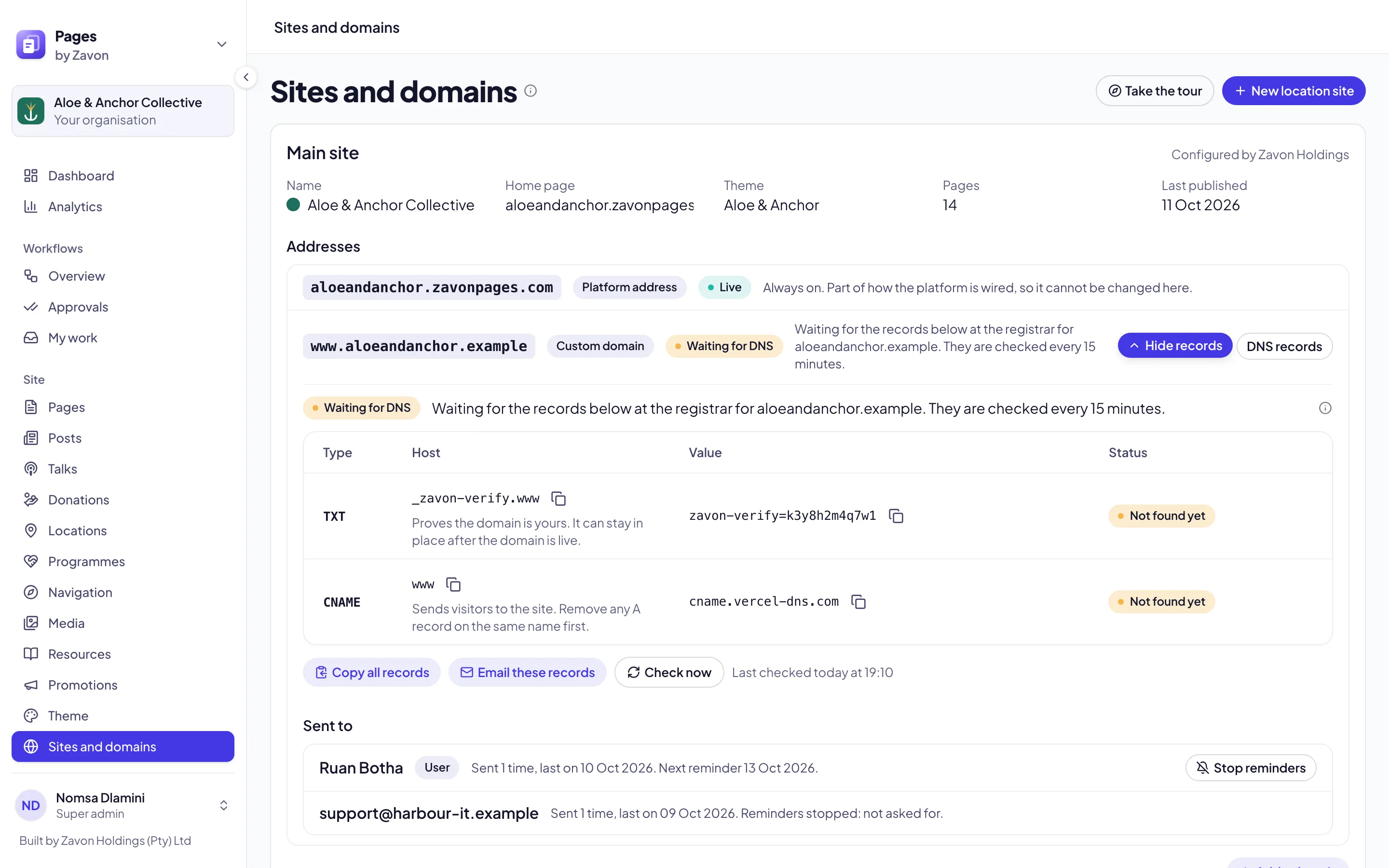
The records. Each record has a type, a host and a value. They are on the Sites and domains screen.
Where they go. The records go in the DNS settings of the domain, at the company where it was bought.
The order. The TXT record goes first. It proves that the domain is yours. Then the other records.
The person does not need to sign in to Zavon. The email from Email these records has everything they need.
Add a domain
Open Sites and domains
In the sidebar, select Site › Sites and domains.
Start
Under Main site, select Add a domain. For a location site, open its actions and select its Add a domain item.
Type the domain
Type the domain, such as www.example.org. Select Next →.
Confirm it
On the Review step, select Confirm and request. The records of the domain show.
Show and copy the records
Show them
Beside the domain, select Show records. The records show under it, each with its status.
Copy one value
Select the copy button beside a host or a value. Paste it where your IT person asks.
Copy all of them
Select Copy all records. Paste the text into an email, a chat or a support ticket.
Send the records to someone
Open the form
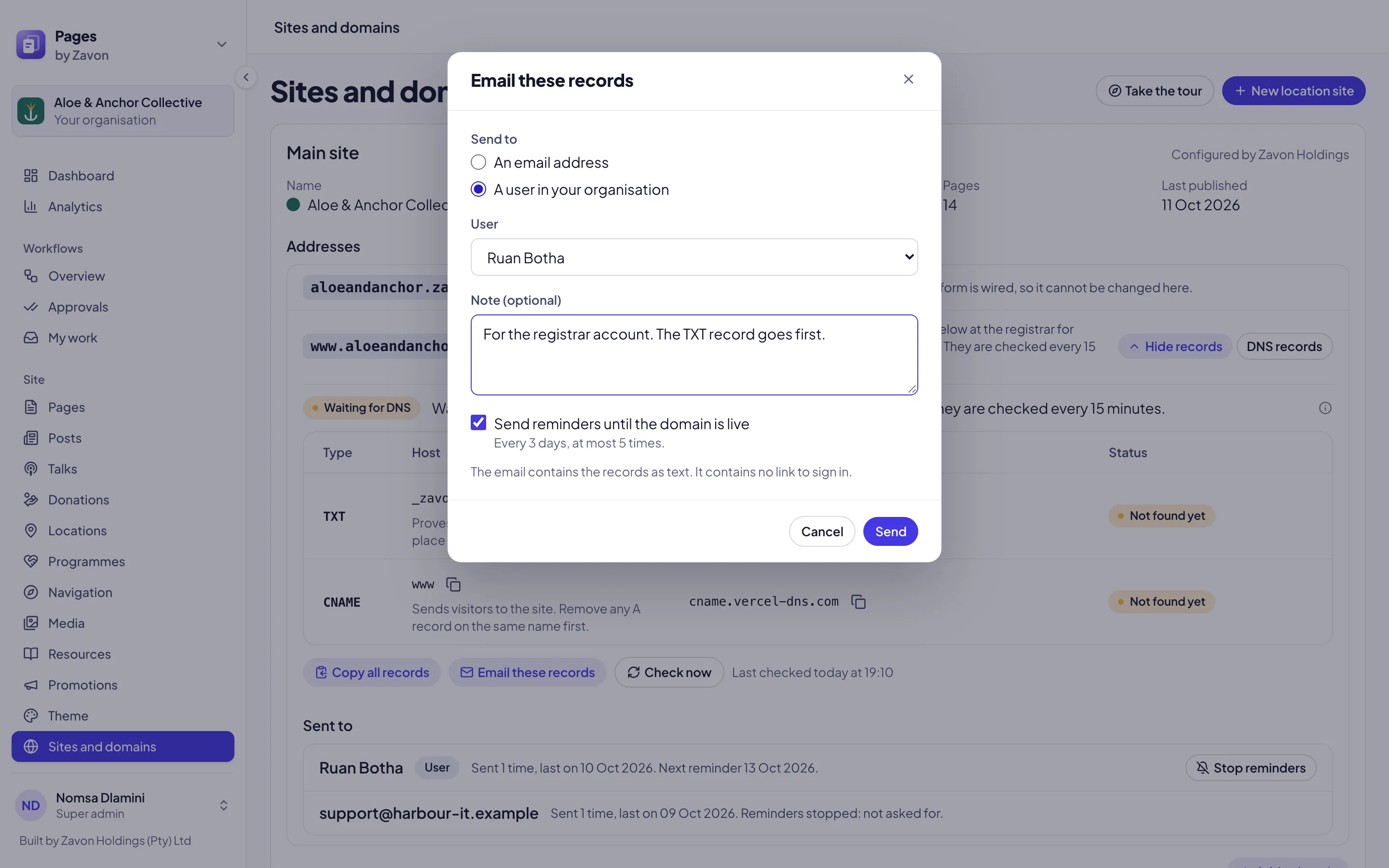
Select Email these records.
Select who
Select An email address and type it. Or select A user in your organisation and select the user.
Add a note
Optionally, type a Note, such as the name of the account at the registrar.
Keep reminders on
Keep Send reminders until the domain is live selected. Reminders go every 3 days, at most 5 times.
Send it
Select Send. Sent to lists the person, with the date of the next reminder.
Stop the reminders
Find the person
Under Sent to, find the person.
Stop them
Select Stop reminders. The reminders stop, and the records stay on the screen.
What the status means
Waiting for DNS. The records are not all in place yet. This is normal for the first hours.
Verified, connecting. The domain is proven to be yours. The site is being connected to it.
Live. Visitors reach your site at the domain, with a secure connection.
Not answering. The domain was live, but a record changed. Look at the records with your IT person.
While the records are open, the status updates by itself. Select Check now to check at once.
Troubleshooting
If a record shows Not found yet after a day, ask your IT person to look at its host and value again.
If a record shows Different value, the domain has an old record. Ask your IT person to change it to the value on the screen.
If the email did not arrive, ask the person to look in their spam folder. Then send it again.
If the domain still shows the old website, the routing record is not in place yet. The old site stays until it is.
Good to know
No sign-in needed. The email has the records as text and no link. The person does not need an account.
Reminders stop by themselves. They stop when the domain is live, or after 5 reminders.
A user’s address stays private. When you send to a user, the screen shows their name, not their email address.
Locations: give a location its own site.
Site settings: the name and details on every page.
Roles and access: who may add domains.