
Show a section to some contacts
Overview
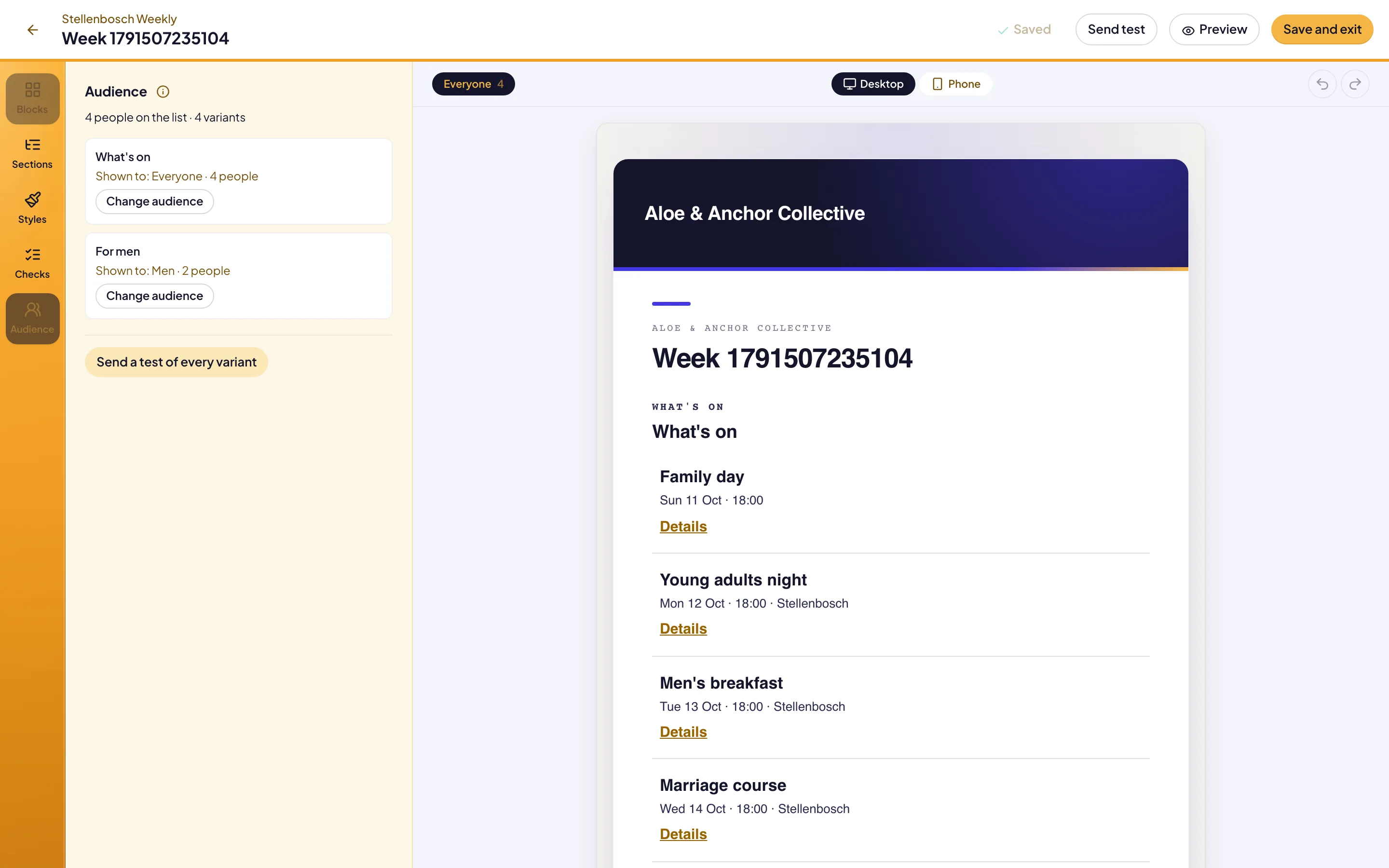
A newsletter section can go to some readers only, for example a section for parents. Each reader gets the sections meant for them. Reach counts the readers of each section and the versions of the issue before you send it.
Before you start
Make the audience properties first, under People › Audiences. You need permission to edit the issue.
Give a section an audience
Open the Audience panel
In the issue editor, select Audience in the rail.
Change the audience
Select Change audience on the section.
Add conditions
Select Add condition. Set Audience property or Location, then set the value.
Join the conditions
With two or more conditions, set Match to Any condition or All conditions.
Save
Select Save audience. The section shows Shown to and the number of people.
Test every version
Send the tests
In the Audience panel, select Send a test of every variant. You get one test for each version, up to ten.
Preview one reader
Select Preview. Type a name in Preview as contact, then select the contact.
Troubleshooting
If the panel says some people get no email, no section is for them. Add a section for everyone, or widen an audience.
If Add condition is not available, make an audience property first.
If a section shows Nobody, its rule cannot be read. Select Change audience and save the rule again.
Good to know
The editor shows every section. The canvas is not one reader’s copy. Use Preview to see one reader’s email.
The report. After you send, the issue’s report groups the sends by version.
Audience properties: the names sections are aimed with.
Upcoming events in a newsletter: events for each reader.
Send a newsletter: design, test and send an issue.