
Reviews of events
Overview
An attendee writes a review of an event with their own review link. The link works for one confirmed registration only, so every review is from a person who registered. A review is pending until you publish it. Only published reviews show on your site, in the Event reviews block.
Before you start
To publish, hide and reply to reviews, your role needs Moderate reviews. Roles that read everything do not have it. To copy an attendee’s review link, your role needs to manage registrations for the event. See Roles and access.
Ask an attendee for a review
Open the attendees
In the sidebar, select Events › Events. Select the event, and then Attendees.
Copy the link
On a confirmed attendee’s row, select Copy review link.
Send the link
Send the link to the attendee in a message. It opens a page on your site. There they select a Rating, type the Review and select Send review.
Publish, hide or reply
Open Reviews
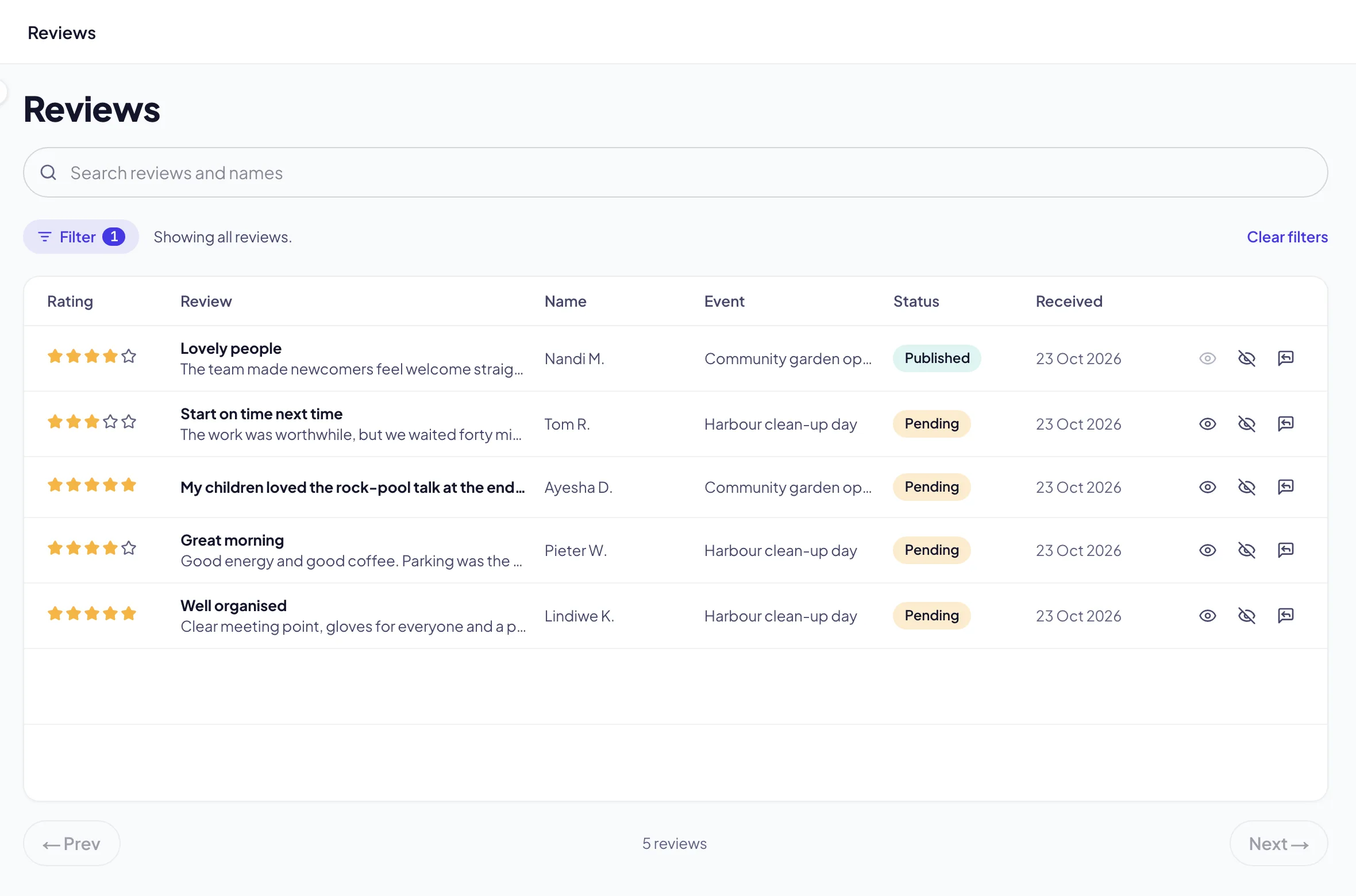
In the sidebar, select Events › Reviews. The list shows pending reviews first.
Filter the list
Select Filter, and set Status, Rating or Event. See Filter lists.
Publish
On a review’s row, select Publish. The review shows on your site in the Event reviews block.
Hide
On a review’s row, select Hide. The review is removed from your site. You can publish it again later.
Reply
On a review’s row, select Reply. Type your Reply and select Save reply. Your reply shows under a published review.
Show reviews on a page
Add the block
Open a page and add the Event reviews block. See Create a page.
Choose the event
In the block’s settings, set Event. Leave it empty to show reviews of all events.
Choose how many
Set Reviews shown and Lowest rating (stars).
Publish
Select Publish.
Troubleshooting
If the review page says “Reviews open when the event starts”, the event has not started yet. The link works from the start of the event.
If the review page says “Only a confirmed registration can be reviewed”, the registration is cancelled, on the waiting list or not paid.
If the review page says the link has expired, copy a new link for the attendee. A link works until 90 days after the event.
If Copy review link says review links are not available, contact Zavon support.
Good to know
One review for each registration. While a review is pending, the attendee can change it with the same link. After you publish or hide it, they cannot change it.
The name on the site. Your site shows the first name and the first letter of the last name, such as Thandi M. It never shows an email address.
Search engines. Pages does not add review markup for search engines to these reviews. Search engines do not allow an organisation to mark up reviews of itself.
Events and tickets: registration and confirmed places.
Filter lists: the Filter button and its conditions.
Create a page: add blocks and publish.