
Profile cards and profile lists
Overview
Profile cards show people and the organisations they lead, such as fellows, a board or speakers. The Venture cards block draws them. Communications teams keep the people in a profile list. Visitors filter the cards by group and by person.
Before you start
You need a role with Pages: edit to make profile lists and to edit pages. To publish a page, the role also needs Publish. See Roles and access.
You need a page to show the profiles on. See Create a page.
Make a profile list
Open Profiles
In the sidebar, select Site › Profiles.
Start a list
Select New list. Type a Name, for example Fellows.
Name the groups
Type the Group filter label, for example Cohort. The page uses this word on its filter.
Save
Select Save list. The list shows on the Profiles screen.
Add profiles
Open the list
Select the name of the list. Its profiles open.
Add a profile
Select New profile. Type the Name, the Role and the Organisation.
Set the group
Type the Group, for example 2026. Profiles with the same group are filtered together.
Add the details
Add a Photo, an Organisation logo, a Biography and Profile links as necessary.
Save
Select Save profile. The profile shows in the list as Published.
Change the order
Open the more-actions menu on the row of the profile. Select Move up or Move down.
Hide a profile
In the same menu, select Hide from pages. The profile stays in the list and leaves every page.
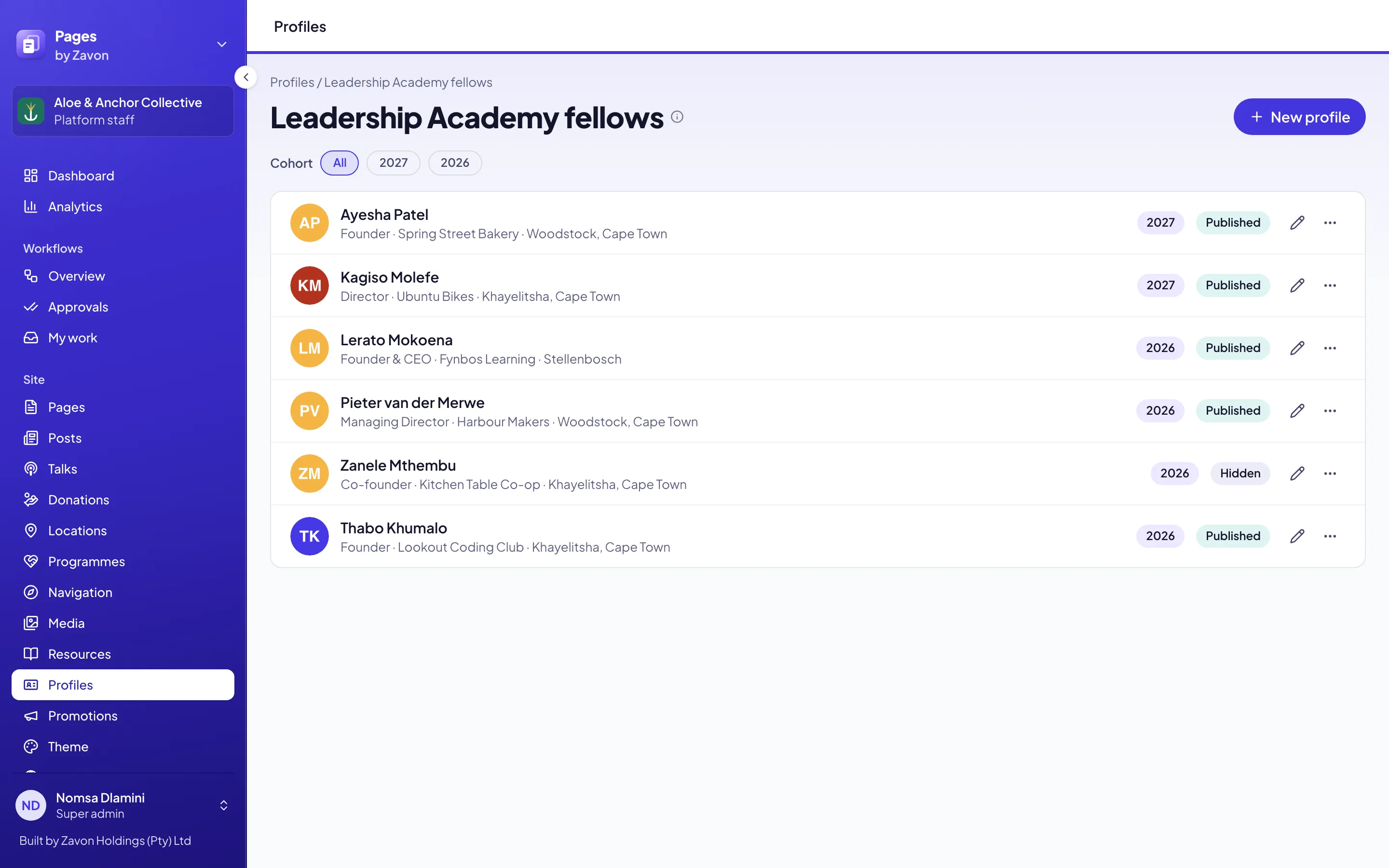
Show the profiles on a page
Open the page
In the sidebar, select Site › Pages. Open the page in the editor.
Add the block
Add the Venture cards block to the page.
Connect the list
Set Profiles from to A profile list. Set Profile list to your list.
Turn on the filters
Select Show the group filter and Show the person filter.
Set the layout
Set Layout to Organisation beside the person or Cards in a grid.
Publish
Select Publish. If your role cannot publish, select Submit for review.
Change what a card shows
Open the card parts
Select the block on the canvas. Under Card parts, each row is one part of the card.
Add a part
Select Add a part. Set the new row to the part you want.
Change the order
Select Move up or Move down on a part. The cards on the canvas change.
Remove a part
Select Remove this part. The cards no longer show it.
Troubleshooting
If the block shows the profiles typed into it, the list could not be read or has no published profiles. Check the list on the Profiles screen.
If a profile is not on the page, it is hidden. In its menu, select Publish.
If the group filter shows only All, no profile has a Group. Type a group on each profile.
If Save profile is not available, the profile has no Name and no Organisation. Type one of them.
Good to know
Read more. A long biography or description shows its first lines and a Read more button. To show all of it, clear Fold long text behind Read more.
A link to one person. The filters are in the page address, for example /fellows?group=2026 or /fellows?person=ada-lovelace. Send that address to show one group or one person.
Profiles typed into a block. A block can keep its own profiles instead of a list. Set Profiles from to Typed in on this page.
Existing venture cards. Zavon can move the profiles typed into an existing page into a profile list. The page keeps them as a fallback.
Create a page: start a page and add blocks.
Blocks reference: the blocks a page can use.
Roles and access: who may edit and publish.