
Approve a newsletter before it is sent
Overview
In Reach, a person who can write an issue but cannot send it submits the issue for review. An approver reads it, then approves it or asks for changes. A sender then sends it.
Reach sends the issue only as it was approved. If a person changes the issue after approval, Reach holds the send until the issue is approved again.
Before you start
To submit an issue, you need a role that can edit newsletters, such as Editor.
To approve an issue, you need a role that can send newsletters, such as Editor and sender. You cannot approve an issue that you submitted.
To choose the approvers of a newsletter, you need a role that can send it.
Submit an issue for review
Open the issue
Select Newsletters, then select the issue. If your role cannot send, the top of the page shows Submit for review.
Check who is asked
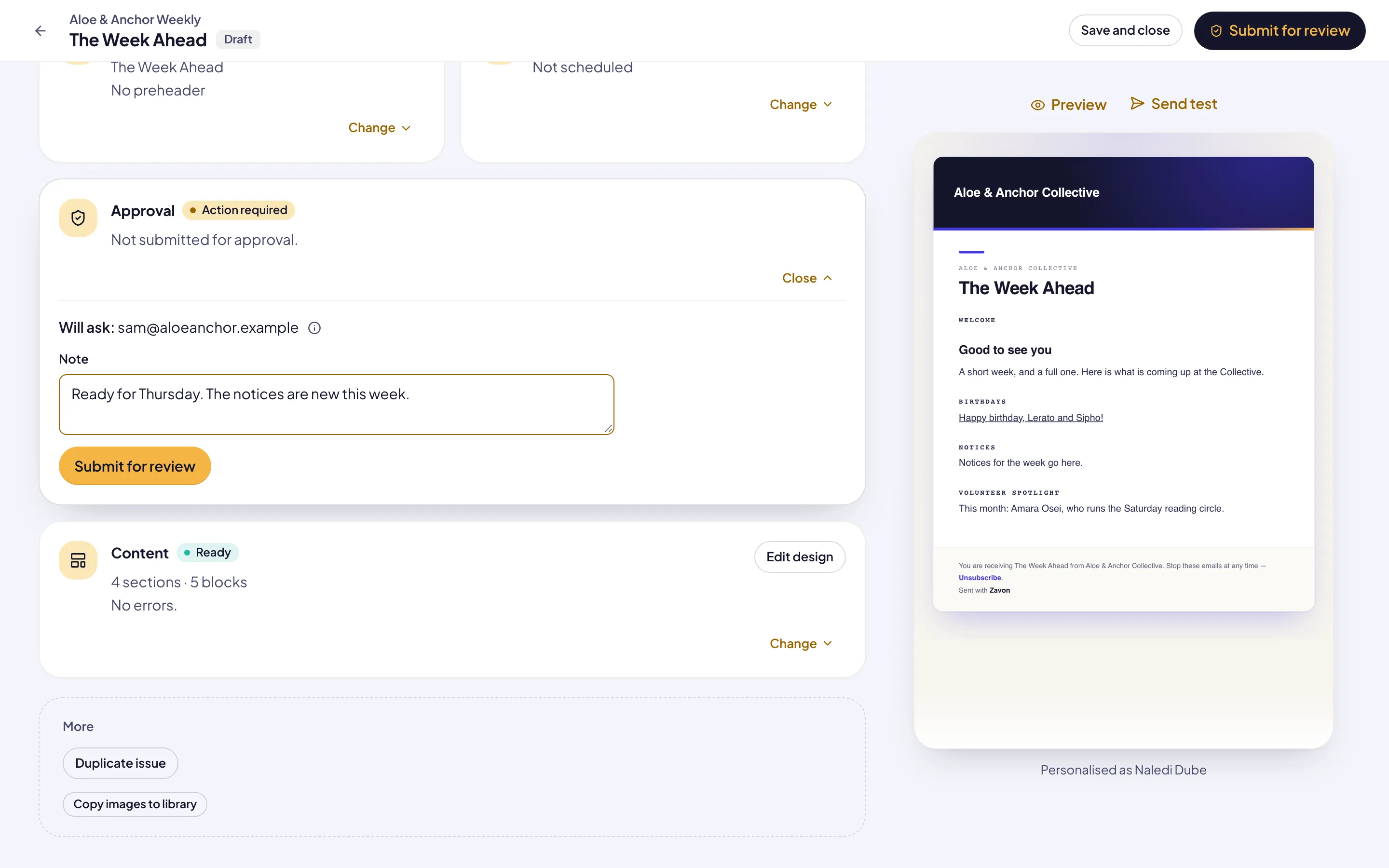
Select Submit for review. The Approval card shows the people Reach will ask.
Add a note
Type a Note for the approver if you want to. For example, say what is new in this issue.
Submit
Select Submit for review. The card shows Waiting for approval. Reach sends an email to the approvers.
Approve an issue
Open the issue
In the email from Reach, select Open the newsletter. You can also open the issue from My work in Zavon Accounts.
Read the issue
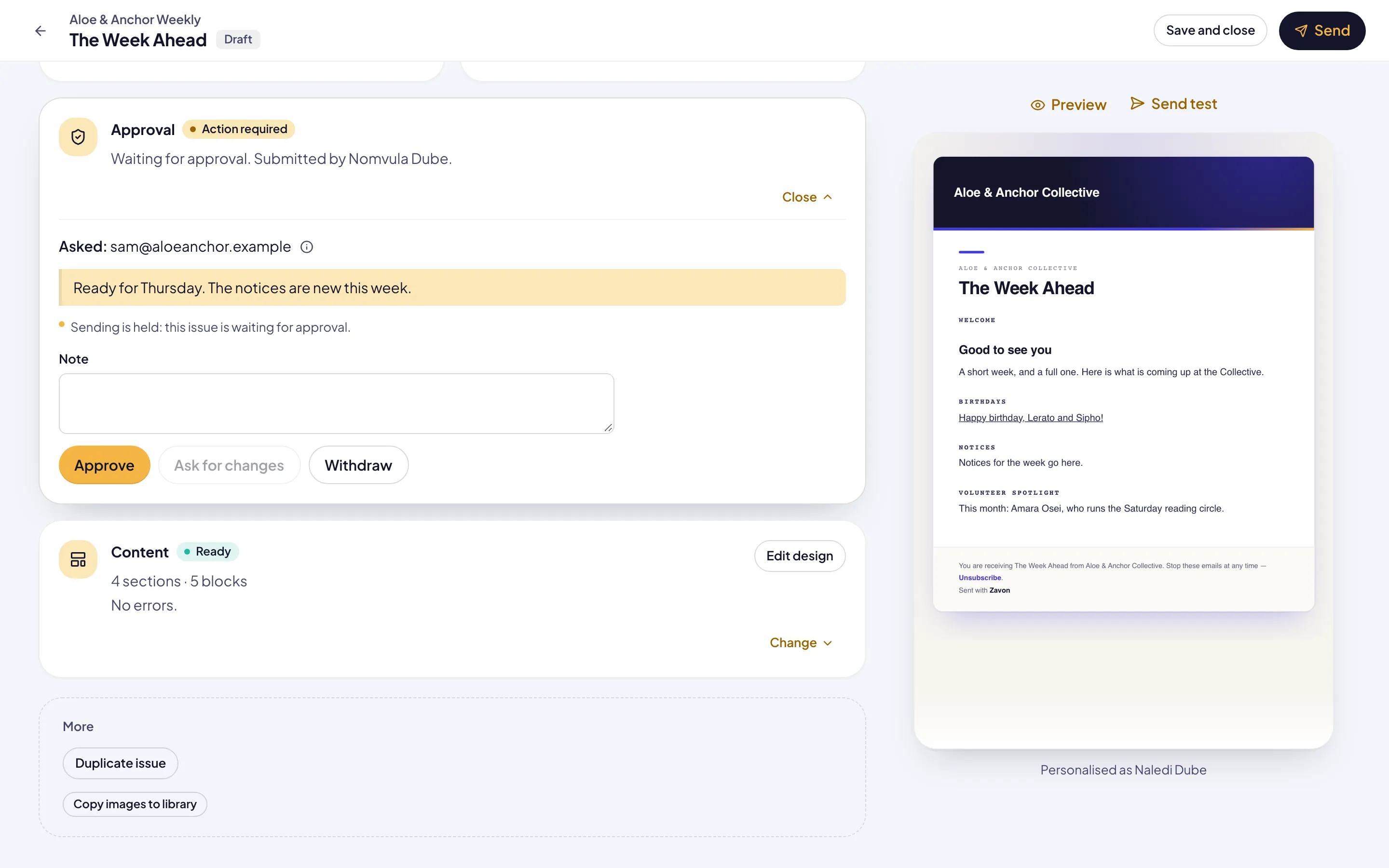
Read the email on the right, or select Preview. The Approval card shows the note from the person who submitted it.
Decide
Select Approve. To ask for changes, type a Note, then select Ask for changes.
Send the issue
When the issue is approved, select Send, or book a send time under Send time.
Choose the approvers
Open the settings
Select Newsletters, then the newsletter, then Settings.
Add an approver
Under Approvers, type an Email address. Select Add approver.
Remove an approver
Select Remove beside the address.
Troubleshooting
If Send is not available, hold the pointer over it. Reach shows why. An issue that waits for approval, or that changed after approval, cannot be sent.
If the card shows Changed after approval, an approver selects Approve again. The person who submitted the issue can also submit it again.
If a booked send did not go, the issue changed after approval. Reach sends an email to the person who submitted it and to the person who booked it. Approve the issue again, then book the send again.
If Reach says that nobody can approve the issue, ask an administrator to give a person the Editor and sender role.
Good to know
Who is asked. Reach asks the approvers of the newsletter. If it has none, Reach asks the people who can send it. If nobody can send it, Reach asks the administrators.
Nobody else is told. Reach does not tell a manager. Every request and decision is on the issue’s timeline, in History.
Senders can send. A person who can send an issue does not need to submit it. When an issue waits for approval, nobody can send it until it is decided or withdrawn.
Withdraw. To change the issue before a decision, select Withdraw on the Approval card.
Send a newsletter: create a publication, then write, test and send an issue.
Collaborative newsletters: ask people to write sections, then review them.
Roles and access: give people the roles they need.