
AI writing help
Overview
In Reach, AI assistance drafts and polishes newsletter issues, suggests subject lines and shortens SMS text. It suggests audience segments from counts of tags and lists. Before a send, AI checks look for language and fact problems.
Before you start
Zavon must turn on AI assistance for your organisation. See AI assistance.
You need a role that can edit the issue or the post, with AI assistance. To suggest a segment, the role must also read lists. See Roles and access.
Draft or polish an issue
Open the issue
In the sidebar, select Send › Newsletters. Then open the issue in the editor.
Open the AI panel
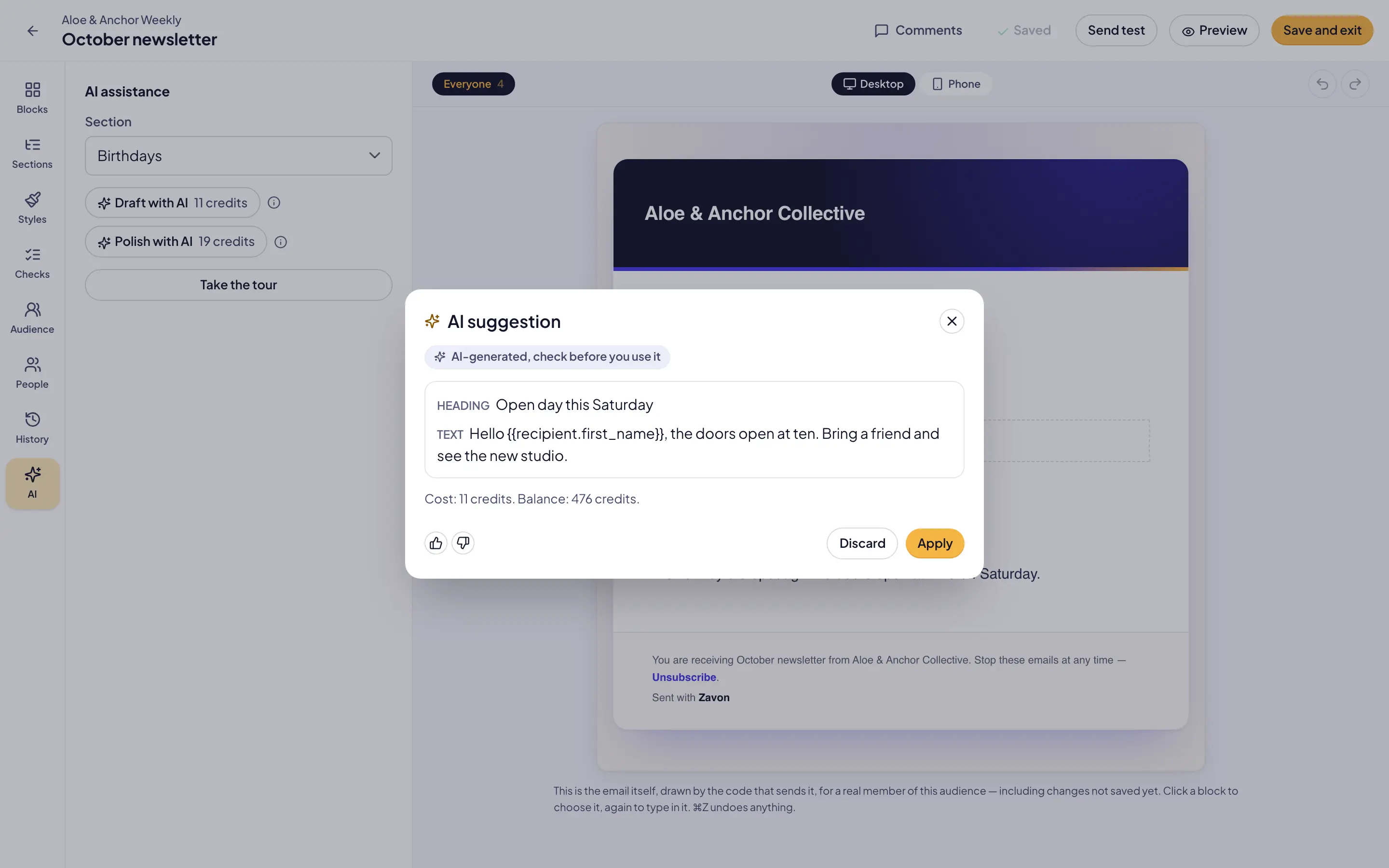
In the editor’s rail, select AI. Set the Section that the words are for.
Start the draft
Select Draft with AI. To improve the blocks you have, select Polish with AI.
Describe the issue
Type what the issue is about in Describe what you want. Then select Generate.
Check the draft
Review the blocks in AI suggestion. Merge fields such as
{{recipient.first_name}}stay as placeholders.Apply the draft
Select Apply. The blocks go into the issue, and you can edit them.
Suggest subject lines
Start
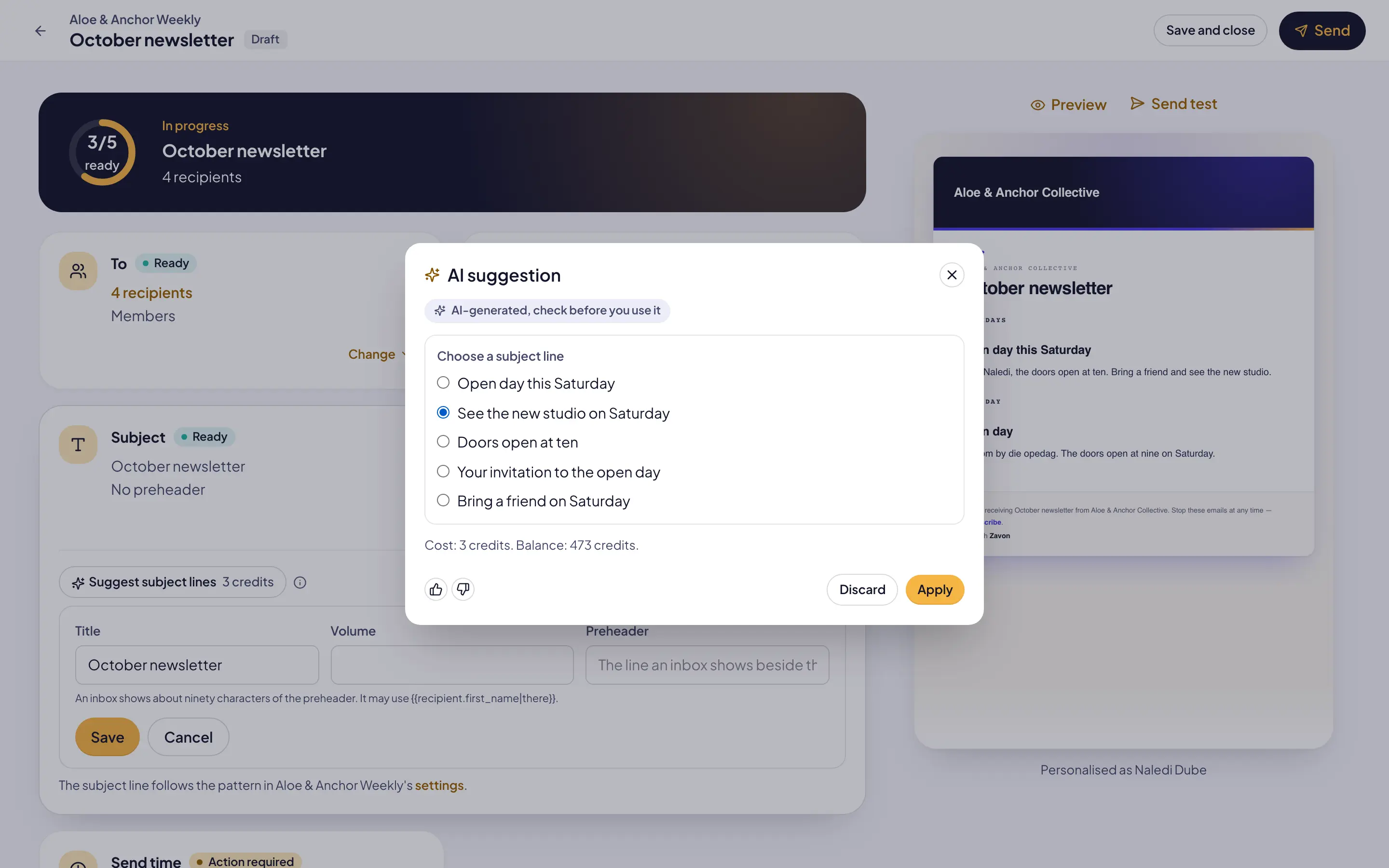
On the issue’s overview, select the Subject row. Then select Suggest subject lines.
Confirm the cost
Select Generate. AI assistance writes five subject lines.
Pick one
Select a subject line. Then select Apply. The Title field is filled but not saved.
Save
Select Save to keep the new title.
Shorten an SMS and suggest a segment
Shorten an SMS
In an SMS post, select Shorten to fit. Then select Generate.
Check the segments
Read the segment count of the shorter text. Select Apply to use it.
Suggest a segment
In the audience of a campaign, select Suggest a segment.
Describe the audience
Type who you want to reach in Describe what you want. Then select Generate.
Apply the rule
Review the rule in AI suggestion. Select Apply. The audience count updates.
Read the AI checks
Open the checks
Open the issue’s overview, or the post, that you want to send. Find the AI checks panel.
Run the checks
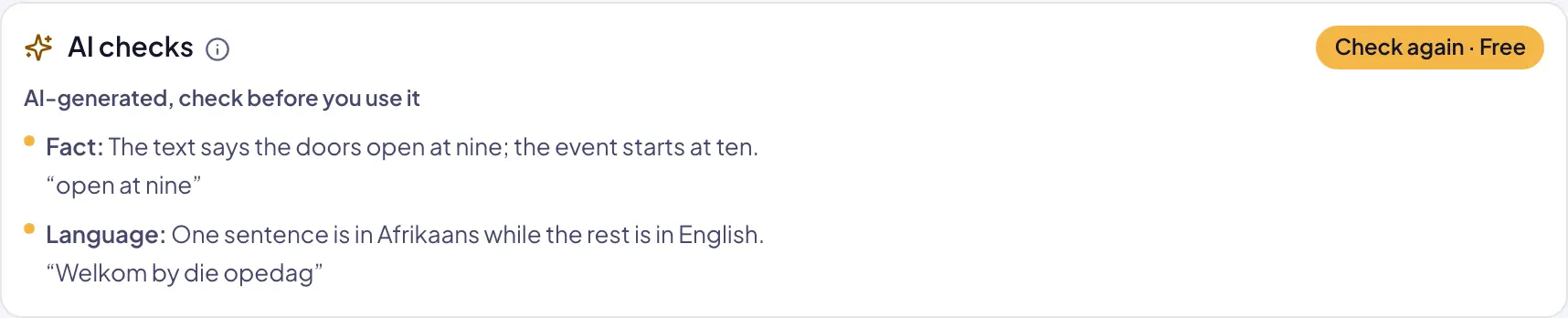
Select Run AI checks. The checks are free.
Read the warnings
Read the warnings. Each one names a language or fact problem and quotes the words.
Fix what applies
Change the text where a warning applies. The checks do not stop a send.
Troubleshooting
If you do not see the AI buttons, AI assistance is off for your organisation. See AI assistance.
If a button is grey, hold the pointer on the information icon. It gives the reason.
If the shorter SMS still needs more segments than you want, edit the text yourself. Reach shows the count as you type.
If the AI checks panel does not show, AI assistance is off. The other checks still run.
Good to know
Free checks. AI checks are free. They run once for each issue or post, not for each recipient.
Other checks. Reach always checks merge fields, links, the unsubscribe link and consent, with or without AI assistance.
Segments. To suggest a segment, AI assistance sees only counts of tags and lists. It never sees your contacts.
Nothing is sent. AI assistance does not send, schedule or save an issue or a post.
Tour. In the AI panel of the issue editor, select Take the tour. Or select Show me in What’s new. The tour shows each AI button that is on the screen. A new AI button shows a New marker until you use it.
AI assistance: credits, permissions and privacy.
Send a newsletter: edit, check and send an issue.
Target WhatsApp and SMS: SMS posts and their audience.
Plan a campaign: campaigns and posts.