
Plan a campaign
Overview
A campaign is a plan of messages on email, WhatsApp and SMS. Each message, or touch, can be timed against an event on your website. When the event moves, its touches move with it.
Before you start
Publish the event on your website first. You need permission to edit campaigns, and to add posts to them.
Link an event
Open the campaign
In the sidebar, select Send › Campaigns, then open the campaign.
Choose the event
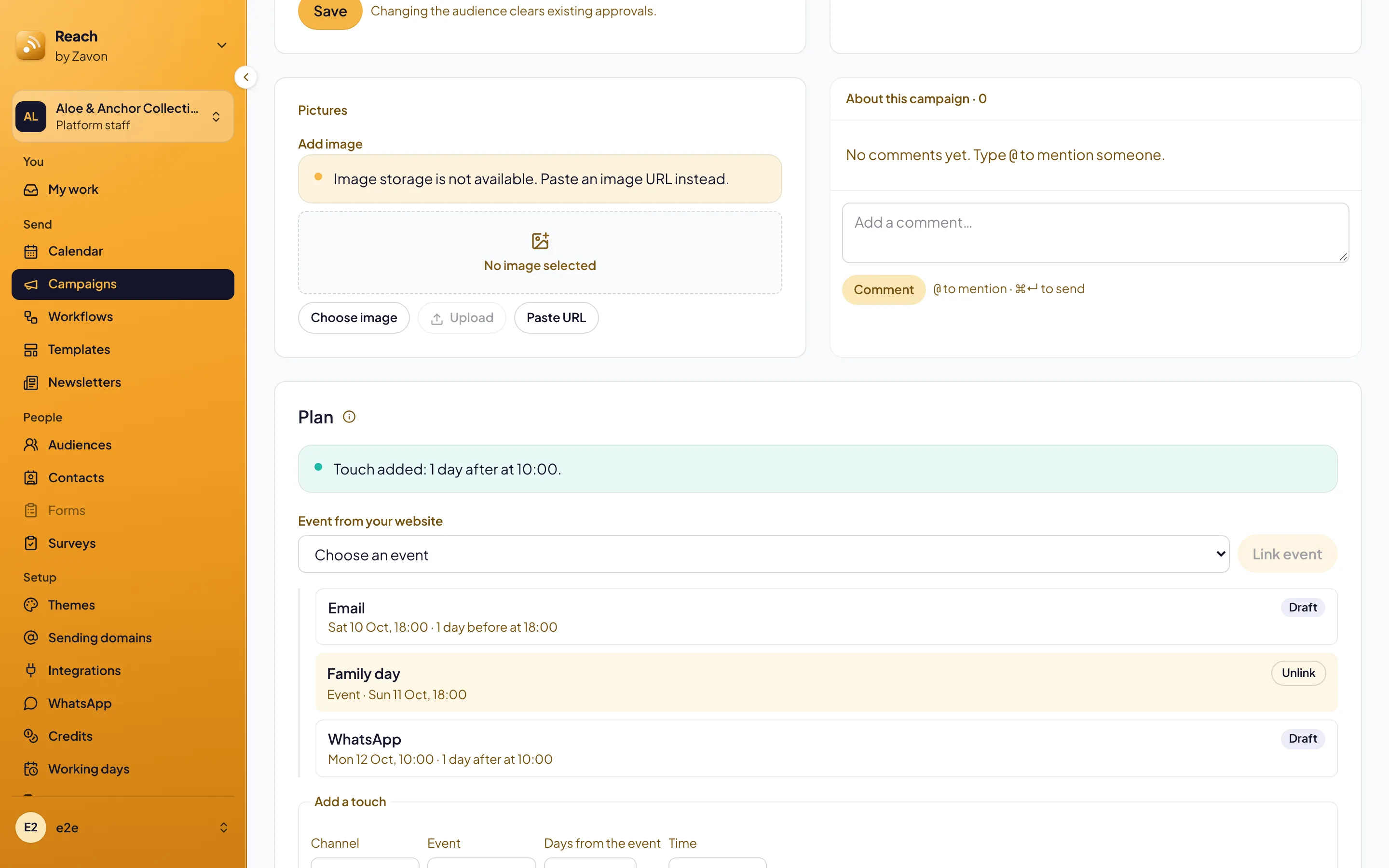
Under Plan, set Event from your website. Select Link event. The event shows on the timeline.
Add touches
Use a preset
Under Add a touch, set the Channel. Select 7 days before, 1 day before or 1 day after.
Set your own time
Set Days from the event and Time, then select Add touch.
Write each touch
Select the touch on the timeline to write it and ask for approval.
Schedule the plan
Schedule all
Select Schedule all approved touches. Each approved touch is booked at its planned time.
Check the calendar
In the sidebar, select Send › Calendar. The events and the touches show on their days.
Troubleshooting
If a touch is not scheduled, it needs approval first, or its time has passed.
If a touch shows a warning, its event moved and the new time had passed. Choose a new time and schedule it again.
If an event shows Cancelled on the website, its touches were not sent.
Good to know
Times are local. 09:00 seven days before stays 09:00 local time, also across a change of clocks.
Unlinking an event. The touches keep the times they have and stop moving with the event.
Target WhatsApp and SMS: send to some of a list.
Upcoming events in a newsletter: events for each reader.
Send a newsletter: an email touch is a newsletter issue.