
Forms and landing pages
Overview
A form asks your own questions on any page, in steps, and shows a question only when an earlier answer calls for it. Each submission is kept in Pages and sent to Reach as an enquiry, with where the person came from. A landing page is a page with one thing to do: the site’s logo without its menu, and a form.
Before you start
To build forms, your role needs Edit on Forms. To read submissions, it needs Read on Forms; answers to sensitive questions also need View sensitive form answers. To place a form on a page, your role needs to edit pages. See Roles and access.
Build a form
Open Forms
In the sidebar, select Site › Forms. Select New form.
Name it
Type a Form name, such as Free consultation, and the Title visitors see.
Add questions
Under Add a question, select a type, such as Short answer or One choice. Set its label, and whether it is required.
Add steps
Select Add a step to ask the next questions on their own step. Visitors move between steps with Back and Next.
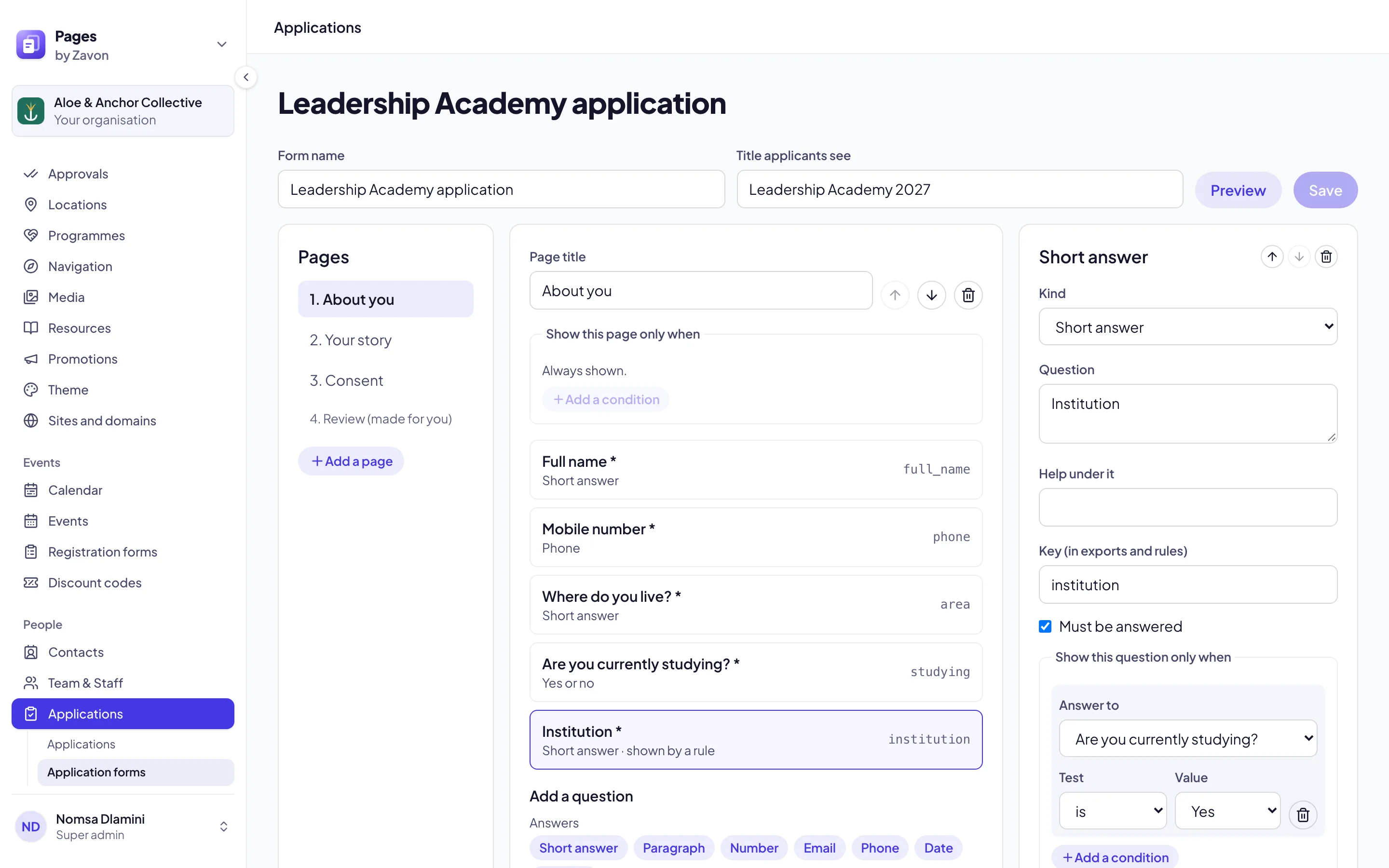
Show a question by a rule
Select a question. Under Show this question only when, set an earlier question and an answer, such as Interest is Solar. A step can have a rule too.
Save
Select Create form. Each later save writes a new version; submissions keep the version they answered.
Put a form on a page
Add the block
Open a page and add the Question form block. See Create a page.
Choose the form
In the block’s settings, set Form. The name and email are always asked first; turn on Ask for a phone number to ask for one too.
Set the opt-in
Turn on Marketing opt-in to add a separate check box on the last step. It is never selected for the visitor. Set its words in Opt-in wording.
Choose what happens next
Under After sending, select Show a message and type the message, or select Go to a page and set the page.
Publish
Select Publish. A form takes answers only from a published page that places it.
Make a landing page
Start a page
In the sidebar, select Site › Pages, then New page.
Choose Landing page
On the Template step, select Landing page. The page starts with a hero and a Question form block.
Or change an existing page
In a page’s settings, set Layout to Landing page.
Set the header and footer
Optionally, set Header to None or Site header, and Footer to Site footer. Default follows the Layout.
Duplicate it for a campaign
In the page’s settings, select Duplicate for a campaign. Type the Campaign, such as Spring radio, and select Make the copy. The copy is a draft at its own address.
Read submissions
Open the form
In the sidebar, select Site › Forms, and then the form.
Filter by campaign
Select Filter, add Campaign, and set one. See Filter lists.
Read one
Select a row, or View answers, to see every answer.
Export
Select Export CSV for the submissions the list shows.
Troubleshooting
If Next is grey, the step still needs an answer. The reason shows beside the button.
If a visitor sees “This form has changed”, the form was saved while they had the page open. They reload the page and send it again.
If a question type is not offered, a form on a page cannot ask it. Files and addresses are asked on application forms only.
Good to know
One form, many pages. Every page that places a form adds to the same submissions. A copy made with Duplicate for a campaign places the same form, and its submissions carry the campaign’s name.
Checked when it arrives. Required questions are checked when a submission arrives, and only where the question was shown. An answer to a question the form does not ask is not kept.
The legal strip. Every page keeps the footer’s legal strip, with the privacy and terms links. There is no Footer setting without it.
Consent. Sending a form is not consent to marketing. Only the ticked opt-in subscribes the person, in Reach.
Sensitive questions. ID number, Health and Finance questions are sensitive. Their answers are not in the email to your team, and are shown only to roles with View sensitive form answers.
Create a page: add blocks and publish.
Programmes and applications: the same builder, for application forms.
Contacts and tags: where the people who write in are kept.