
Comments on a newsletter
Overview
The people who prepare a newsletter can comment on its blocks while they work, as in a shared document. Each comment starts a thread. Your team replies in it and resolves it when the change is made.
Before you start
You can comment on an issue when your role lets you view it. An administrator can give a role the Cannot comment restriction. See Roles and access.
Add a comment
Open the issue
In the sidebar, select Newsletters. Open the newsletter, then open the issue in the editor.
Select a block
Select the block in the email that the comment is about.
Open the comments
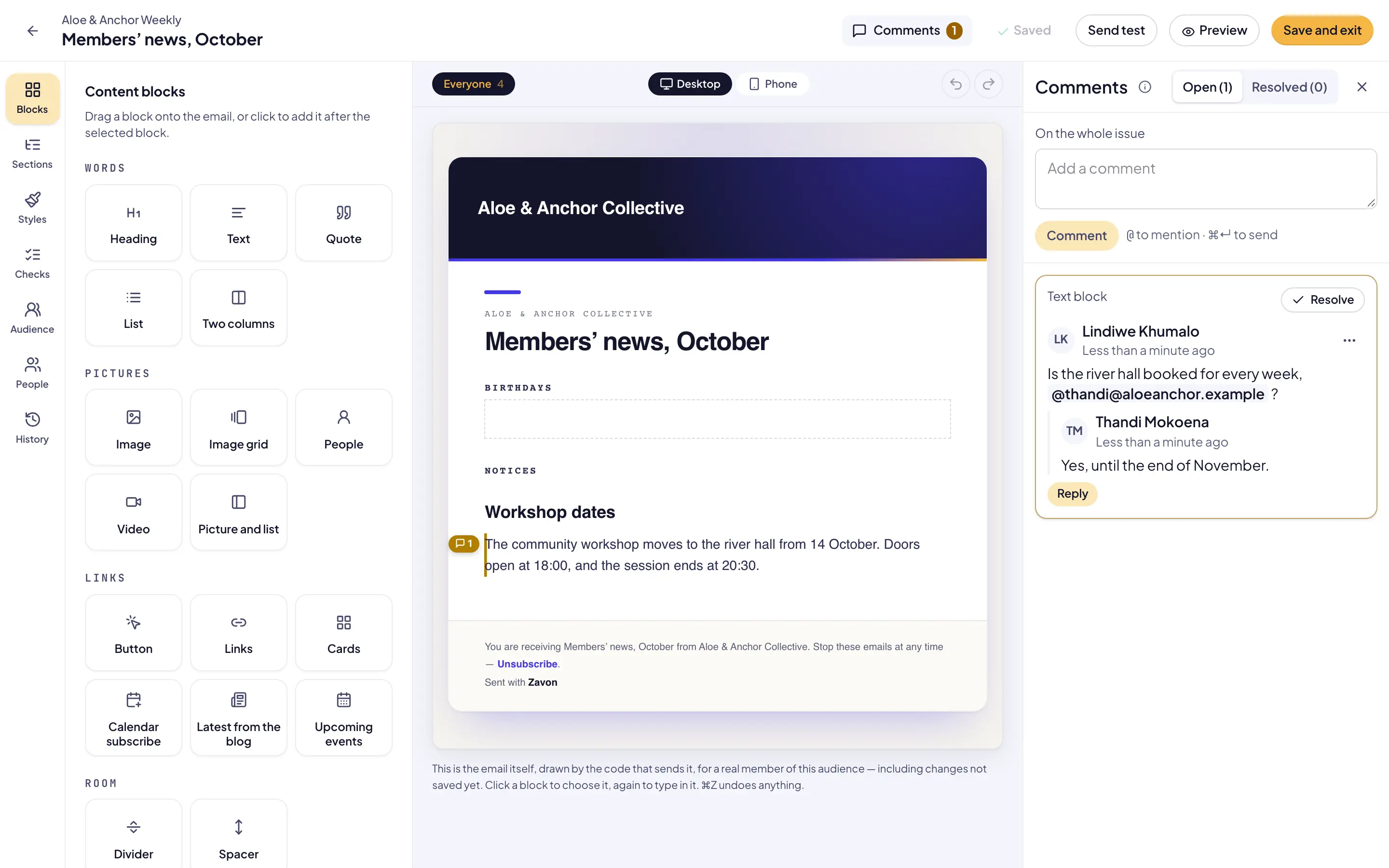
Select Comments in the header. The comments open beside the email.
Write the comment
Type the comment. To ask a user, type @ and select the user in the list.
Send it
Select Comment. The block gets a mark with the number of open comments.
Troubleshooting
If a user is not in the list, they cannot open this issue. A contributor who can write only one section is not in the list.
If a comment shows On a removed block, someone deleted that block or replaced the section. The comment stays, so you can still read it.
If the box says your role does not allow comments, ask an administrator.
Good to know
Audiences. A block that every audience version shares keeps its comments in each version.
Contributions. When you accept a contributor’s version of a section, the comments stay on its blocks.
Mentions. A mentioned user gets an email and a task in My work until they reply or the thread is resolved.
Lists. Each issue card in the newsletter shows its open comments.
Collaborative newsletters: ask people to write sections.
Approve a newsletter: review before sending.
Comments: the same in Pages.