
Edit together
Overview
Several people can edit a page at the same time. Each editor shows who else has the page open. If two people save the same page, Pages keeps both versions, and an approver merges them.
Before you start
To edit a page, your role needs Edit on pages. To merge two versions, you must be an approver of the page, or your role must be able to publish it. See Approvals and Roles and access.
See who else is editing
Open the editor
Open a page, a location page, a programme page or a post.
Look at the header
Look at the top of the editor. A face shows for each person who has the page open. Their name shows beside it.
Read the dot
Read the dot on a face. Green is active. Yellow is a tab in the background. Grey is away.
Check the lists
Look at the lists of pages, locations and posts. A small badge shows how many people edit an item now.

If someone saved before you
Save
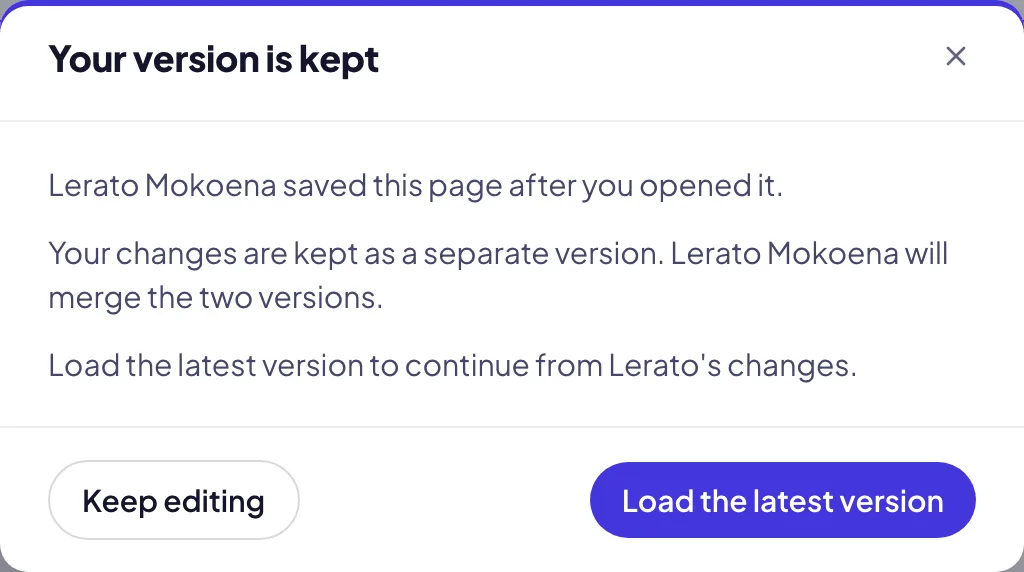
Select Save draft or Publish. If someone saved after you opened the page, Pages keeps your version.
Read the message
Read Your version is kept. It names who saved, and who will merge the two versions.
Continue
Select Load the latest version to continue from their changes. Or select Keep editing.
Merge it yourself
If you can merge, select Open the merge.
Merge two versions
Find the request
Open My work, or select Workflows › Approvals. In the editor, you can also select Merge waiting.
Read the changes
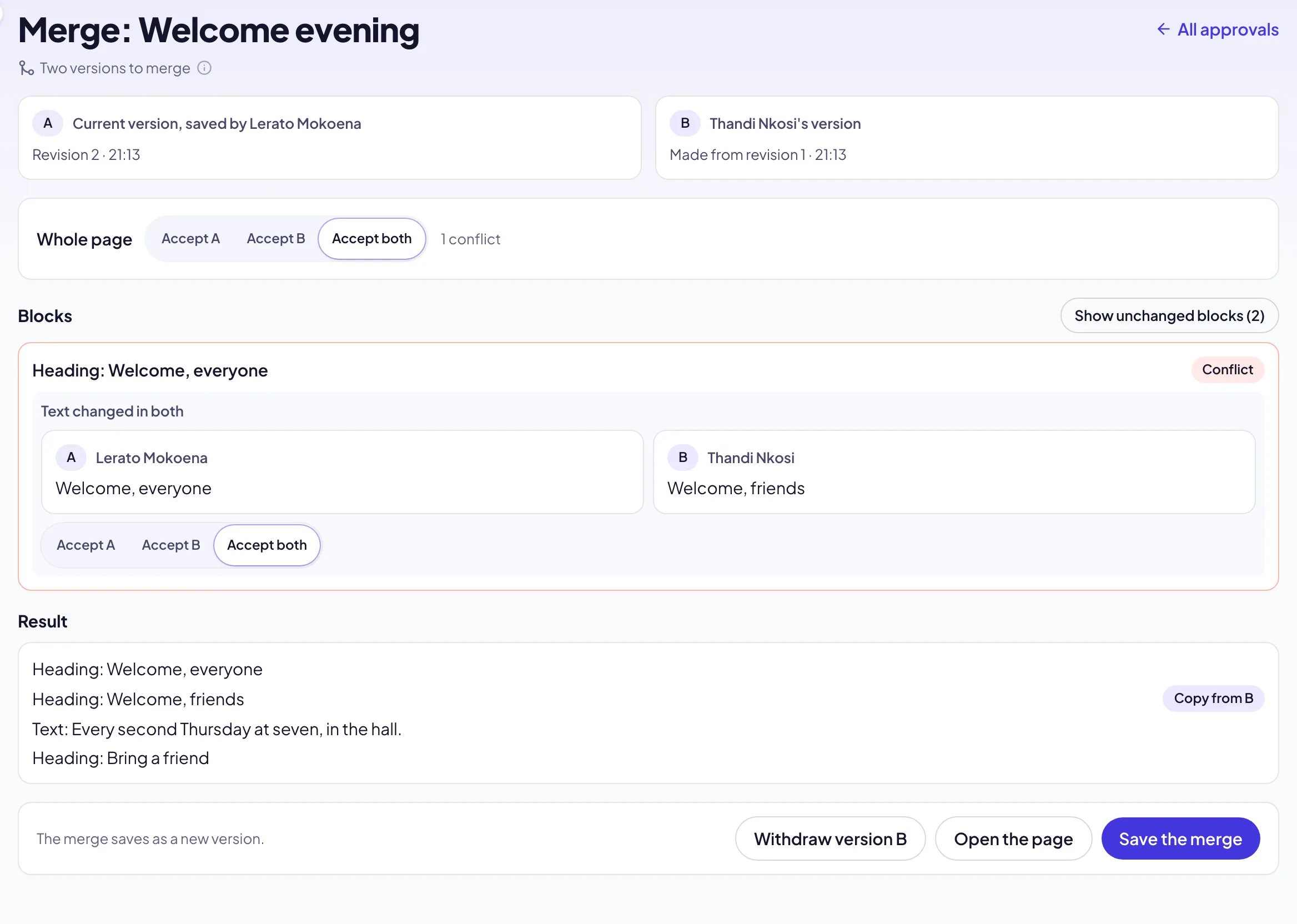
Read each block. Changed in A or Changed in B is one change. Conflict is a block both people changed.
Choose for the whole page
Under Whole page, select Accept A, Accept B or Accept both.
Choose for each conflict
Select Accept A, Accept B or Accept both on a conflict. A page has one title: select Accept A or Accept B.
Check the result
Read Result. Accept both keeps the two blocks: A first, then a copy from B.
Save the merge
Select Save the merge. The page gets a new version.
Undo a merge
Open the merge
Open the merge request again from My work or Approvals.
Revert
Select Revert the merge, then Revert. The page goes back to the version before the merge. The request opens again.
Use the history
If someone saved after the merge, use Version history on the page to restore an earlier version.
Troubleshooting
If Save the merge is not available, choose a version for each conflict.
If the merge says the item changed again, the screen loads the latest version. Merge again.
If you do not see Open the merge, you are not an approver of the page. The approvers get the request in My work and by email.
If you do not see faces, nobody else has the page open now.
Good to know
Version A and version B. Version A is the page as it is now. Version B is the version that Pages kept.
Every merge is a version. Version history lists it. The activity log records who merged, and what they chose.
Withdraw. The author of version B can select Withdraw version B. The page keeps version A.
Presence. The faces update about every 15 seconds, and at once when someone closes the page.
Create a page: the page editor.
Approvals: who approves a page.
Write a blog post: the post editor.
Edit a newsletter together: the same in Reach.