
Audience properties
Overview
An audience property is your own name for a kind of reader, for example Young adults, Parents or Volunteers. Reach reads each property from your tags, lists, locations or Planning Center groups. Newsletter sections, the Upcoming events block, WhatsApp and SMS messages and your website’s events are all aimed with these names.
Before you start
You need access to Audiences under People in Reach. To read a property from a tag or a list, make the tag or the list first.
A contact holds a property when any of its sources includes them. Reach reads this again for each send, so a change applies to the next message.
Create an audience property
Open Audiences
In the sidebar, select People › Audiences.
Name the property
Select + New audience property. Type a Name, for example Young adults. Optionally, type a Description.
Choose its sources
Under Read from, select the tags, lists, locations and Planning Center groups that give the property.
Save
Select Create audience property. The list shows the property and how many contacts hold it.
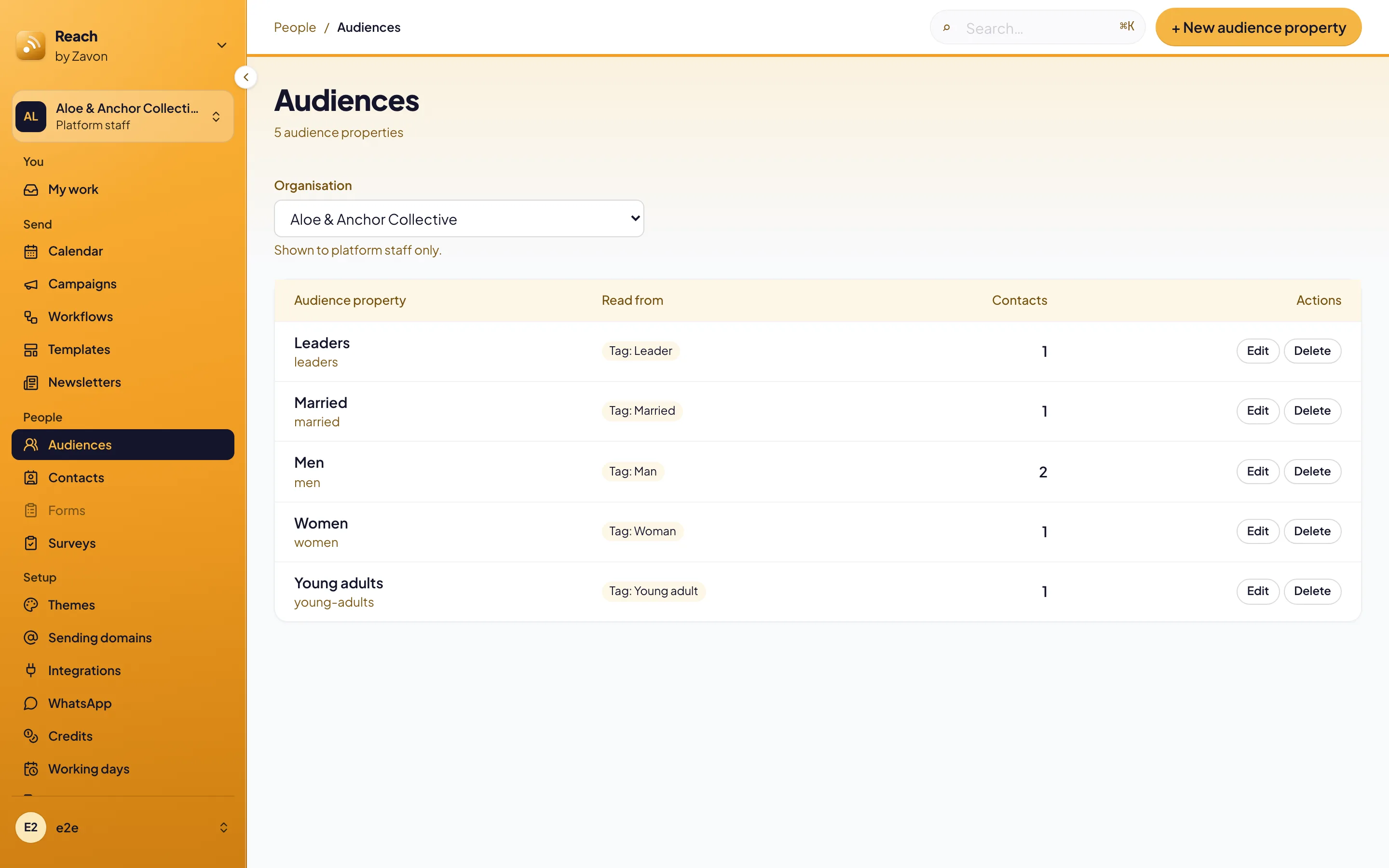
Change or delete a property
Change it
Select Edit on the property. Change its Name or its sources, then select Save audience property.
Delete it
Select Delete on the property, then confirm. Sections, events and messages for it no longer reach these contacts.
Troubleshooting
If a property shows 0 contacts, check its sources. A tag or a list with no live contacts gives nobody the property.
If Create audience property is not available, type a Name first.
If you cannot delete a property, ask an administrator. Deleting one needs the manage permission for audience properties.
Good to know
The name and the key. Renaming a property keeps every rule and event that uses it. Reach stores a fixed key behind the name.
Many sources, one property. A contact who holds any one source holds the property. Add a tag and a list to one property to cover both.
Connect Planning Center groups and lists: read properties from Planning Center.
Show a section to some contacts: aim newsletter sections with properties.
Contacts and tags: label your contacts.