
Step requirements
Overview
A step can require fields before an item moves on from it. For example, an application cannot leave In review until Score is filled.
Moving an item back is always possible. Closing an item, for example as declined or withdrawn, is always possible too.
The server checks every move. A move that misses a field stops and asks for the value.
Before you start
To set requirements, you need the permission to edit the workflow or the intake.
To fill a field and move an item, you need the permission to review or move items.
Set requirements on a workflow step
Open the workflow
Open the workflow in its editor and select a review step.
Add a field
Under Required to move on, select a field in the list. It shows as a chip.
Make a new field
Select New field… in the list. Type its name, set its type and select Add field.
Read the sentence
Read the sentence under the chips. It says which fields items need before they leave the step.
Save
Select Save in the editor. The requirement applies to the next move.
Set requirements on an intake in Pages
Open the intake
In the sidebar, select Programmes › Applications. Open the intake.
Open the requirements
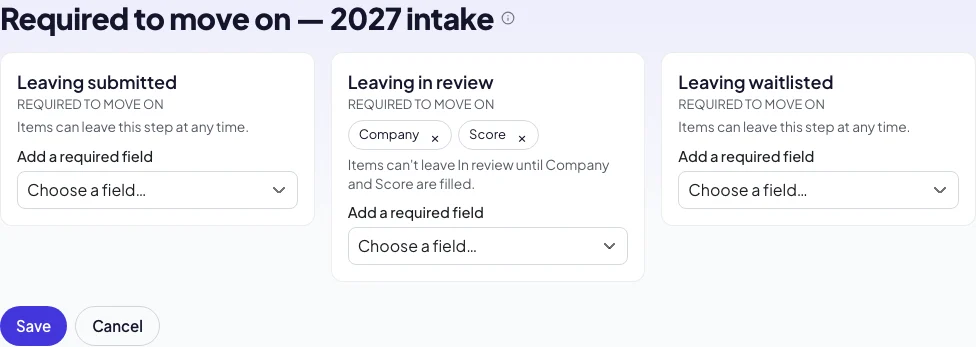
Select Actions › Required to move on.
Pick the fields
For each status, select the questions or review fields that must be filled.
Save
Select Save. The requirement applies to the next move.
Move an item that needs a value
Move the item
Drag the card to the next column, or select the next status.
Fill the fields
Type each missing value in the short form that opens.
Save and move
Select Save and move. The values are kept, then the item moves.
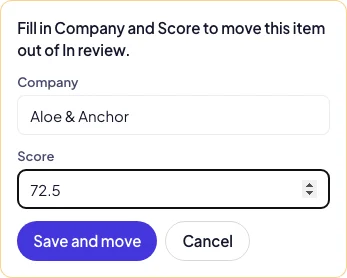
The item keeps each value with who recorded it and when. The item’s timeline shows each change.
Troubleshooting
If a move stops with Fill in…, fill the fields it names and move the item again.
If a chip says Unknown field, remove it. The server refuses a requirement on a field it cannot check.
If a file or a confidential answer is required, ask the person to send it. These are never typed in for them.
Good to know
Only the step being left decides. A requirement applies when an item leaves that step forward.
Timers and events. A move made by a timer or an event is not stopped.
Approvals. An approval step has no requirements. Approve and decline are outcomes, not steps to leave.
Reports. The report of a workflow shows how many items have each field filled.
Snooze: hide an item until a date.
Build a decision tree: steps, outcomes and problems on the canvas.
Programmes and applications: intakes and decisions in Pages.
Approvals in workflows: review and approval steps.