
Programmes and applications
Programmes describe the work your organisation does. A programme can take applications through a form you build, in intakes that open and close, with a review screen for your team.
The screens use your organisation’s own words: a church sees Ministries where these steps say Programmes.
Add a programme
Start a programme
In the sidebar, under Site, choose Programmes, then New programme.
Describe it
Fill in the Name, Type, Lede and Description, then work through Leadership, Contact, Appearance and Website.
Create it
Choose Confirm and create.
Build the application form
Start a form
Under People, open Applications, choose Application forms, then New form.
Pages and questions
Enter the Form name and the Title applicants see. Add pages with Add a page and questions with Add a question, choosing each question’s Kind.
Ask only when it applies
Use Show this question only when — or Show this page only when for a whole page — to ask a question only of the people it applies to.
Check and save
Check it with Preview, then choose Create form.
Open an intake
Applications are taken for a programme page that belongs to a location.
Start an intake
Open that programme page in the editor and, in its Page panel, choose Applications. Then choose New intake.
Form, dates and places
Choose The form applicants fill in, then set the intake’s Name, Status, Opens, Closes and Places.
Emails
Choose whether to Notify on new application, and write the messages applicants receive.
Open it
Choose Confirm and open for your programme. While the status is Open — taking applications, the Application block on your page takes applications.
Review applications
Open an application
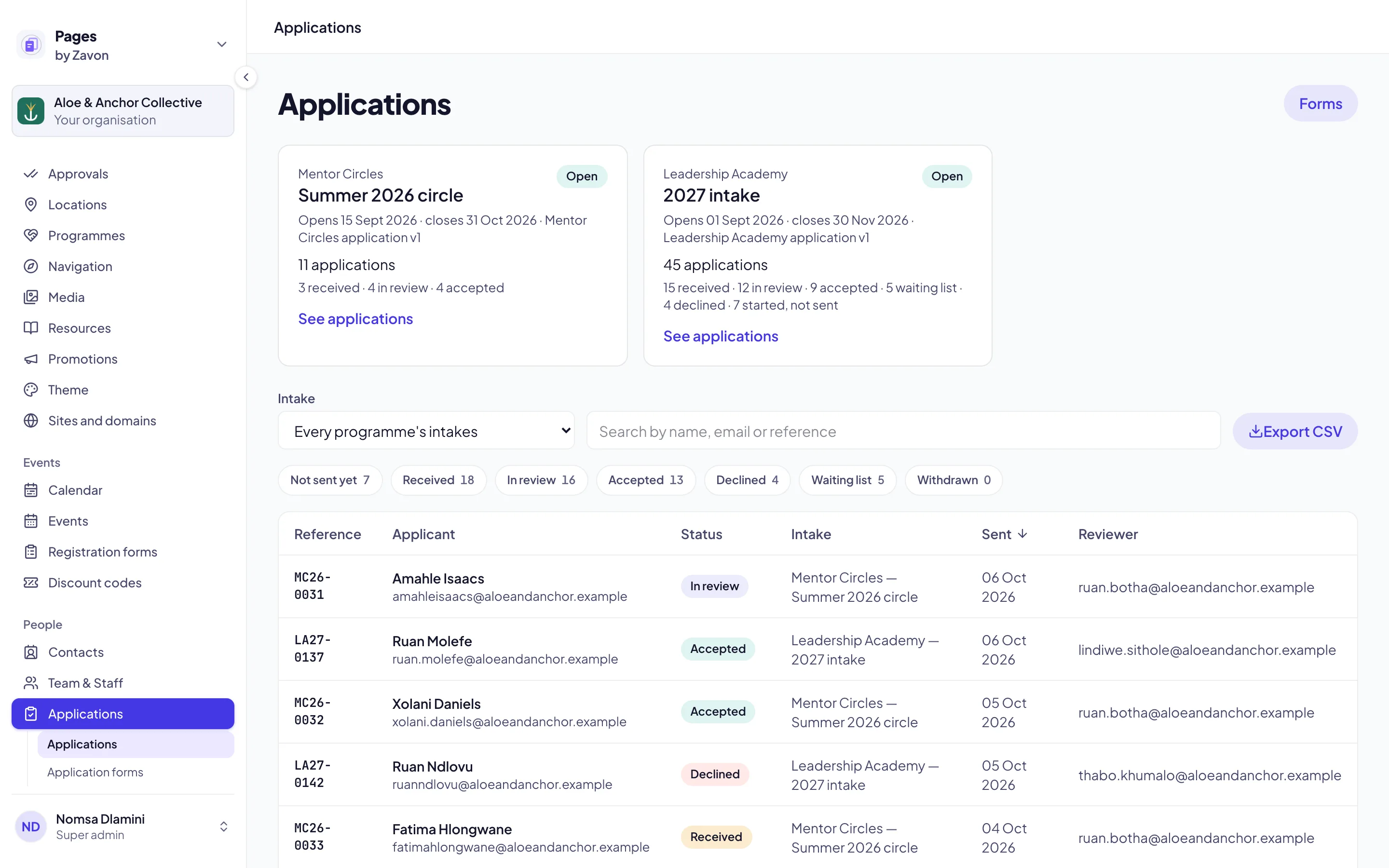
Under People, choose Applications and open one.
Decide
Choose Start reviewing. When you have decided, choose Accept, Waiting list or Decline. Add a Note for the team (never shown to the applicant) if you like, and tick Email the applicant to let them know.
Confirm
Choose Confirm decision.
Good to know
Deciding on applications needs the Review applications permission for that programme; a role can be limited to one programme (see Roles and access). Reviews can also run as a workflow: see Approvals in workflows.