
Journeys
Overview
Journeys are ready-made workflows for moments that matter: a first visit, a first gift and a person who stopped coming. Each one comes with emails for you to change. Teams that welcome and follow up people use them.
Before you start
You need a role in Reach that can create workflows.
New donor welcome starts when the stage of a contact becomes Donor. Lapsed re-engagement starts when it becomes Lapsed. Add these stages under Setup › People fields first.
Install a journey
Open Journeys
In the sidebar, select Send › Workflows. Select Journeys.
Install it
Select Install on the journey. The journey shows Installed · off.
Change the emails
Select Edit emails. Open each email of the journey and change the words to your own.
Check the steps
Select Edit journey. Check each step, and change the waits if you need to.
Switch it on
On the Check step, select Switch on. The journey shows On.
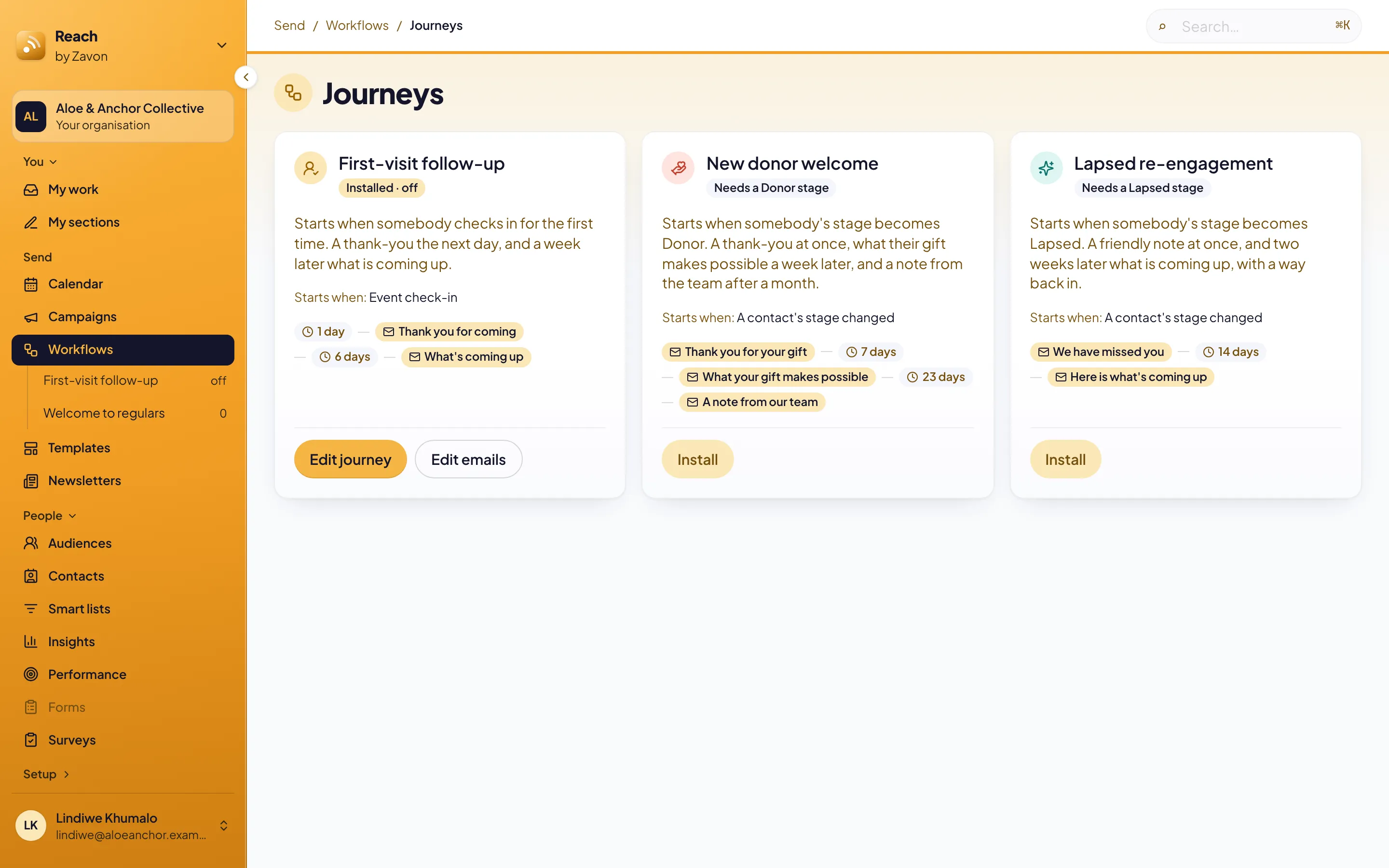
The three journeys
First-visit follow-up. Starts when somebody checks in for the first time. A thank-you goes the next day, and a week later what is coming up.
New donor welcome. Starts when the stage of somebody becomes Donor. A thank-you goes at once, what the gift makes possible a week later, and a note from the team after a month.
Lapsed re-engagement. Starts when the stage of somebody becomes Lapsed. A friendly note goes at once, and two weeks later what is coming up.
Troubleshooting
If Install is not available, the journey needs a stage that your organisation does not have. The card says which, such as Needs a Donor stage.
If a journey sends nothing, check that it shows On. A journey is installed switched off.
Good to know
Your words first. A journey is installed switched off. Nobody gets an email before you change the words and switch it on.
Installed once. Install does not change a journey that is already there. Your changes stay.
A first visit. Reach knows a first visit from the timeline of the contact. A contact who checked in before does not get the follow-up.
Create your first workflow: every step a journey uses, and the Set stage step.
Contacts and tags: the timeline of a contact.
Insights: first visits and people lapsing this week.
People fields: set up your stages and fields in guided steps.