
Switching from WordPress
Overview
This guide moves a website from WordPress to Pages. You rebuild your pages, import your articles and pictures, keep your old addresses working and connect your domain.
Before you start
You need a role that can edit pages and media. To connect the domain, you need access to its DNS records.
Keep your WordPress site online until the move is done. Make a list of its pages and their addresses.
Keep a copy of your site
Export from WordPress
In WordPress, select Tools › Export. Save the file it makes.
Keep the file
Keep the file as your record of the old site. Pages does not read it.
Import your articles
Open the screen
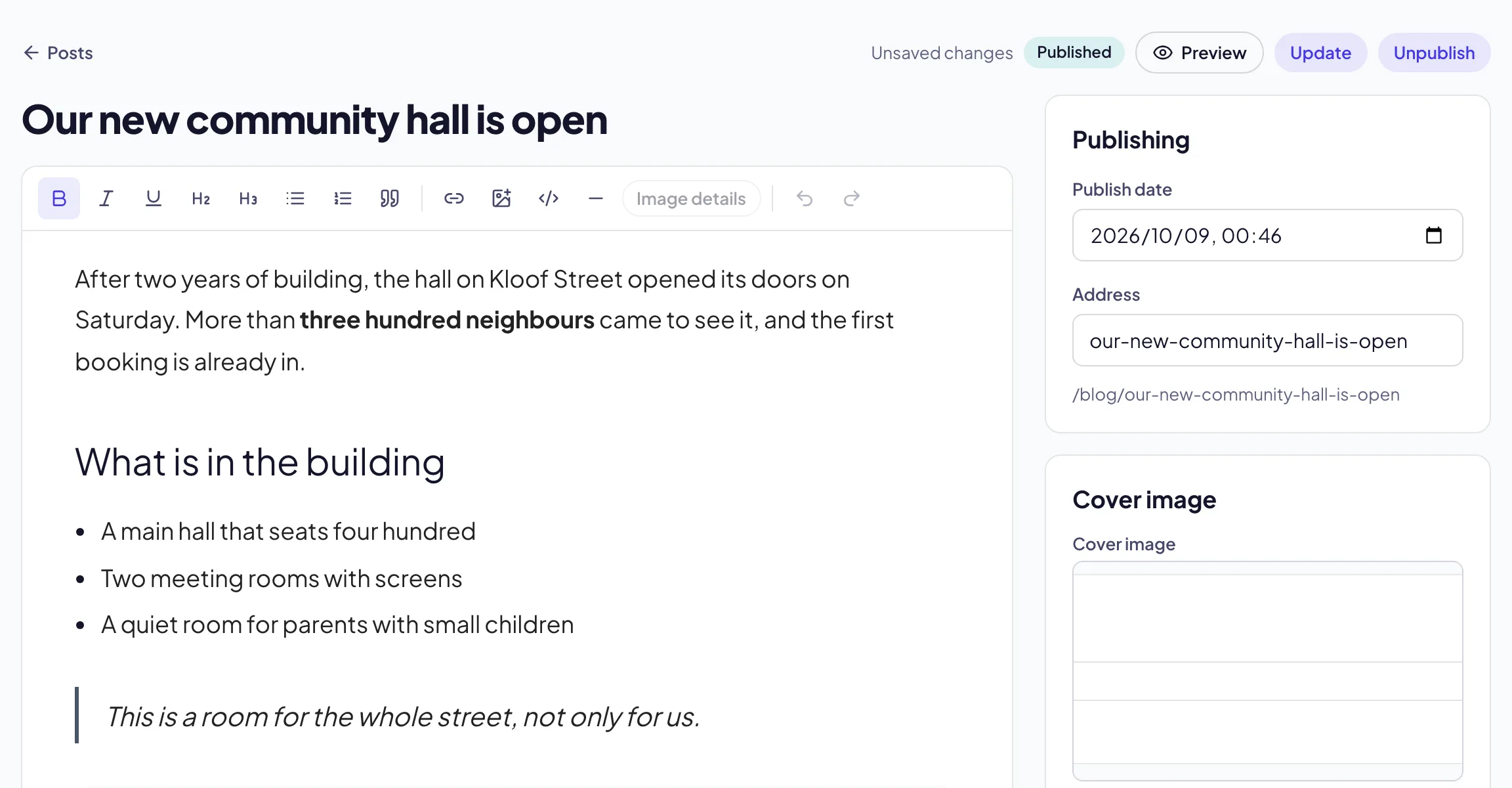
In the sidebar, select Site › Posts. Then select Import article.
Paste the address
Paste the article’s address into Article link.
Keep the old address
Optionally, type the old address in Original address (optional).
Import
Select Import. Pages makes a draft post with the article’s pictures in your media library.
Publish
Read the draft, correct it and publish it.
Bring your pictures
Open the library
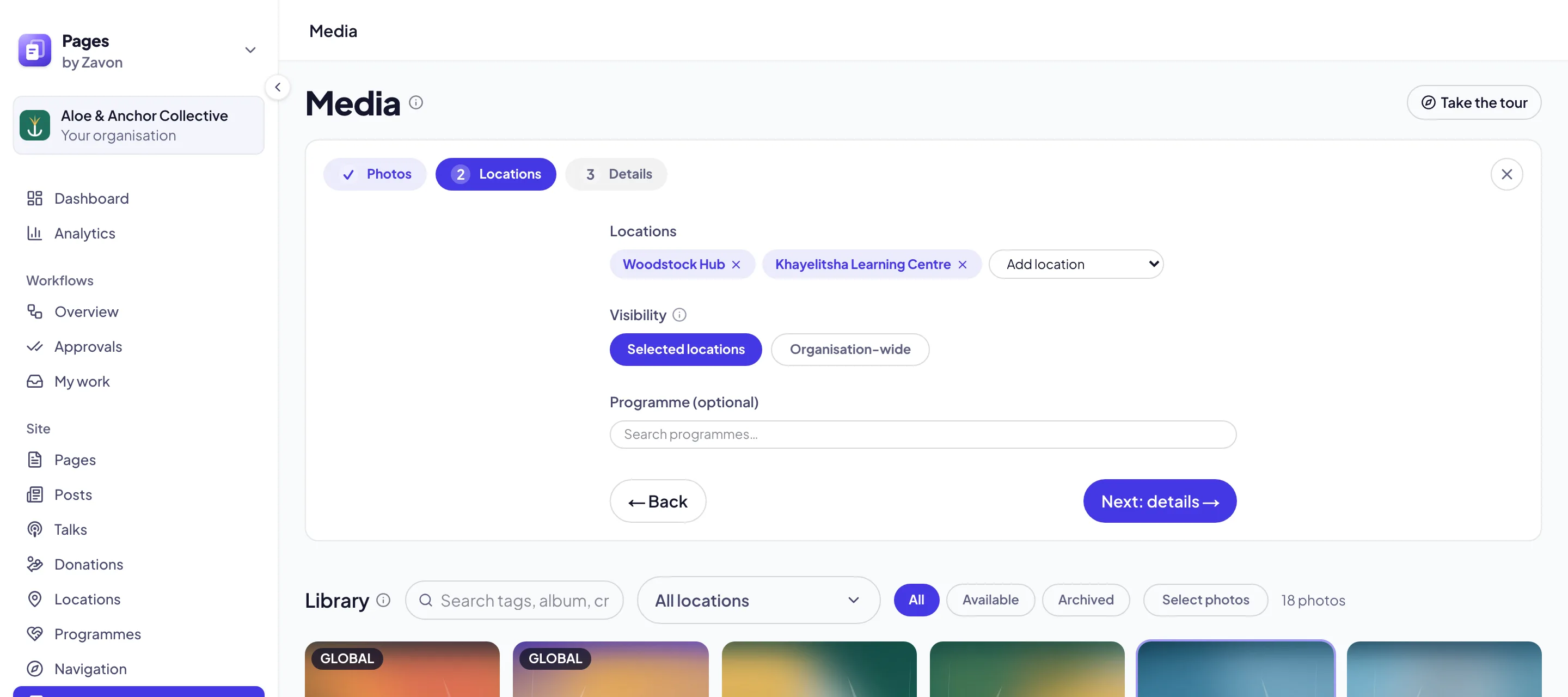
In the sidebar, select Site › Media.
Upload
Drag up to 10 photos onto the screen, or upload a zip of up to 200 MB.
Copy one picture
In a picture field, open From a link. Paste the Picture address and select Copy into the library.
Keep your old addresses working
List the old addresses
Write each old address beside the new page it goes to.
Send the list
Send the list to Zavon. We add a permanent redirect for each address.
Check them
Open a few old addresses. Each one opens its new page.
Connect your domain
Add the domain
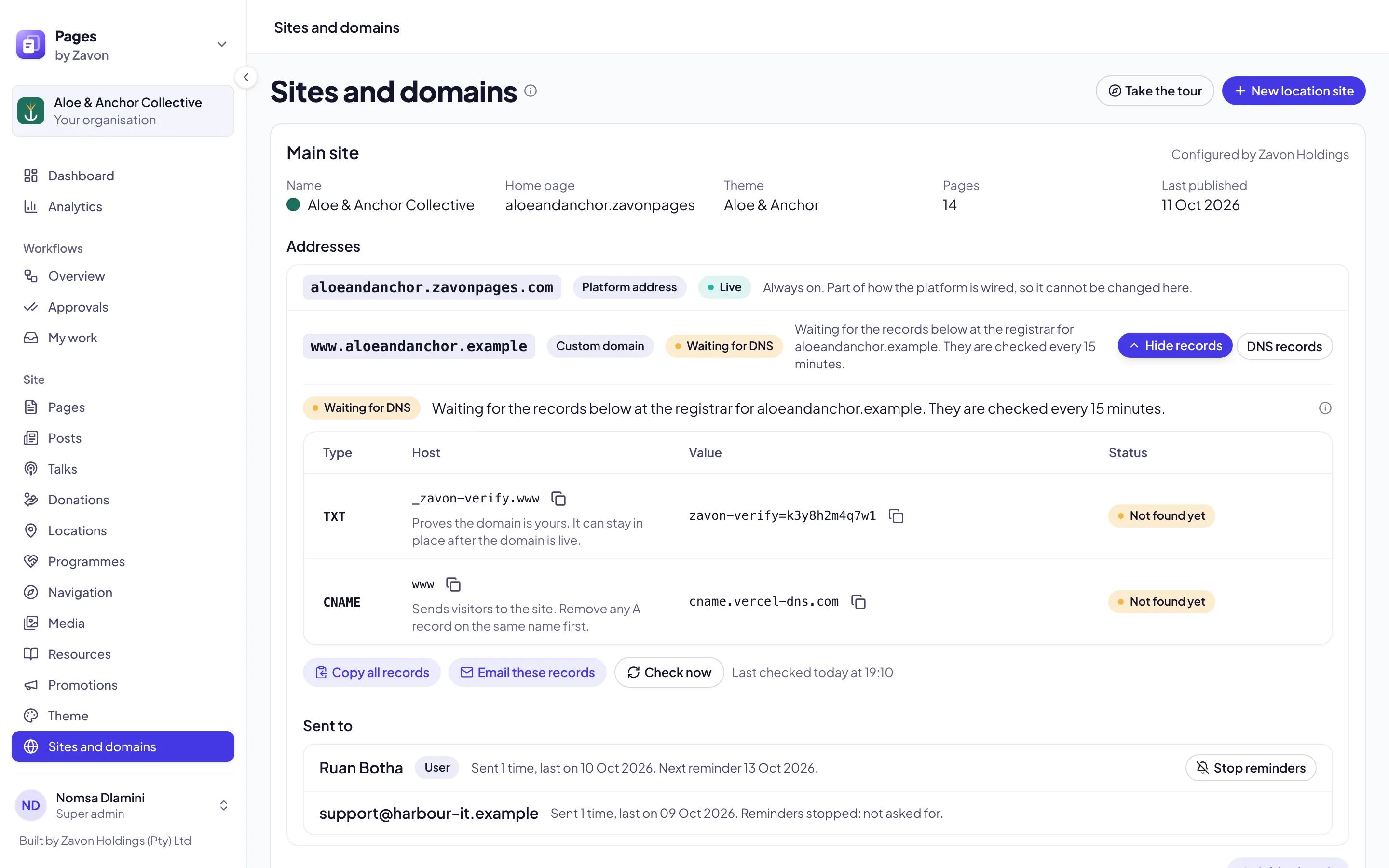
In the sidebar, select Site › Sites and domains. Add your domain.
Prove it is yours
Add the TXT record first. Wait until it shows as found.
Switch the site
Change the routing records. Visitors see the new site when the records update.
Troubleshooting
If Pages cannot reach the article, paste the page’s HTML into Article HTML instead.
If an article has more than 20 pictures, Pages copies the first 20. Add the rest from the media library.
If an old address still shows a page, a live page uses that address. A redirect applies only where no page is.
Good to know
Renamed pages. When you change a page’s address in Pages, the old address redirects on its own.
A folder of addresses. A redirect for a folder also moves the addresses under it.
Search engines. Check your settings under Settings › SEO. Pages makes the sitemap for you.
Create a page: build the pages you had.
Write a blog post: posts in full.
Media library: pictures and uploads.
Your own domain: the records in full.
Search engine settings: titles, descriptions and the sitemap.