
Header and footer
Overview
Build your site’s header and footer in the page builder, from the same sections as a page. They show on every page of the site. Until you publish one, the site shows its built-in header and footer.
Before you start
Your role needs Edit on pages across the organisation. To publish or delete a header or footer, it also needs Publish on pages across the organisation. See Roles and access.
Zavon must switch sections on for your organisation. Learn the page builder first in Build a page with sections.
Make the header
Open the list
In the sidebar, select Theme › Header and footer. Each part shows Built in until you make your own.
Start the header
Select Create header. The page builder opens with a starter header.
Add the site parts
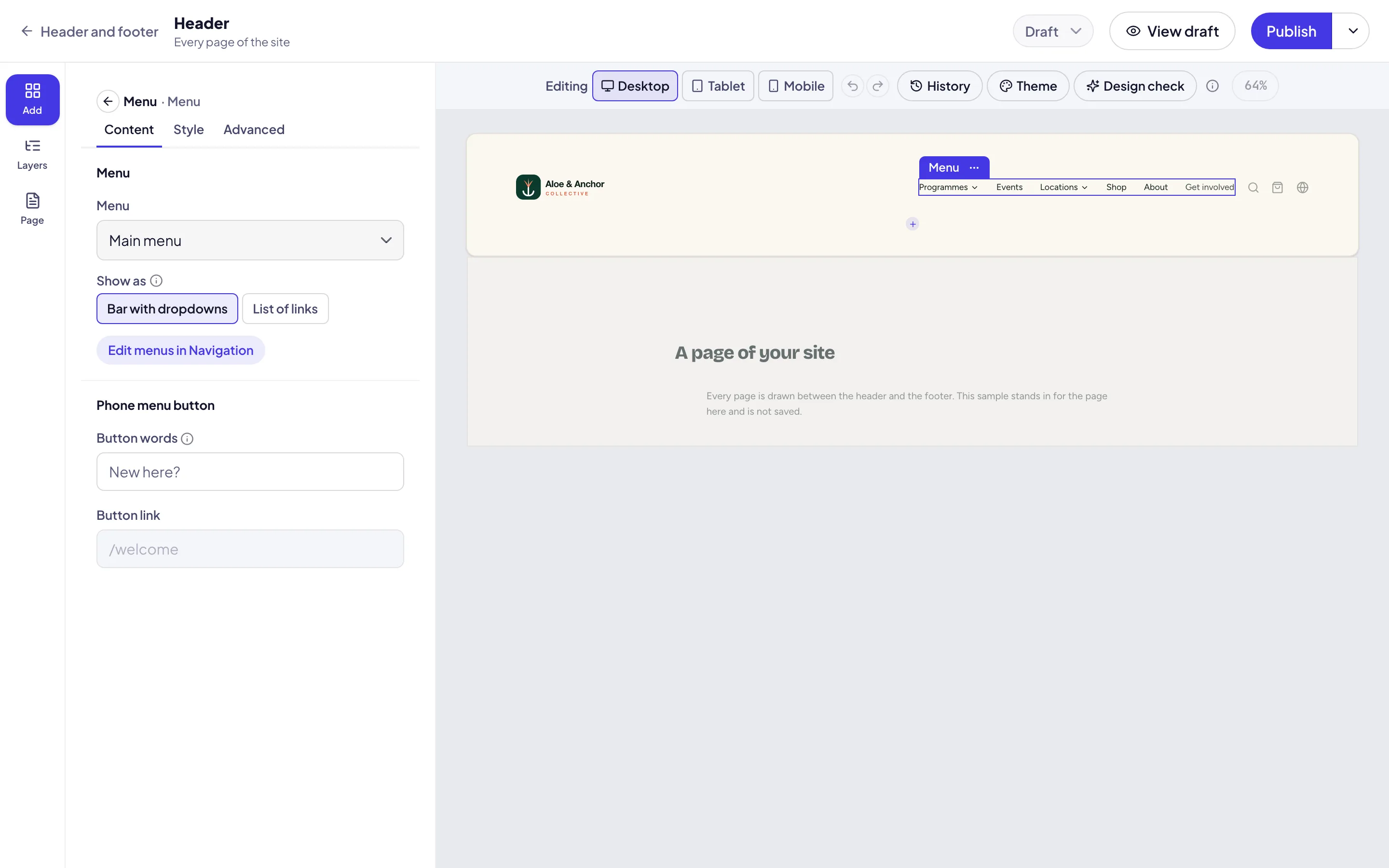
In the rail, select Add. Under Site, add a Site logo, a Menu, Search, a Cart or Language.
Keep it on screen
In the rail, select Page. Turn on Sticky header to keep the header at the top as visitors scroll.
Check each device
Beside Editing, select Tablet and Mobile. Set the Phone menu button of the menu for small screens.
Publish it
Select Publish. Every page of the site shows the new header.
Go back to the built-in header
Open the part
On Theme › Header and footer, open the header or the footer.
Delete it
In the rail, select Page. Select Delete header or Delete footer.
Confirm
In the dialog, select Delete permanently. The site shows its built-in part again.
Troubleshooting
If Create header is grey, your role cannot edit pages across the organisation, or the page builder is not on.
If Delete header is grey, your role cannot publish pages across the organisation.
If you do not see Publish, your role cannot publish. Select Submit for review, and an approver decides.
If Search or Cart does not show on the site, turn on site search in Settings, or open your shop.
If the canvas shows the logo and menus empty, the site’s settings could not be read. Load the page again.
Good to know
From your settings. The Site logo is your logo from Settings. A Menu draws one of your menus from Navigation.
A page can leave it out. On a page’s Page tab, Header and Footer still choose what that page shows.
Approvals. A header or footer goes through approval like a page. See Approvals.
Build a page with sections: the page builder, step by step.
Theme: the colours and fonts the header and footer wear.
Site settings: the logo, contact details and social profiles.
Create a page: a page’s own Header and Footer settings.