
Languages
Overview
A site can speak more than one language. Each page can have a translation in each language, at its own address: the Afrikaans copy of /about is /af/about. Visitors change the language in the site’s header, and search engines are told which page is which language.
Before you start
To add the site’s languages, your role needs Edit settings. To add a translation, it needs to edit pages. To publish one, it needs to publish pages, as for any page. To translate with AI, it also needs AI assistance. See Roles and access.
Add the site’s languages
Open the settings
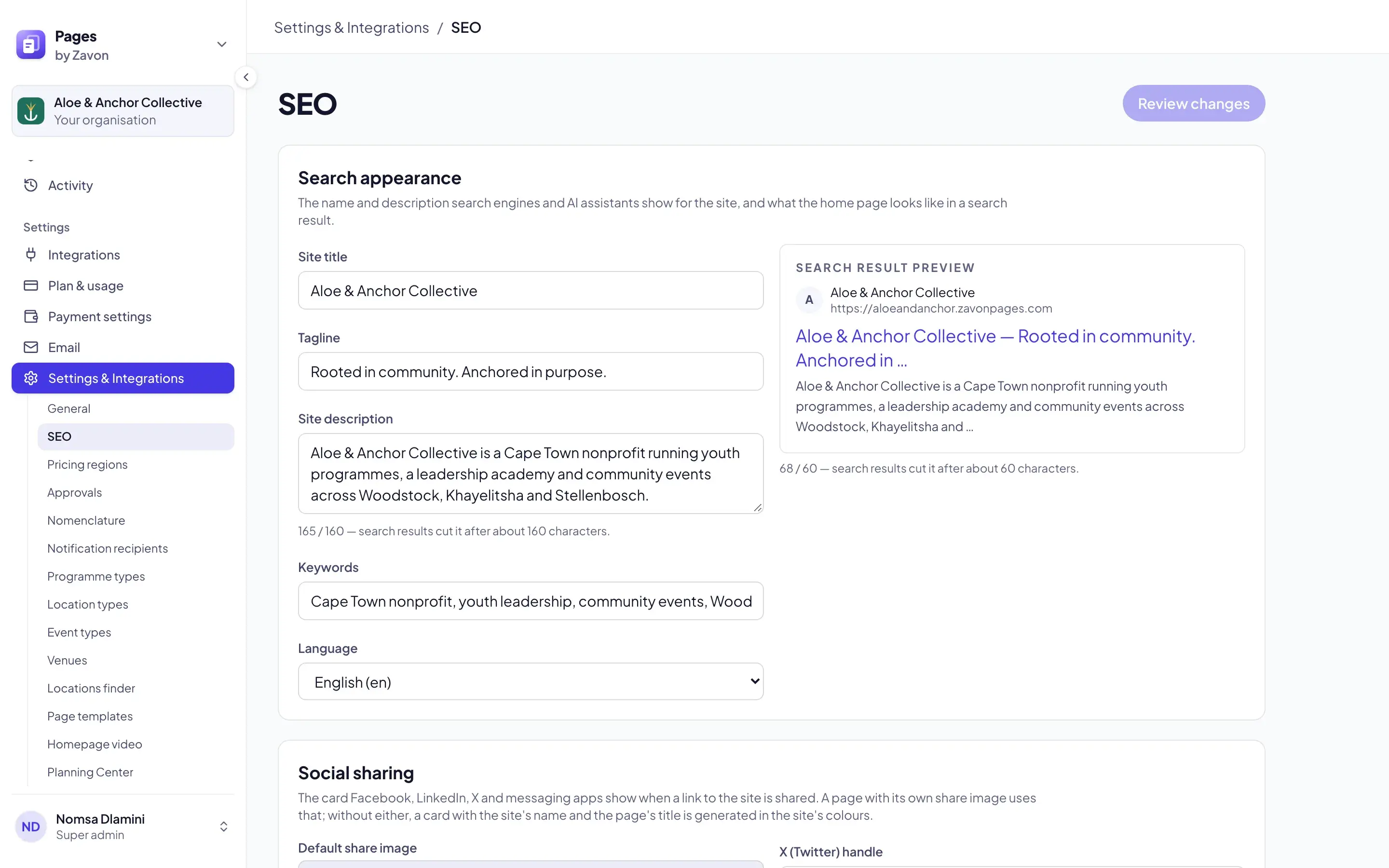
In the sidebar, select Settings & Integrations › SEO.
Check the default
Under Search appearance, check Language. Pages in this language stay at their own addresses.
Add the others
In Other languages, type a language and select it. Add each language that the site needs.
Save
Select Review changes. Check the changes. Select Save. The settings apply to the whole site.
Add a translation
Open the page
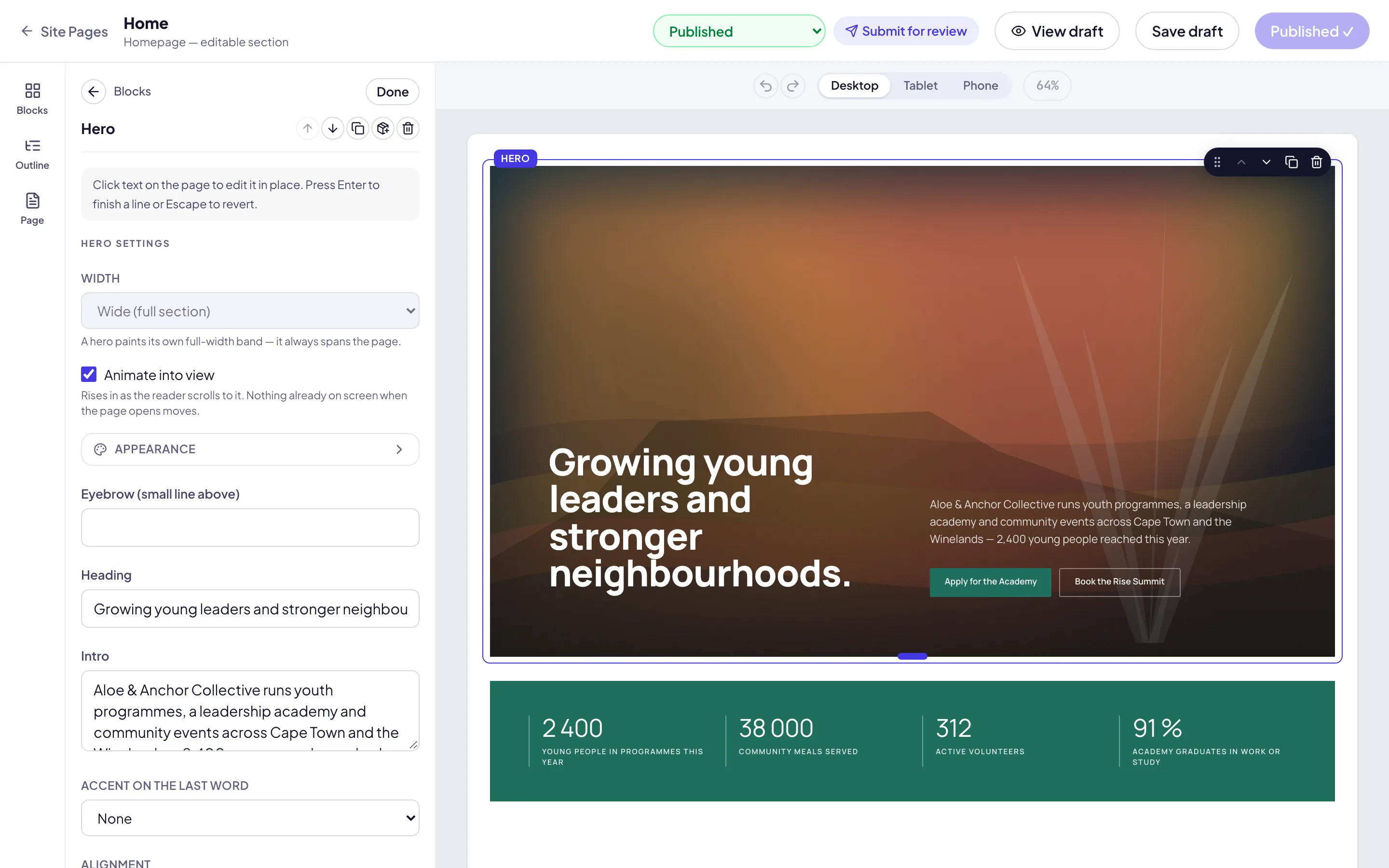
Open the page in the editor. In the left rail, select Page.
Find the languages
Under Languages, find the language. Each row shows the status of its translation.
Make the copy
Select Add translation. Pages copies the page as it was last saved, as a draft. The copy opens in the editor.
Edit the words
Change the Title and the words of each block into the language.
Save
Select Save draft. Then publish the page or submit it for review as usual.
Translate with AI
Open the translation
Open the translation in the editor. In the left rail, select Page.
Start
Under Languages, select Translate with AI. The price of one block shows on the button.
Translate the blocks
Select Translate. Headings, paragraphs, buttons and components are translated one block at a time.
Check each block
Read each translation beside the words it replaces. Select Use this translation for each one you want.
Apply
Select Apply checked. Only the selected blocks change. Change the Title yourself.
Save
Select Save draft. Then publish the page or submit it for review as usual.
Troubleshooting
If Add translation is grey, the site has one language. Add the others in Settings & Integrations › SEO.
If Translate with AI does not show, the page is in the default language, or AI assistance is off. Open the translation instead.
If a language is grey in the site’s header, no page in that language is published yet. Publish its home page first.
If Add translation says another page uses the address, rename that page or delete it. Then select Add translation again.
Good to know
Addresses. A translation’s address starts with its language, such as /af or /pt-br. The home page’s translation is the language alone: /af.
The header. The language menu shows only on a site with more than one language. It goes to the same page in the other language, or to that language’s home page.
Search engines. Each published page names its translations, and the sitemap lists them together. A page marked to be left out of search results stays out.
Checked by a person. AI assistance does not save or publish anything. A translation goes on the site only when a person publishes it.
Search text. A translation starts with no search title or description of its own. Write them in the page’s Search and sharing settings.
Create a page: edit, save and publish.
Search engine settings: the site’s language and search text.
AI page drafts: AI assistance in Pages.
Approvals: who publishes what.