
Contacts and tags
Overview
Tags label your contacts: Mentor, Alumni, Volunteer. Communications and programme teams add them by hand, let a workflow add them when someone completes it, and use them to start the next workflow. Reach keeps who added each tag, when and why.
Tag contacts
- 1
Find the contacts
In the sidebar, under People, choose Contacts. Search by name, email or phone, or filter by tag.
- 2
Tag several at once
Tick the contacts, choose the Tag to apply and choose Add tag, or Remove tag. A contact who already has the tag is not tagged again.
- 3
Tag one contact
Open a contact to see each tag, who added it and when, and its Tag history. Add tag there adds a tag, or creates one as you type.
- 4
Manage your tags
Under Setup, choose Tags to create, rename, recolour or delete tags, and see how many contacts carry each.
Tag from a workflow
- 1
When someone completes it
On the workflow’s Basics, On completion, tag contacts with… tags everyone who completes the workflow.
- 2
As a step
Add a Tag step: Add tag, Remove tag or Contact has tag. For Contact has tag, choose what happens Otherwise: End the workflow for this contact, or skip to a later step.
Start a workflow from a tag
- 1
Choose the trigger
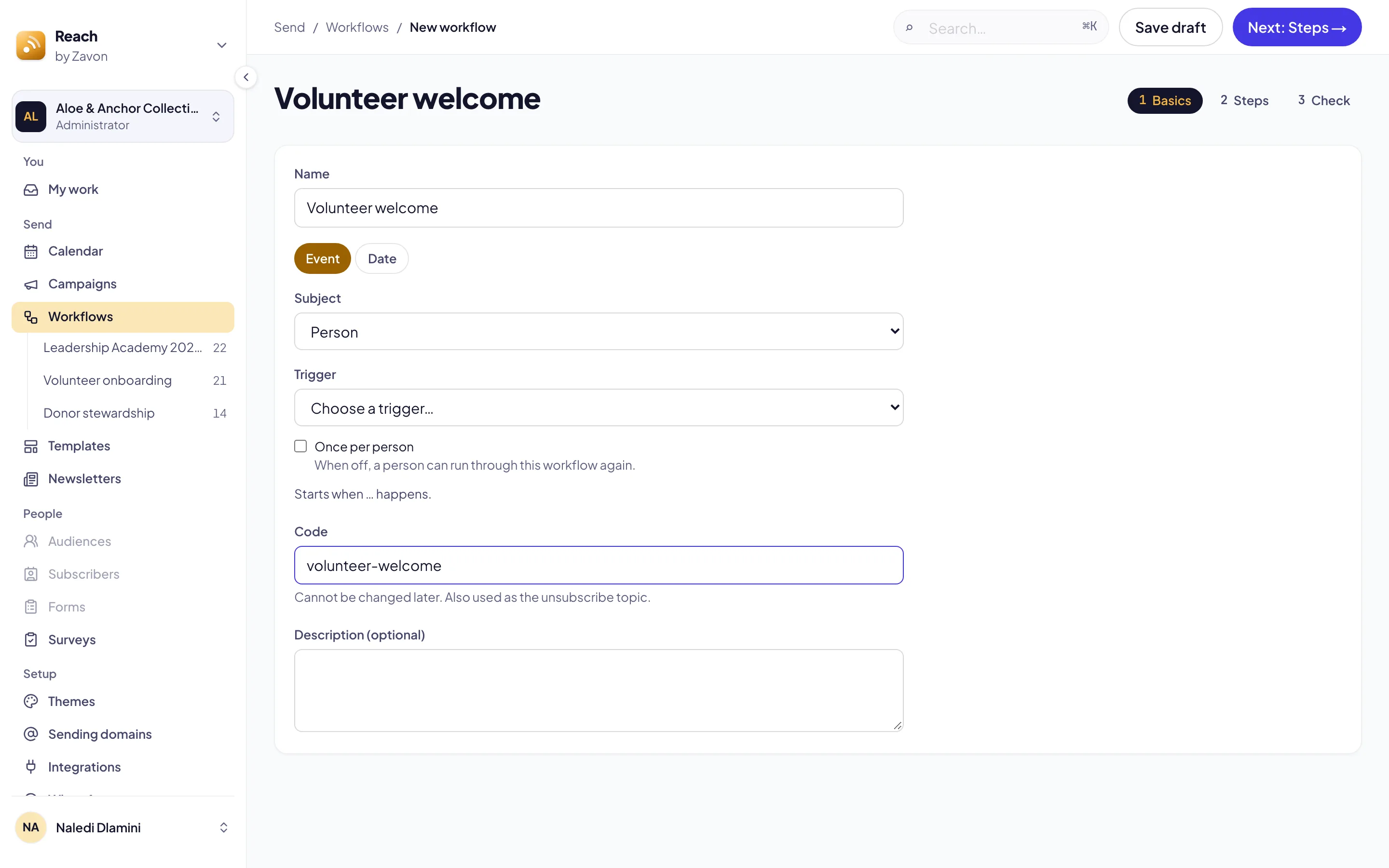
On the workflow’s Basics, choose the Trigger Tag added to a contact, then the tag.
- 2
Once per person
Tick Once per person for something that should happen to each contact only once, such as onboarding.
Good to know
A tag added to someone who already has it changes nothing and starts nothing, and a workflow never starts itself from a tag it added. Renaming a tag updates every workflow that uses it. Deleting a tag removes it from every contact; the history keeps its name. For workflows, see Create your first workflow.