
Test platform payments
Overview
Zavon platform staff use this guide to make sure that Zavon’s Paystack account takes payments for a client. A client paid through Zavon settles to its own Paystack subaccount. Zavon keeps the platform fee as a split of each payment.
Before you start
Only Zavon platform staff can open this screen. Client users do not see it.
Select the client in the client switcher first. The screen shows the payment settings of the selected client.
The client must be paid through Zavon, with a settlement account. Set this on the client’s Payment settings screen.
Check the Paystack key
Open the status screen
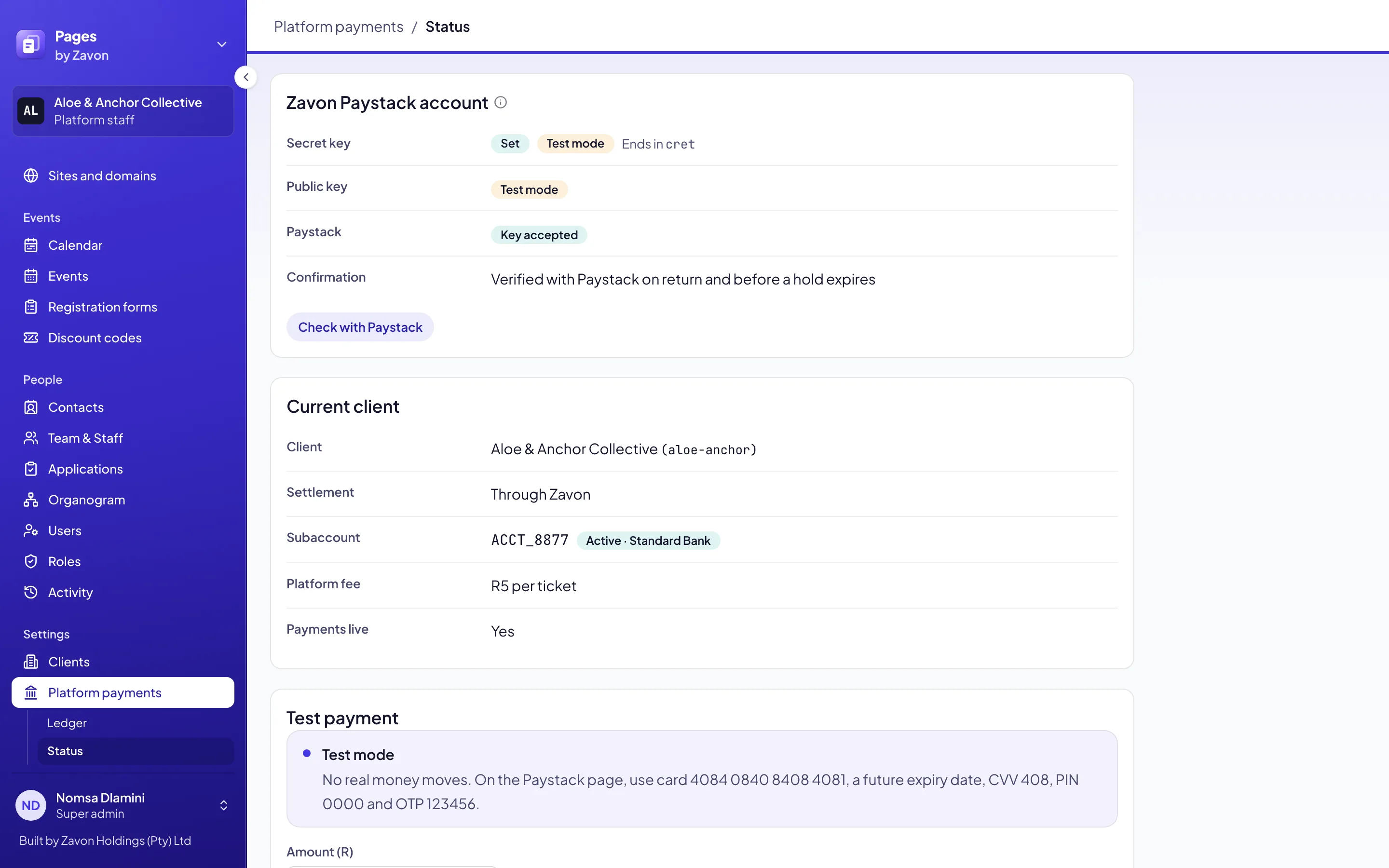
In the sidebar, select Settings › Platform payments › Status.
Read the key
Under Zavon Paystack account, read Secret key. It shows the mode and the last four characters of the key.
Ask Paystack
Select Check with Paystack. Paystack is asked to read the account. Nobody is charged.
Read the answer
Look for Key accepted. Under Current client, the subaccount shows Active and its bank.
Make a test payment
Set the amount
Under Test payment, type the Amount (R). The default is R10.
Start the payment
Select Start test payment. The Paystack payment page opens.
Pay
In test mode, use the test card that the screen shows. In live mode, use a real card.
Read the result
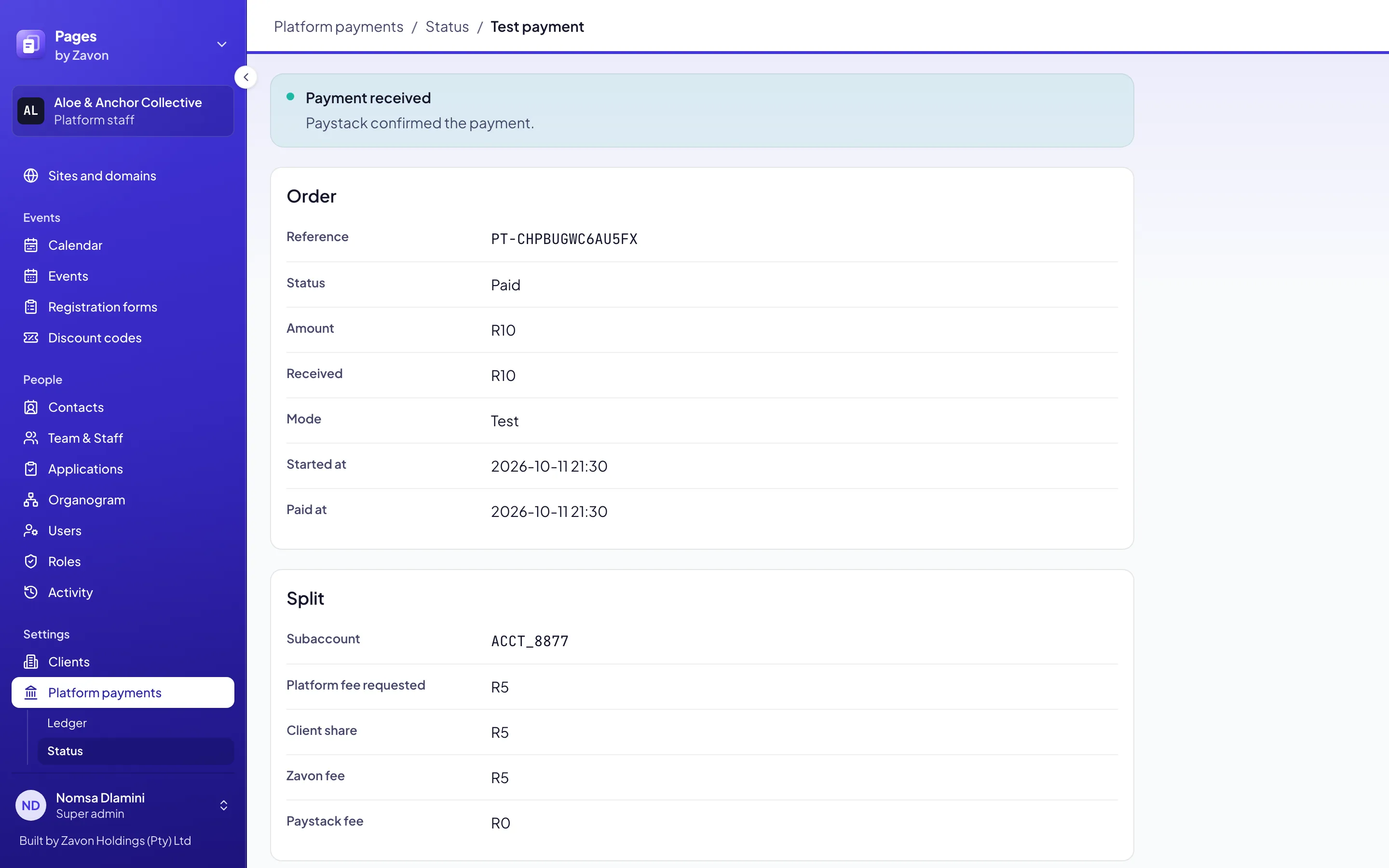
Wait for Paystack to return you to the result page. Look for Paystack confirmed the payment.
Check the split
Under Split, read the client share, the Zavon fee and the Paystack fee.
Refund the payment
Select Refund this test payment. In the dialog, select the refund button to confirm.
Troubleshooting
If Secret key shows Not set, set the GitHub organisation secret that the screen names. Then deploy the API again.
If Paystack does not accept the key, make sure that it is the secret key of Zavon’s Paystack account.
If the secret key and the public key are from different modes, set both keys from the same mode.
If Start test payment is not available, hold the pointer on it. The tooltip gives the reason.
If the result page says that Paystack did not receive a payment, start a new test payment.
Good to know
Not the client’s takings. A test payment is real money. It is not in the client’s reports, dashboard, ledger or orders, and nobody gets a receipt.
Confirmation. Zavon’s Paystack account has one webhook address for all clients. Pages asks Paystack about each payment when the payer returns.
Activity. Each check, test payment and refund is recorded with the name of the staff member.
Recent test payments. The status screen lists the last ten tests for the selected client. Select a reference to open its result.
Locations: a location’s own payment account.
Add an event and sell tickets: tickets paid through Zavon.
Online donations: donations use the same account.