
Plan newsletter issues
Overview
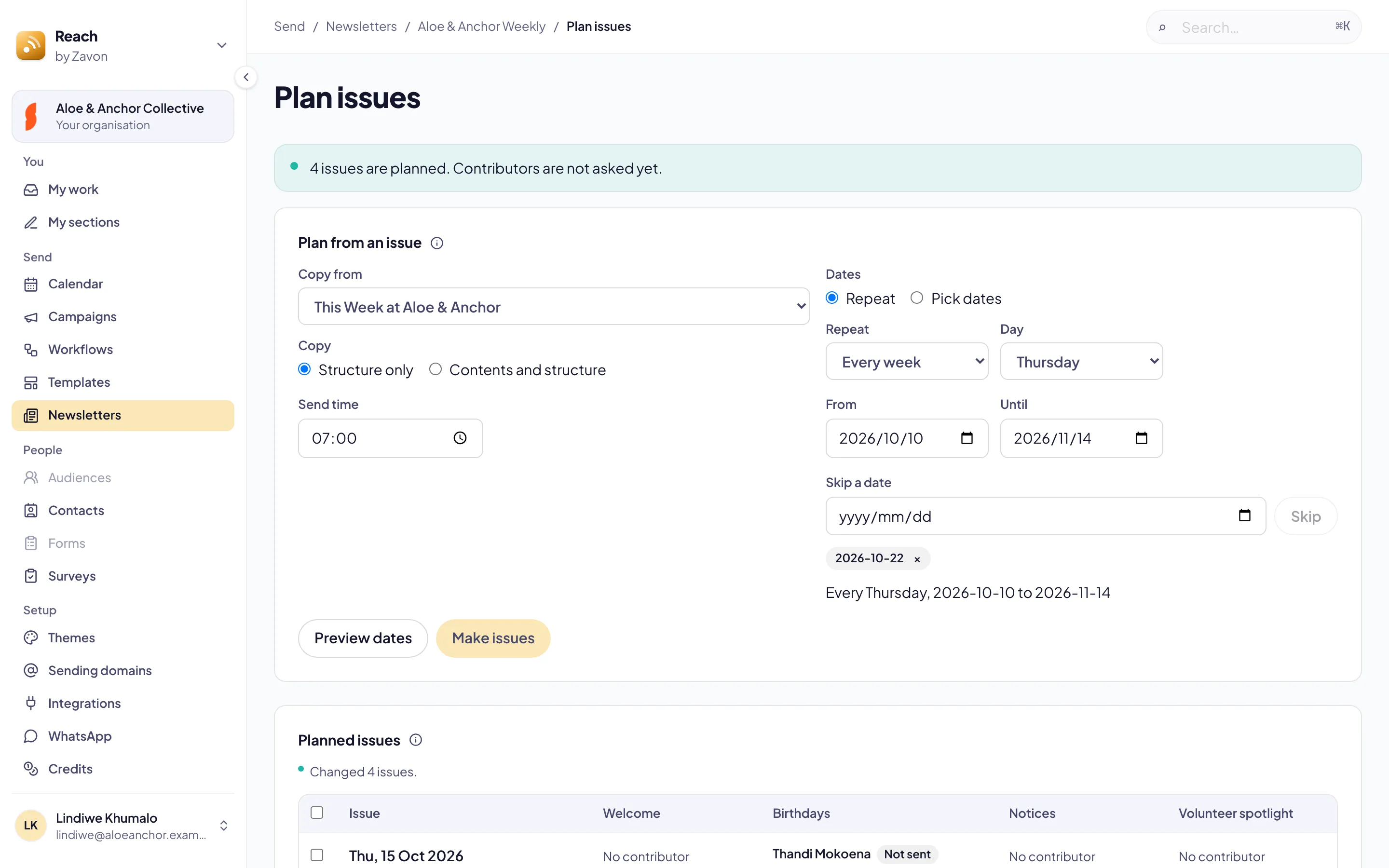
In Reach, you can plan the issues of a newsletter up to 15 months ahead. Reach copies one issue to each date you choose. Each new issue is a draft with a planned send date.
The people who write sections of the issue come with it. Their due dates are set from the send date of each issue. Reach does not ask them until you send their requests.
Before you start
To plan issues, you need a role that can make issues, such as Organisation administrator.
Make one issue first, with the sections every issue needs. To ask people to write sections, see Collaborative newsletters.
Plan issues
Open the planner
Select Newsletters, then the newsletter, then Plan issues.
Choose the issue to copy
Set Copy from to an issue. Under Copy, select Structure only for empty sections, or Contents and structure to keep the words.
Choose the dates
Select Repeat, then set Repeat, Day, From and Until. For example, every Thursday or the first Monday of the month. To leave out a date, set Skip a date and select Skip.
Or pick each date
Select Pick dates. Set a Date, then select Add date. Do this for each date.
Set the send time
Set Send time. Each issue is planned for this time on its date.
Preview and make the issues
Select Preview dates. A date that already has an issue is crossed out and skipped. Then select Make issues.
Work with the plan
Read the grid
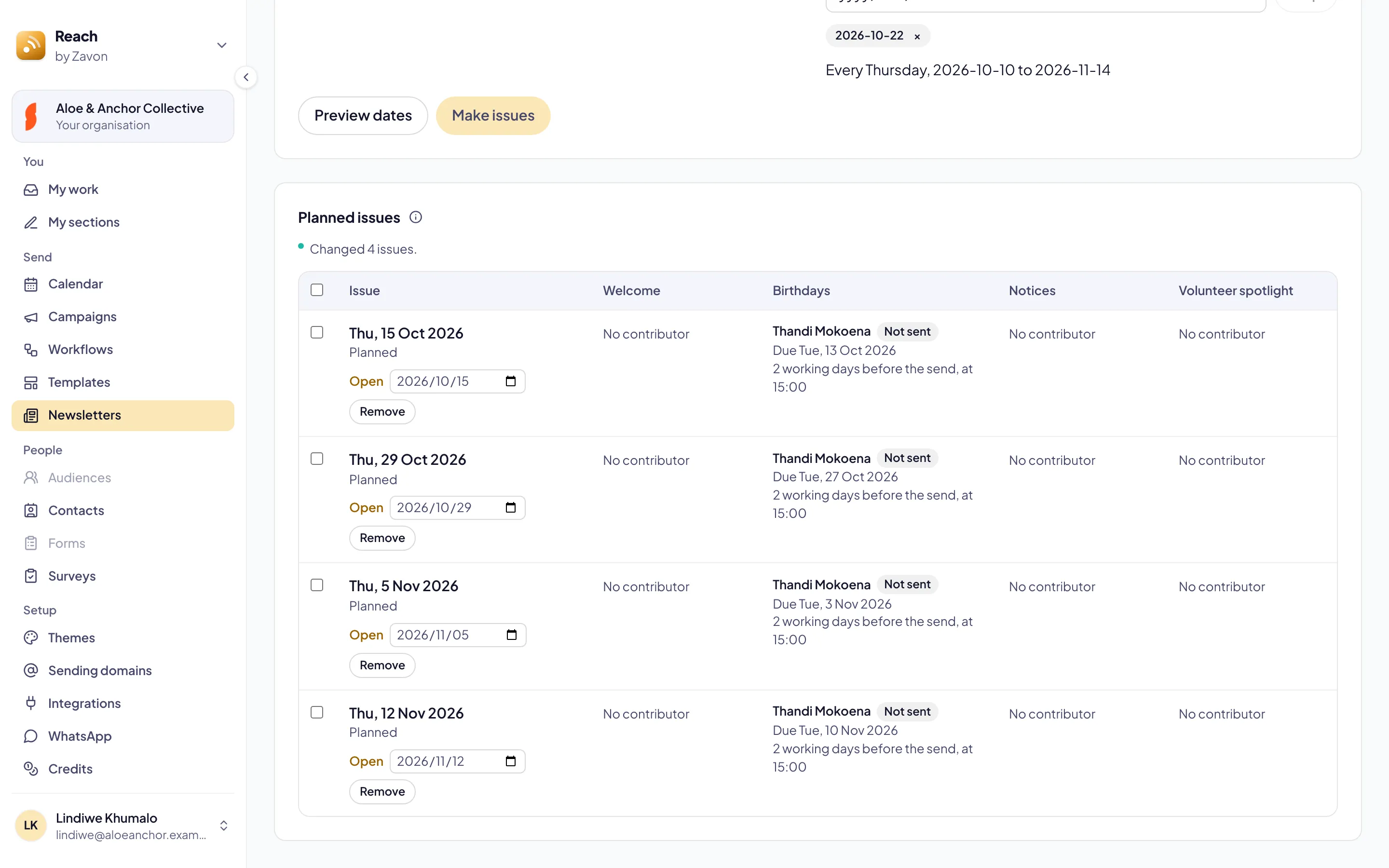
Look at Planned issues. Each row is an issue and each column is a section. A cell shows who writes the section, its status and when it is due.
Set a section for many issues
Select the rows. Set Section. Set the due date, for example 2 working days before the send at 15:00. To ask a person, type the Contributor’s email address. Select Apply.
Move a date
Change the date of an issue in its row. The due dates of its open sections move with it.
Remove a date
Select Remove in the row of a planned issue. You cannot remove an issue after its requests are sent. Withdraw them first.
Send the requests
Open the issue and select People. Select Send requests when you are ready to ask the contributors.
See the plan on the calendar
Open the calendar
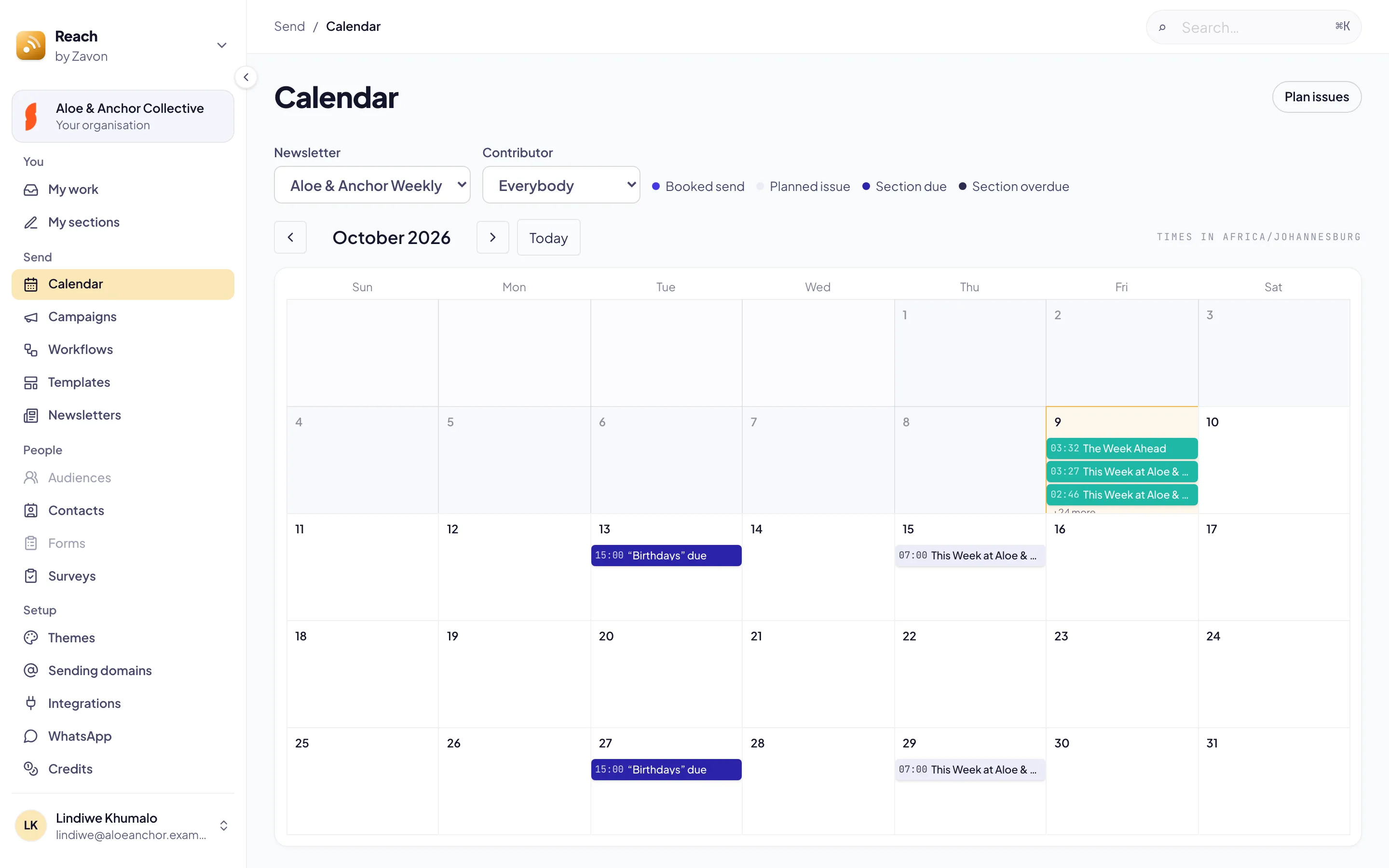
Select Calendar. It shows booked sends, planned issues and the dates sections are due. An overdue section has its own dark colour.
Filter
Set Newsletter to show one newsletter. Set Contributor to show the sections of one person.
Open an item
Select an item on a day. A planned issue opens the planner. A section opens the issue.
Troubleshooting
If Make issues is not available, select Preview dates first. If every date already has an issue, there is nothing to make.
If Reach says a date is too far ahead, choose dates in the next 15 months. One plan makes up to 70 issues.
If a due date is not what you expect, check the Working days of your organisation. Reach skips weekends, public holidays and closures when it counts working days.
If Plan issues is not available, ask an administrator for a role that can make issues.
Good to know
Nobody is told yet. Planned issues do not send email to contributors. Requests go when you send them.
Drafts only. A planned issue is a draft. To send it, book a send time or select Send.
Recurring sections. A recurring section of the newsletter can set who writes it and when it is due. Every new issue starts with them.
Collaborative newsletters: ask people to write sections, then review them.
Send a newsletter: create a publication, then write, test and send an issue.
Approve a newsletter before it is sent: submit an issue for review before it goes out.