
Theme
Overview
The theme sets the colours, fonts and shapes of your whole site. Site administrators start from a theme and change what they need.
Your changes are kept apart from the theme. The theme can still get updates, and you can remove your changes at any time.
Before you start
Your role needs Edit on the Theme area. See Roles and access.
Have your brand colours as hex values, such as #2F6F5E, and the names of your brand fonts.
Choose a starting point
Open the theme
In the sidebar, select Site › Theme. The Starting point tab opens.
Select a theme
Select a theme. The preview on the right shows it.
Save it
Select Save theme. The message tells you when the site shows the change.
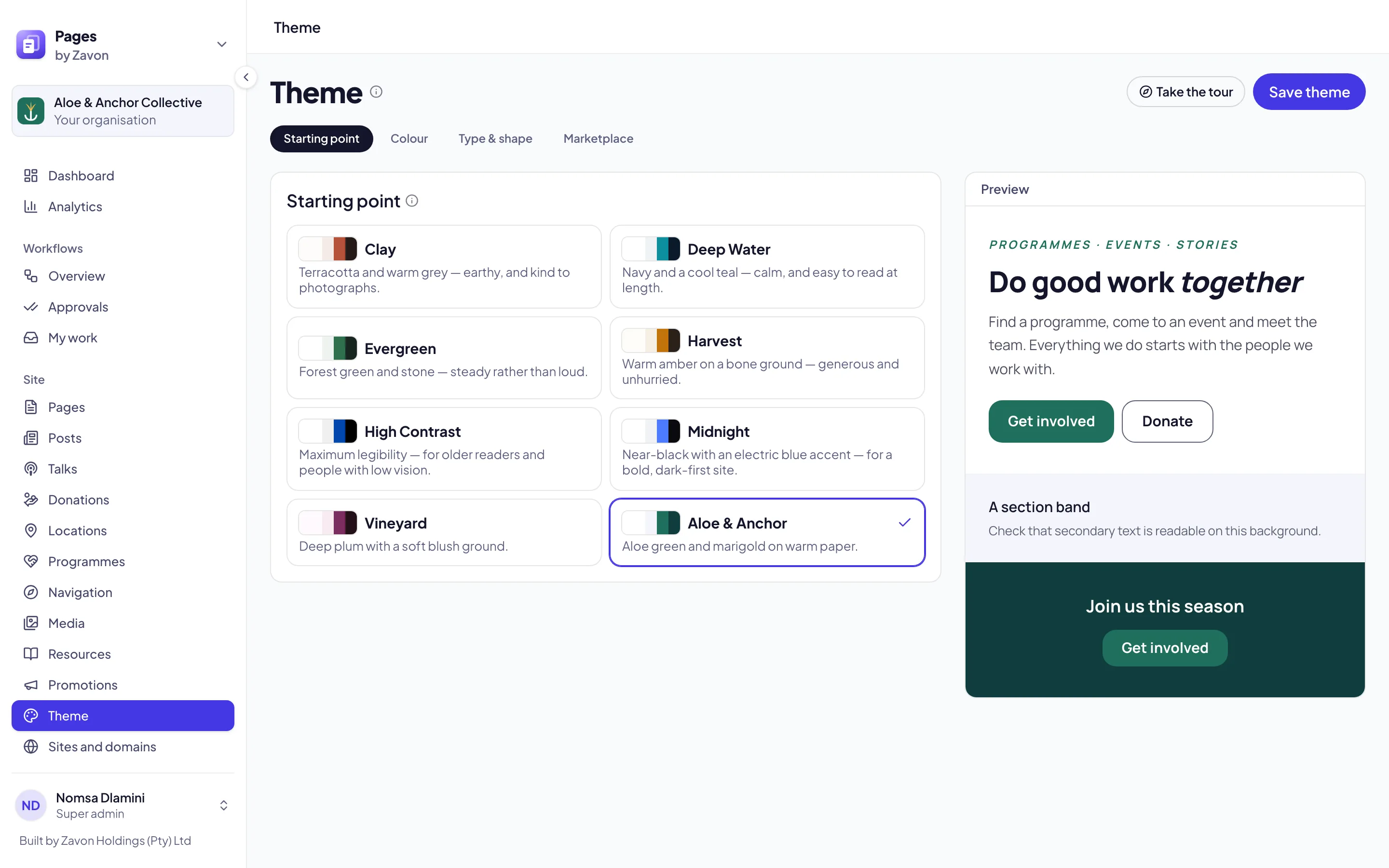
Change colours
Open the Colour tab
Select the Colour tab. Your changes lists six colours, such as Accent and Text.
Set a colour
Select the colour box beside a colour and set the new colour.
Undo one change
Select Reset beside the colour. The colour follows the theme again.
Check the buttons
Under Buttons, set Button fill and Button text. The message tells you if the contrast meets WCAG AA.
Save it
Select Save theme.
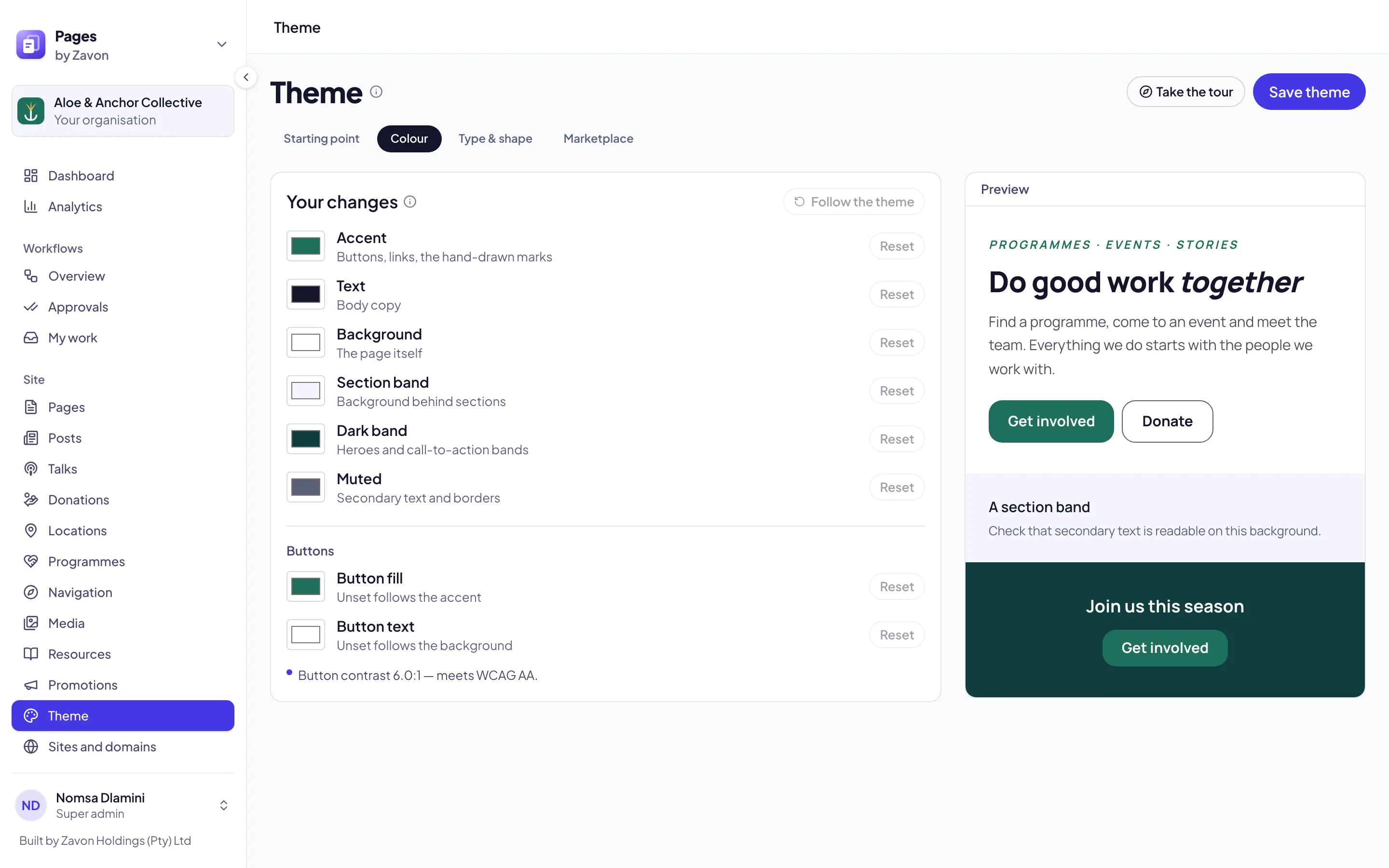
Change fonts and shapes
Open the tab
Select the Type & shape tab.
Set the fonts
Under Typography, set Headings and Body copy.
Set the heading marks
Under Section headings and Emphasis in headings, select a style.
Save it
Select Save theme.
Install a theme
Open the marketplace
Select the Marketplace tab. It lists themes that other organisations published.
Install it
Select Install beside a theme. The theme is added to your Starting point tab.
Use it
Select the Starting point tab, select the theme and select Save theme.
Troubleshooting
If the site does not show the change, wait five minutes and load the page again.
If Reset is not available, that colour already follows the theme.
If Follow the theme is not available, you have no changes.
If the button contrast is below WCAG AA, set a Button text colour. The site then keeps the button text readable.
If the Marketplace tab shows no themes, you already have every theme on offer.
Good to know
Follow the theme. This removes all your changes. The theme you started from stays.
An installed theme is a copy. Changes that its author makes later do not reach your site.
No starting point. If no theme is selected on the Starting point tab, your site uses the Zavon default theme. It has neutral colours and common fonts. Your changes go on top of it.
Your theme shows only on your site. Your site, your editor and your approval previews show your theme. They never show the theme of a different organisation. Other organisations do not see your own themes in their lists. They see a theme only if you publish it in the marketplace.
Previous theme. On 11 October 2026 one theme left the shared list. If your site used it, your site now uses a copy with the name Previous theme. Your site looks the same as before.
Site settings: the name, logo and details on every page.
Blocks reference: the blocks that wear the theme.
Roles and access: who may change the theme.