
Send a newsletter
A newsletter in Reach is a publication — a weekly bulletin, say — and each email you send is an issue of it.
Create a publication
Start a publication
In the sidebar, under Send, choose Newsletters, then + New publication.
Name it
Enter its Name and choose Create publication. The settings icon on its card sets the sender, masthead, layout and footer; choose Save settings when you are done.
Write an issue
Start an issue
Open the publication and choose + New email. Enter a Title (and a Volume if you number issues), then Create email.
Who it goes to and from
The issue’s overview lists what the email needs. Under To, choose the Recipient list. Under From, choose the Sender. Under Subject, set the Title and the Preheader.
Design it
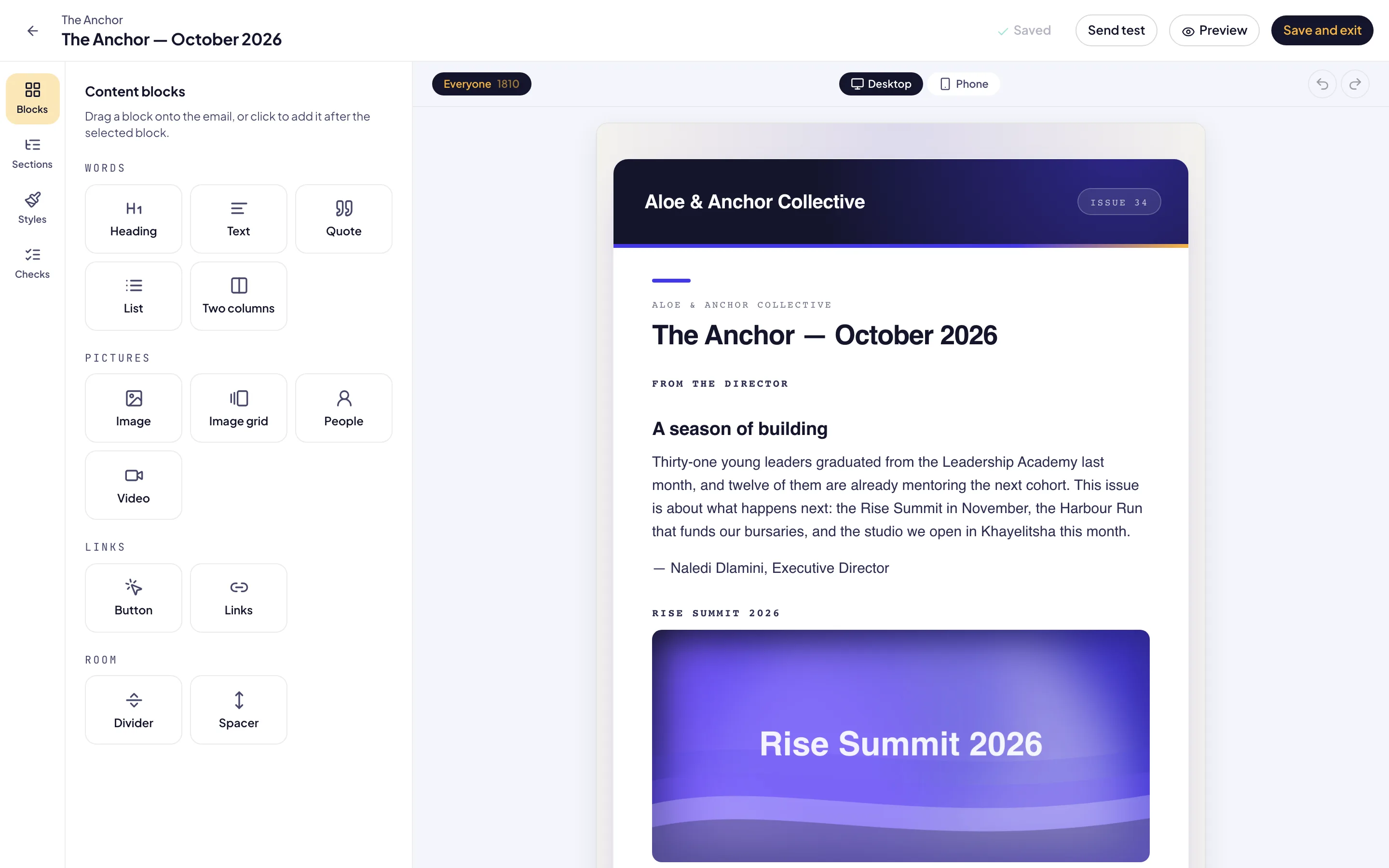
Under Content, choose Edit design. In Blocks, drag a block onto the email or click to add it after the selected block. Checks lists anything to fix. Choose Save and exit.
Test and send
Send a test
Choose Send test to send a copy to yourself and any Additional recipients. Test emails carry [Test] in the subject.
Choose when
Under Send time, choose Send now or Schedule…. A scheduled time must be at least five minutes away.
Send
Choose Send and confirm how many people it goes to. If something still stops the issue — an empty list or a content check, for example — Reach says what it is.
Good to know
One list and sender per publication. The recipient list and sender you choose apply to every issue of the publication.
Your own sender. Until you add your own domain or address under Setup → Sending domains, newsletters go from the platform’s address.
Already have newsletters? Import from email on the Newsletters screen brings in a past newsletter (.eml or HTML) as a draft. Nothing is sent.
Who receives your newsletters: see Build your audience.