
AI assistance
Overview
AI assistance writes drafts for you in Pages, Reach and Shop. It can draft a page section, suggest subject lines or write product details from a photo. A person always checks the draft before it is saved, published or sent.
Before you start
Zavon turns on AI assistance for each organisation and each product. Until then, the AI buttons do not show.
You need a role with the AI assistance permission of the product, and the permission for the work itself. For example, Pages: edit and AI assistance. See Roles and access.
Your organisation needs AI credits. See AI settings.
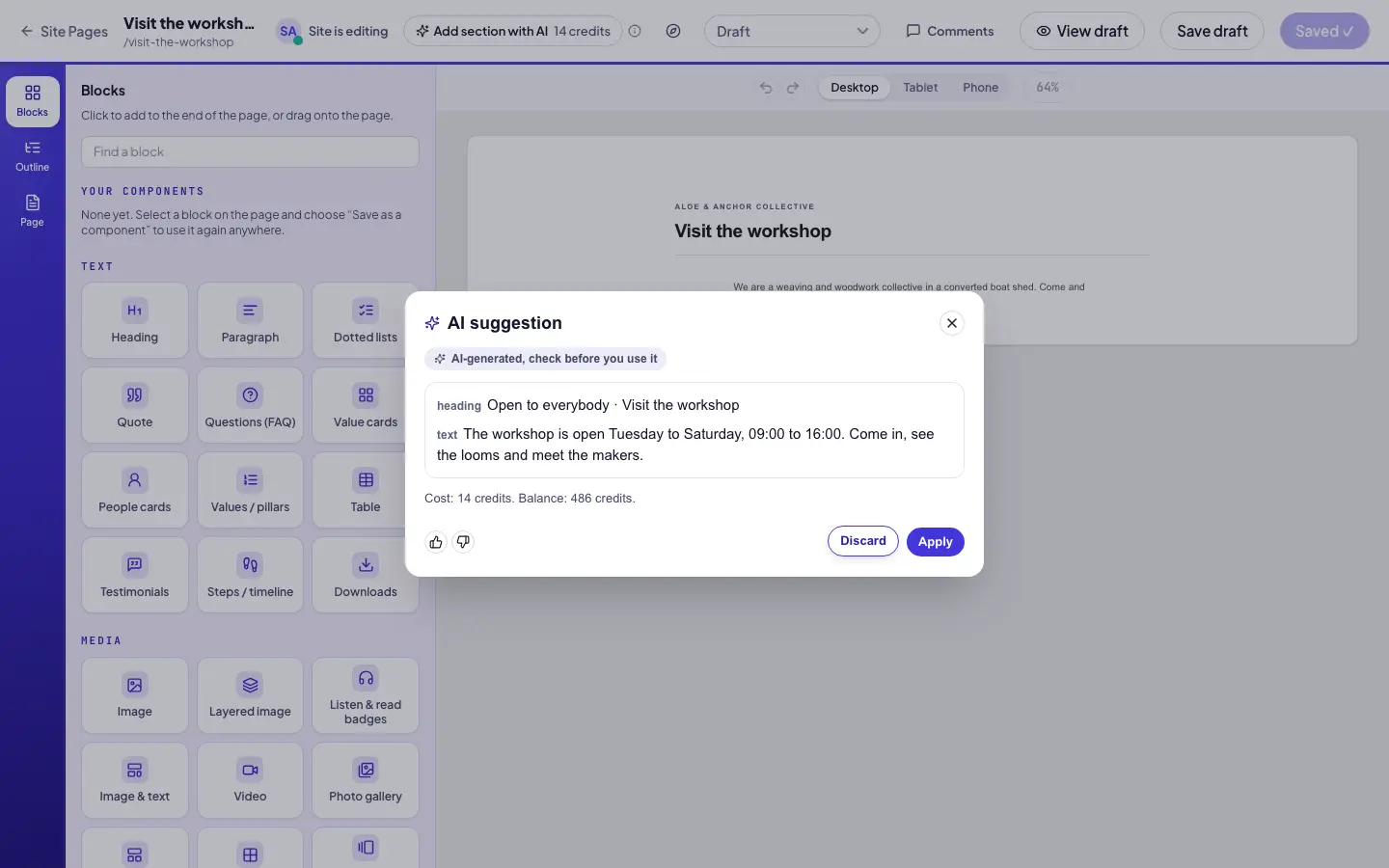
Ask a question about Zavon
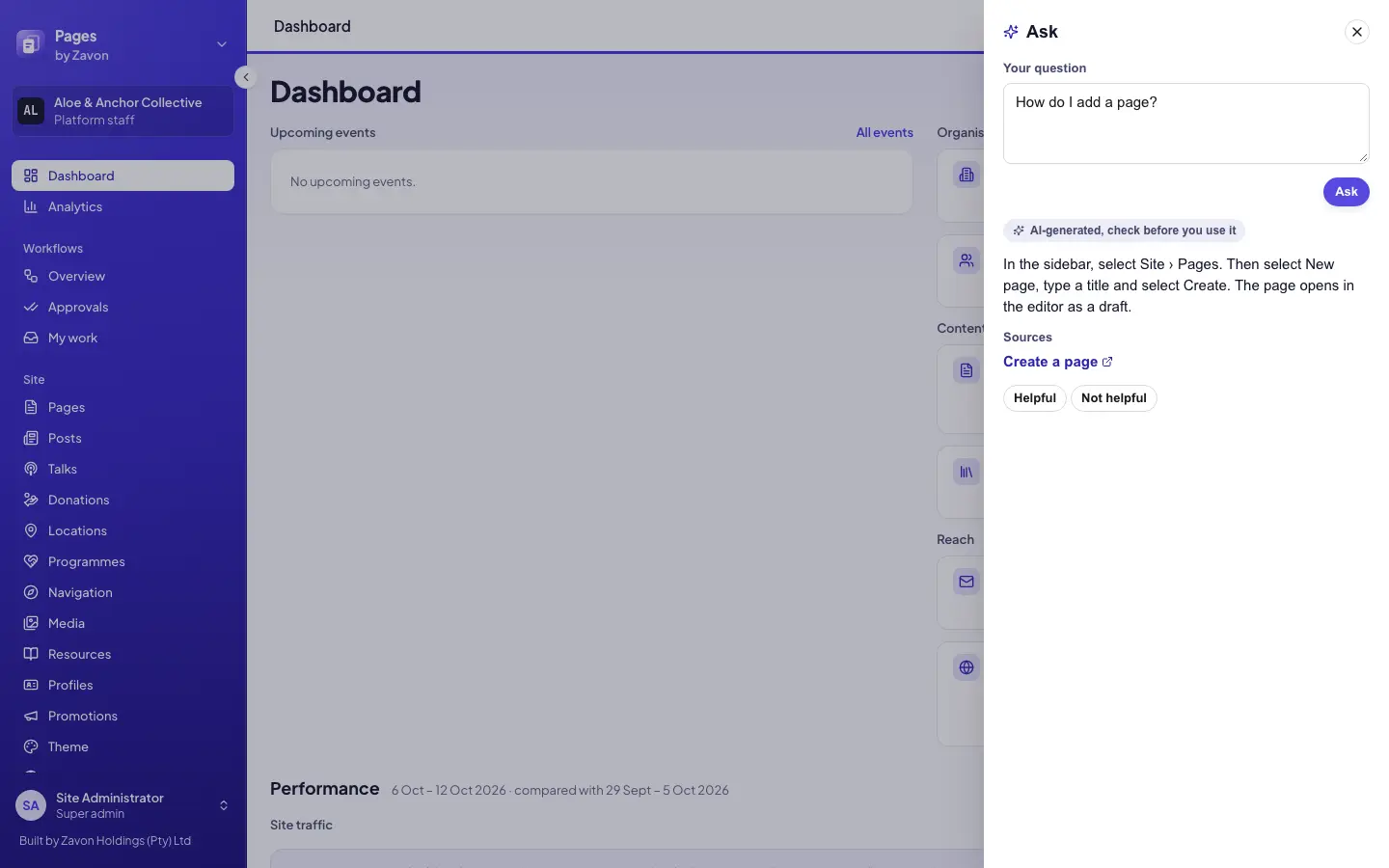
Open Ask
In the account menu, select Ask a question. The Ask panel opens.
Type the question
Type your question in Your question. Then select Ask.
Read the answer
Read the answer and its Sources. Each source opens a guide in a new tab.
Troubleshooting
If you do not see an AI button, AI assistance is off for your organisation or for the product. Ask Zavon support to turn it on.
If an AI button is grey, hold the pointer on the information icon beside it. It gives the reason, such as no credits left.
If the result says that AI assistance is not available now, try again later. No credits are used.
If the result says that you reached a limit, wait one minute. Then try again.
Good to know
Credits. One AI wallet serves Pages, Reach and Shop for your organisation. A credit costs R0.10 before VAT. Each button shows the price of its tool.
Failed requests. If a request fails, the credits held for it are released.
Privacy. Zavon sends your text to Anthropic, an AI provider in the United States. Zavon replaces email addresses, phone numbers and known names of people before it sends the text. Zavon keeps the request and the answer for 30 days, then deletes them.
Drafts only. AI assistance does not save, publish or send anything. A person applies each draft and saves it.
Turn it off. An organisation admin can remove the AI assistance permission from a role. Zavon support can turn AI assistance off for the organisation.
Acting as a role. Zavon staff who act as a role cannot use AI assistance.
The New marker. A new AI button shows a small New marker. Select the marker to read what the button does. The marker goes when you use the button or select Dismiss. It shows on three visits at most, on each device where you sign in.
Tours. Each product has a short tour of its AI buttons. In What’s new, select Show me. The tour shows the AI buttons on the screen and skips the others. When AI assistance is off, the tour shows nothing.
AI settings: credits, the monthly limit and the privacy notice.
AI page drafts: AI assistance in Pages.
AI writing help: AI assistance in Reach.
AI product details: AI assistance in Shop.
Roles and access: give a role the permission.