
Create a page
Every page on your site is built from blocks you arrange on a canvas: headings, text, pictures, events, forms and more. Here is how to make a new page and publish it.
Create the page
Open Pages
In the sidebar, under Site, choose Pages.
Start a new page
Choose New page. Give it a Name and check its Address on the site.
Choose where it belongs
On the Ownership step, keep The whole site for a site page, or choose a location if the page belongs to one. The Approval step shows who approves changes to a page in that place.
Pick a starting point
On the Template step, choose Blank or one of your saved templates, then Confirm and create. The editor opens.
Add blocks
Add a block
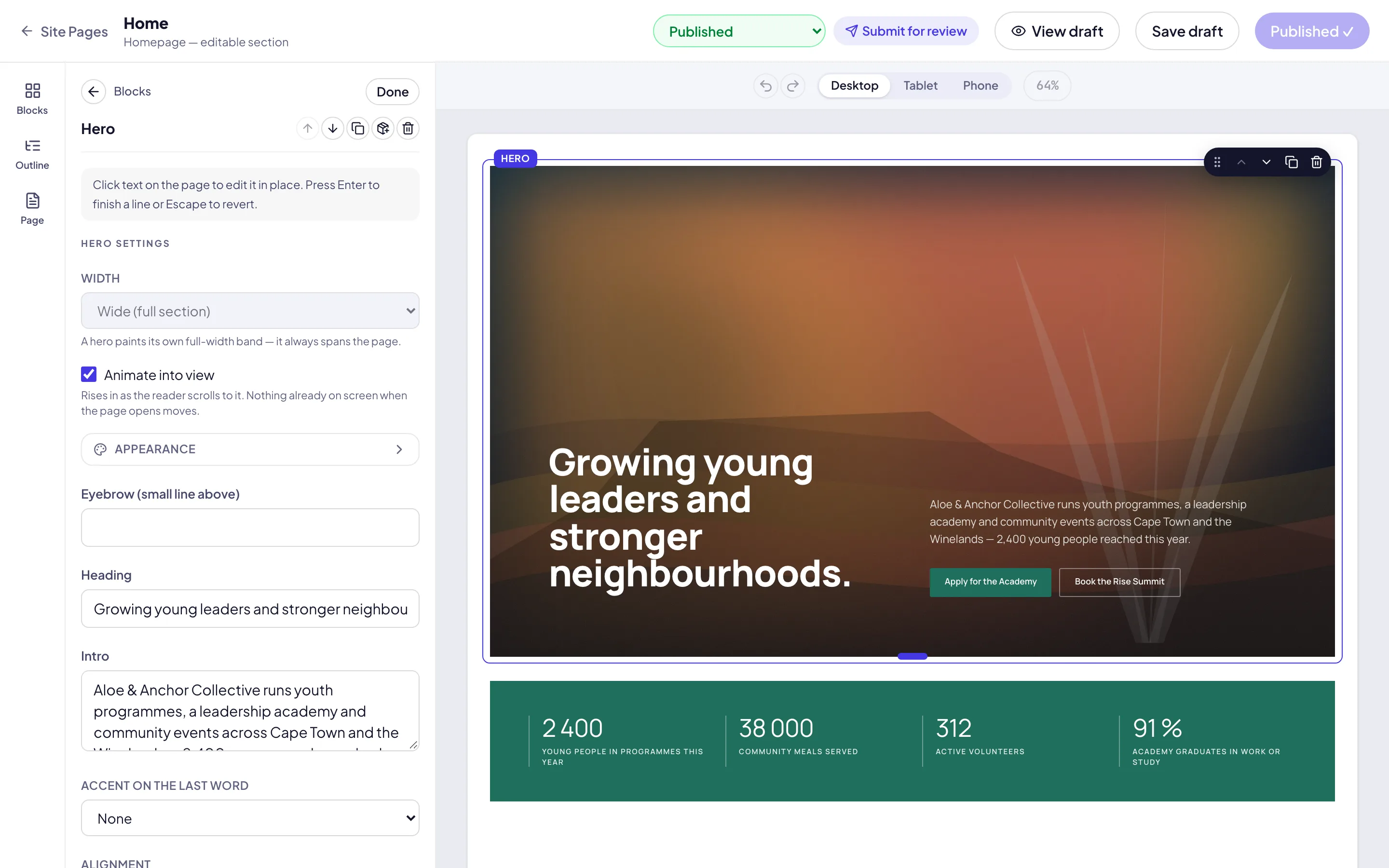
Open Blocks in the editor’s left rail. Click a block to add it to the end of the page, or drag it onto the page. Find a block searches them all.
Type on the page
Click any text on the canvas to type straight into it. The panel on the right holds the selected block’s settings.
Find and arrange
Outline lists every block on the page, in order.
Publish
Keep a draft
Save draft keeps your work without changing the live site. View draft shows it as a visitor would see it.
Publish, or send for review
When it is ready, choose Publish. If your role needs approval first, choose Submit for review, add an optional Note to approvers and choose Submit. The page shows Pending approval until it is approved.
Good to know
Page settings. The Page tab in the left rail holds the page’s Title, its Slug (the address), its version history and Save as template.
Search and sharing. Each page has its own search title and description: see Search engine settings.
Who may publish. Creating pages needs a role that can edit pages; publishing straight away needs the Publish permission. See Approvals and Roles and access.