
Marketplace
Overview
The marketplace offers components and design systems that other organisations share. Zavon reviews each one before it is on offer.
Installing one adds a copy to your own library. Nothing on your site changes until you place the component or choose the design system.
Before you start
To install a component, your role needs Edit on the Pages area. To install a design system, it needs Edit on the Theme area. See Roles and access.
To offer a component or a design system of your own, your role needs Approve components and design systems. You can offer only a component that is approved.
Browse the marketplace
Open it
In the sidebar, select Theme › Marketplace. The On offer tab lists what other organisations offer.
Search
Type a name in Search listings. The list shows the listings that match.
Filter
Select Filter, then select Add condition. Set Type to Component or Design system, then select Apply.
Read a card
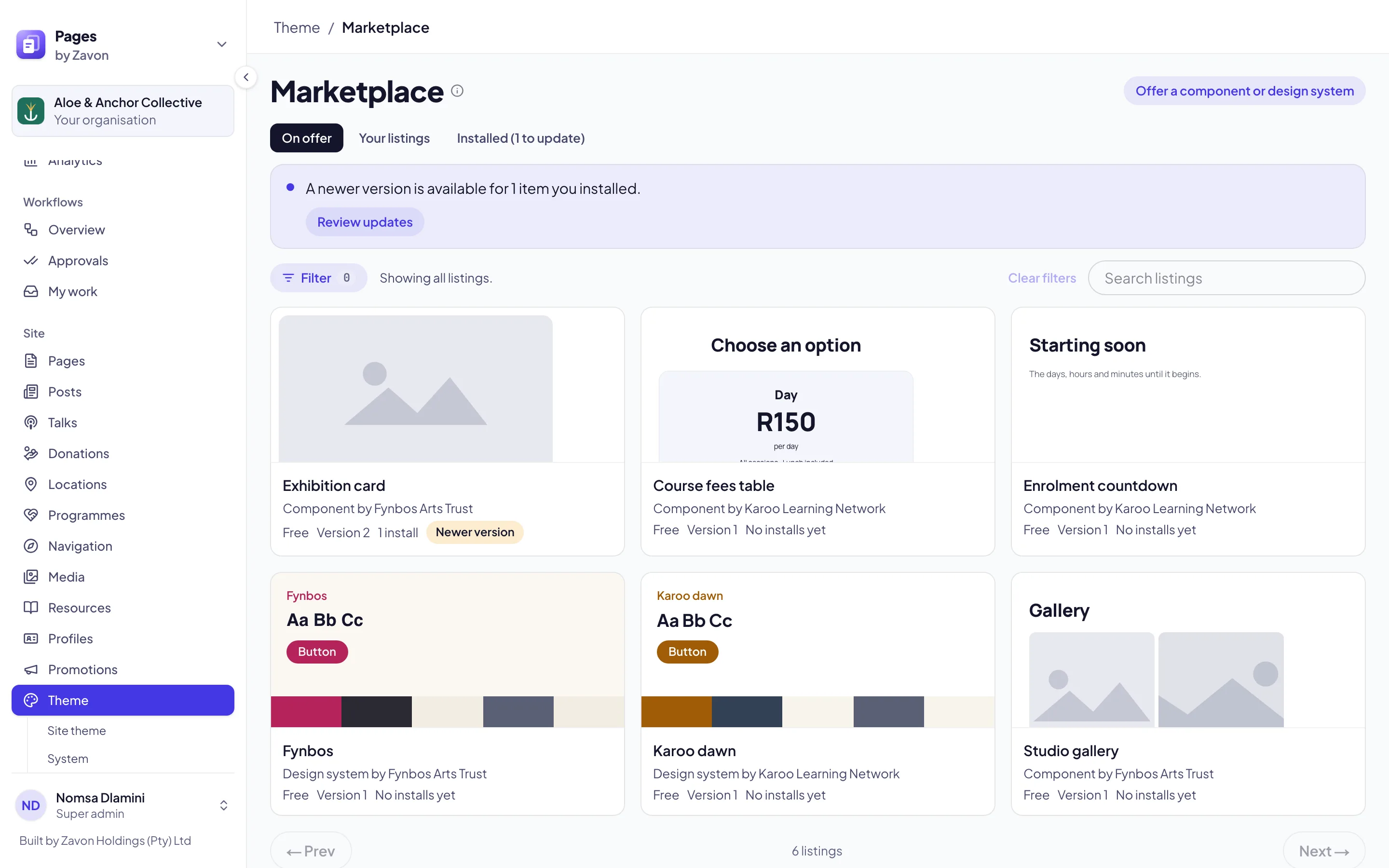
Read each card. It shows who offers it, Free, the version and the number of installs.
Open a listing
Select the name of a listing. Its preview, documentation and versions open.
Preview and install
Set the width
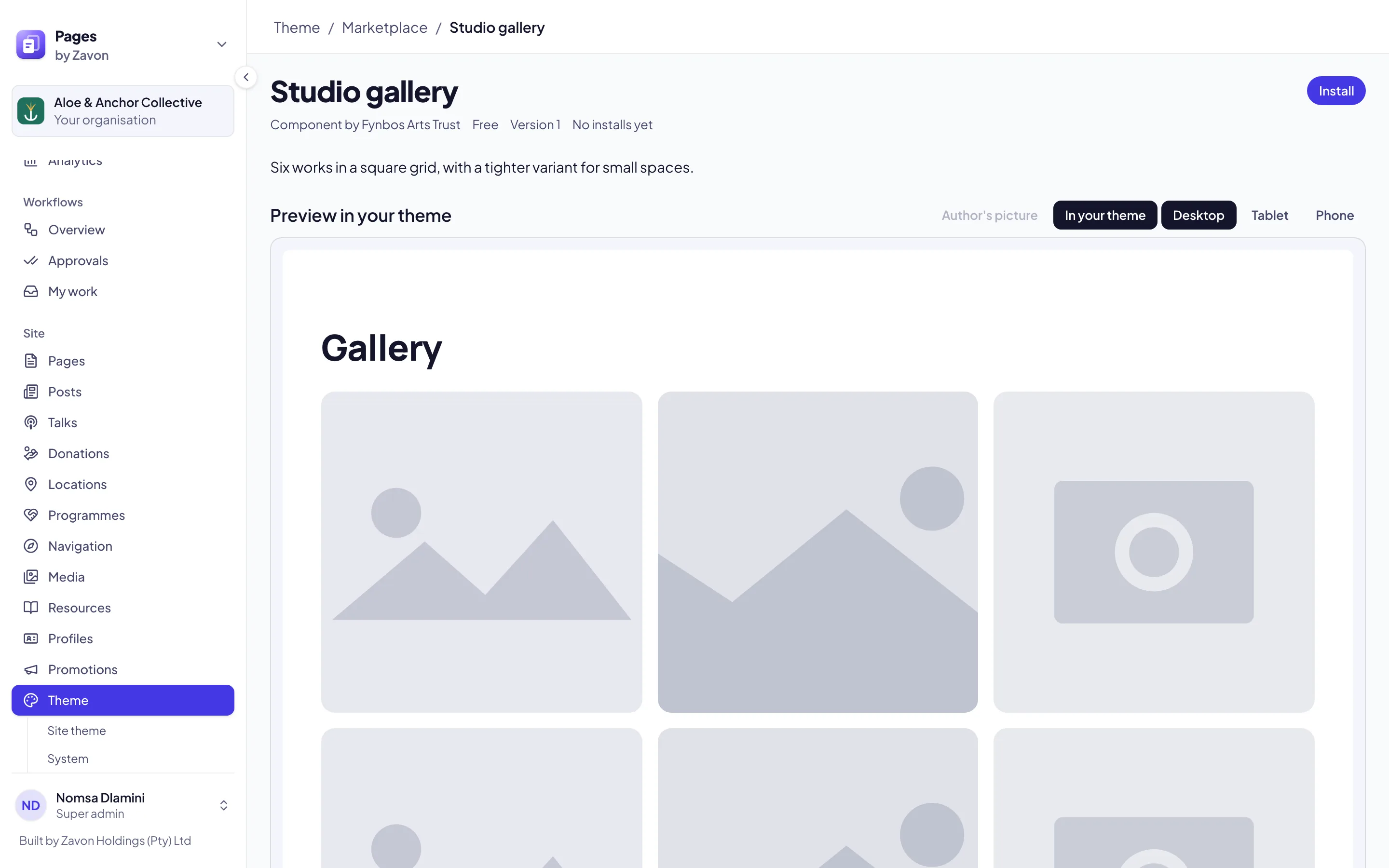
Select Desktop, Tablet or Phone above the preview.
Compare the pictures
Select Author’s picture to see the picture that its author offered. Select In your theme to see it drawn in your own theme.
Compare a design system
For a design system, look at Yours now beside the new design system on the specimen.
Install it
Select Install. A copy is added to your components or to your themes.
Use it
Select Open your copy. Place a component on a page. For a design system, select Use for the site in the Starting point dialog.
Update a copy
When the author offers a newer version and Zavon approves it, your copy says so. Your copy never changes by itself.
Open the copies
On the marketplace, select the Installed tab. The tab shows how many copies have a newer version.
Read the notice
Read A newer version is available under a copy. It names the newer version.
Update it
Select Update. The newer version is added to your copy as a new version.
Or update from the builder
Open the component on Theme › Components. Select Update on its card or in the builder.
Offer a component or design system
Open the dialog
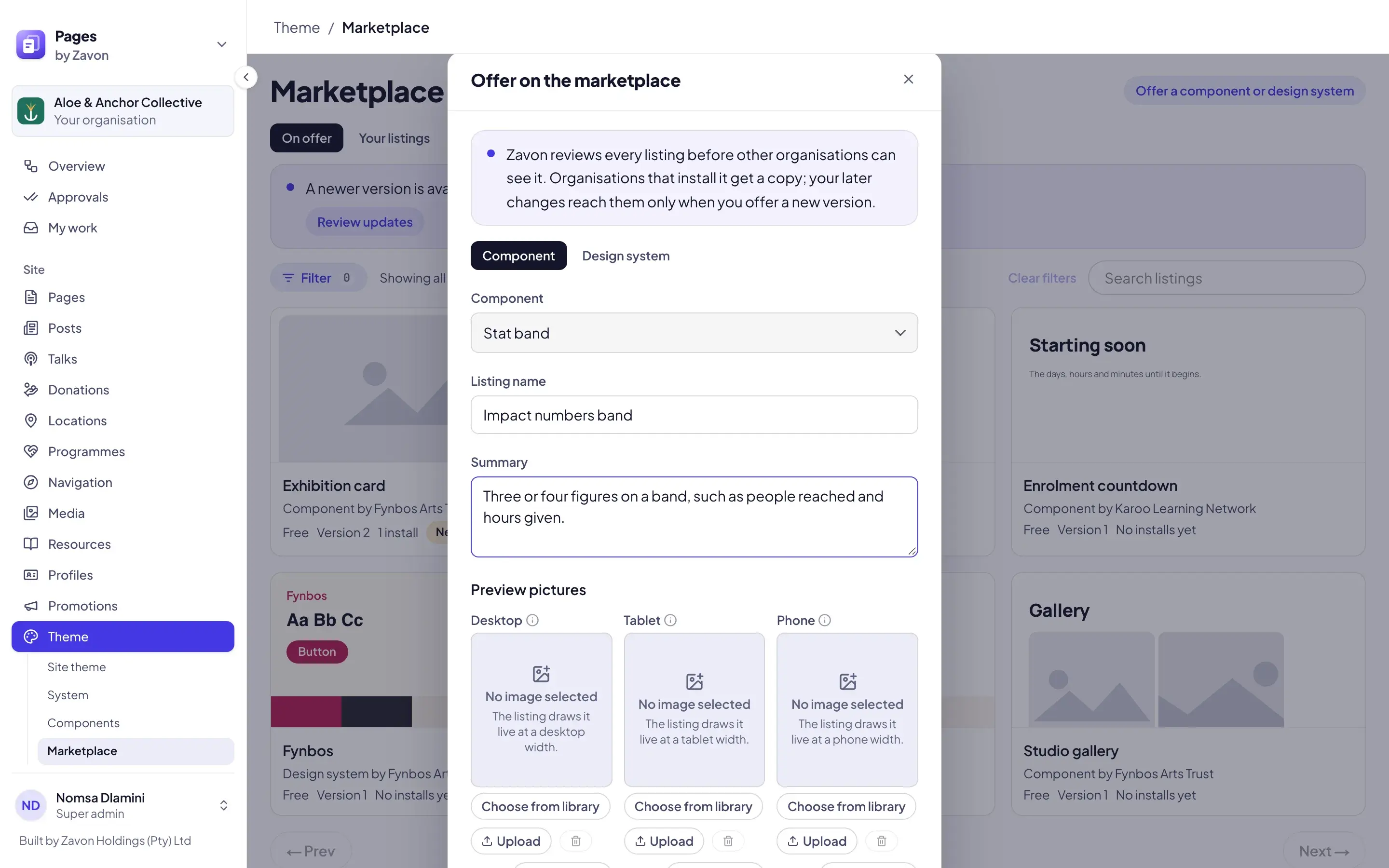
On the marketplace, select Offer a component or design system. The Offer on the marketplace dialog opens.
Pick the item
Select Component or Design system. Then set the one to offer.
Describe it
Type a Listing name and a Summary. Leave Listing name empty to keep its own name.
Add pictures
Under Preview pictures, set a picture for Desktop, Tablet or Phone from your library. Without one, the listing draws it live at that width.
Send it
Select Send for review. The Your listings tab shows it as Waiting for review.
Look after your listings
Read the status
Select the Your listings tab. Each listing shows Waiting for review, On offer, Rejected, Withdrawn or Delisted.
Offer a new version
After you approve a new version of the item, select the button beside its listing, such as Offer version 2.
Stop offering it
Select Withdraw. Organisations that installed it keep their copies.
Troubleshooting
If Install is grey, hold the pointer on it. It gives the reason, such as a listing of your own or a copy you already have.
If Offer a component or design system is grey, your role cannot approve components and design systems.
If Send for review is grey, the component is not approved yet, or it is deprecated.
If a listing shows Rejected or Delisted, read the reason from Zavon under it. Fix the item, then select Offer for review.
If Update is grey, your copy is at the newest version, or the listing is no longer on offer.
If Author’s picture is grey, the author offered no picture at that width.
Good to know
A copy is yours. Changes that the author makes later never reach your copy by themselves. You decide when to update.
Free. Every listing on the marketplace is free.
Zavon reviews every version. A listing and each new version wait for Zavon before other organisations see them. Zavon can also delist a listing, with a reason.
Approval. If your role cannot approve components and design systems, an installed copy and each update wait for approval. See Approve design changes.
Pictures. Installing copies the pictures of a component into your own storage. A picture that cannot be copied is left empty.
Your own listings. You cannot install a listing that your organisation offers. The original is already in your library.
Build components: change and place the components you install.
Theme: choose an installed design system for your site.
Design system: the values a design system holds.
Approve design changes: how a copy is approved.