
People fields
Overview
People fields are the facts your organisation keeps about its people, and the stages people move through. A fit score shows how well each person matches what you look for. Administrators set them up once, and everybody sees them on each contact.
Before you start
You need a role that can manage fields. The organisation administrator has it.
Think about what you need to know about people before you add fields. A field’s key and kind cannot change after you add it.
Read the overview
Open People fields
In the sidebar, select Setup › People fields.
Read the stages
Look at Lifecycle stages. The stages show as a pipeline, with how many people are in each.
Read the fields
Look at Custom fields. Each row shows the Field, its Kind, its Options, how many people use it and its Status.
Set up stages
Start
Under Lifecycle stages, select Set up stages. The steps are Preset, Names and order and Review.
Pick a preset
Select the preset that fits. Each one shows its stages as a pipeline. Select Next.
Name and order them
Type over a stage to rename it. Use Move up and Move down to change the order. Select Next.
Review
Read the stages. Select Use these stages. The stages show on every contact.
Edit stages
Start
Under Lifecycle stages, select Edit stages.
Rename or reorder
Type a new name over a stage, or use Move up and Move down. Select Next.
Save
Read the review. It says how many people are in each stage. Select Save stages.
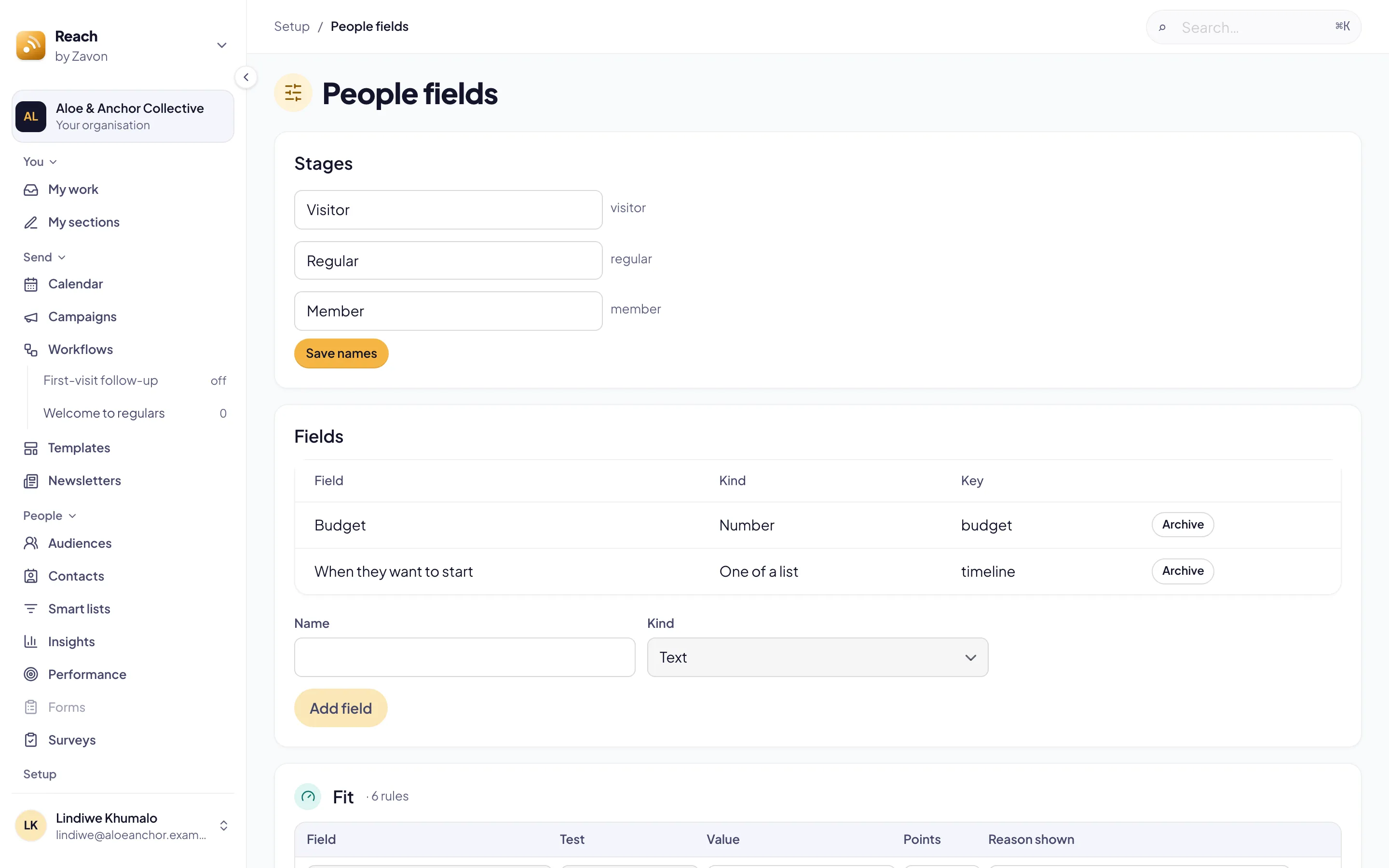
Add a field
Start
Under Custom fields, select New field. The steps are Kind, Details and Review.
Pick the kind
Select Text, Number, Date, One of a list, Several of a list, Yes or no, Web address or Phone number. Select Next.
Fill in the details
Type the Name. Reach makes the Key from the name. Optionally, type a Group and select Required.
Add the options
If the kind is a list, type each option in Options. Select Next.
Review
Read the field as a contact shows it, and where it can be used. Select Create field.
Change, archive or restore a field
Edit a field
Select Edit in the field’s row. Change its details, then select Save field.
Move a field
Select Move up or Move down in its row.
Archive a field
Select Archive in its row. The row asks in place: select Archive, or Keep field.
Show archived fields
Select Filter. Set Archived to Included, then select Apply.
Restore a field
Select Restore in the archived field’s row. Its status is Live again.
Suggest fields with AI
Start
Select New field. On the Kind step, select Suggest fields for me. The button shows the price in credits.
Describe what you keep
Type what you want to know about people in Describe what you want. Then select Generate.
Pick the fields
Read each suggestion with its kind and options. Clear the ones you do not want. Select Apply.
Check each one
Read Suggestion 1 of the number you kept. Each one opens filled in, at Details.
Create or skip it
Select Next, then Create field. To leave one out, select Skip. The next suggestion opens.
Score how well people fit
Start from a preset
Under Fit, select Use these rules on Enquiries or Supporters. A preset adds the fields its rules read.
Add a rule
Select Add rule. Set the Field, the Test and the Value.
Give it points
Type the Points and the Reason shown. Points may be negative.
Save
Select Save rules. Each contact’s Overview shows Fit from 0 to 100, with the reasons.
Troubleshooting
If Suggest fields for me does not show, AI assistance is off for your organisation. See AI assistance.
If Next on the Details step shows a message, type a name first. A list kind also needs its options, each one different.
If New field, Set up stages or Edit stages is greyed, your role cannot change people fields. Hold the pointer over it to read why.
If Save stages is greyed, nothing has changed.
If Save rules is grey, nothing has changed.
Good to know
Archive, not delete. Archive a field you no longer use. Values already kept stay on each person, and the key cannot be used again. Restore brings the field back.
Stages keep their people. Renaming or reordering a stage moves nobody. There is no step to add or remove a stage.
In use. The In use count leaves out archived people.
Fit and engagement. Engagement comes from what people do. Fit comes from what they told you. Reach works out both every day, and fit again when a person’s details change.
Only names go to AI. Suggest fields sends your words and the names of your fields, never anybody’s details.
Contacts and tags: find and tag people.
Smart lists: lists that follow a rule.
A person’s profile: the overview, the timeline and the details of one person.