
Write a blog post
Overview
Communications teams write news, stories and teaching as blog posts. You write a post in a document editor, as in a word processor. Visitors find the blog at /blog, and each post has its own page. You can send a post to your subscribers as a newsletter in Reach.
Before you start
You need a role with Pages: edit to write and change posts. To publish, schedule or unpublish a post, the role also needs Publish. See Roles and access.
To send a post as a newsletter, your role in Reach must be able to manage that newsletter.
Write a post
Start a post
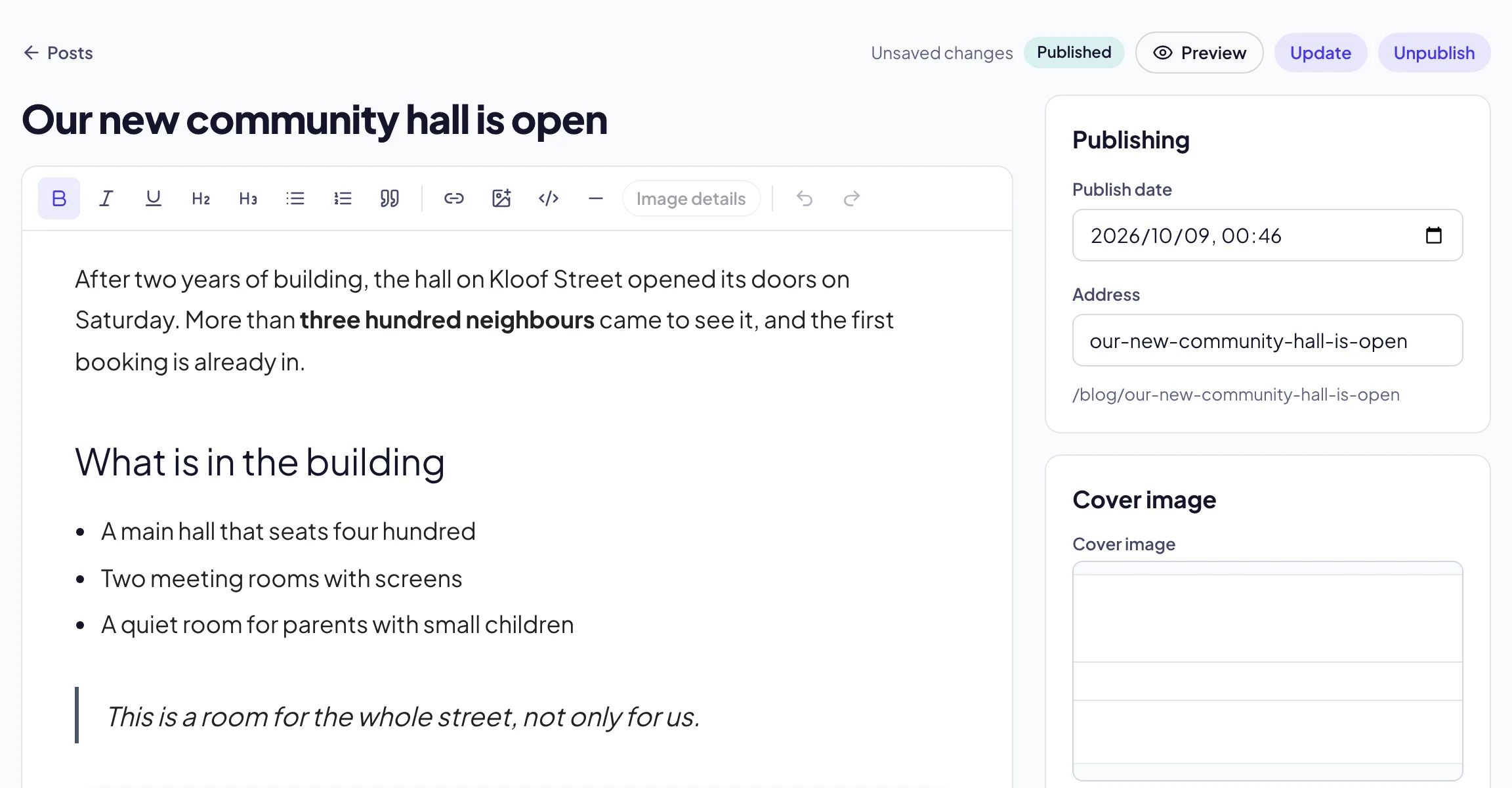
In the sidebar, select Site › Posts. Select New post. The editor opens.
Type the title
Type the Title at the top of the page.
Write the body
Type the post below the title. To format words, select them. Then select Bold, Italic, Underline or Link in the toolbar.
Add sections
To start a section, select Heading or Subheading.
Add lists and quotes
Select Bulleted list, Numbered list or Quote. To divide the post, select Horizontal rule.
Add pictures
Select Image. Select a picture in the media library and type its alternative text. To add a caption, select the picture, then select Image details.
Add a video or a form
Select Embed. Paste the Address, for example a YouTube link. Type a Title (for screen readers). Select Embed.
Add the details
On the right, set the Cover image, the Excerpt, the Author, the Category and the Tags. Under Search and sharing, type the search title and description.
Note: The editor saves your changes as your draft while you type. The post itself does not change until you select Save draft, Update or Publish. Press ⌘S (Ctrl+S on Windows) to save.
Publish the post
Preview it
Select Preview. The post shows as a visitor sees it.
Publish
If your role can publish, select Publish. The post goes live at /blog and at its address.
Or schedule it
To publish later, set the Publish date to a time to come. Select Schedule. The post shows Scheduled in the list, and it goes live at that time.
Or send it for review
If your role cannot publish, select Submit for review. It is in the place of Publish. The site’s administrators get an email and a task in My work. The post shows Pending approval until an approver decides.
Troubleshooting
If you do not see Publish, your role cannot publish posts. Select Submit for review.
If Publish is not available, the post has no title. Type a Title.
If the message says another post already uses the address, change the Address.
If you do not see Send as newsletter, the post is not published yet, or your role in Reach cannot manage a newsletter.
If a picture or an embed does not show, its address is not allowed. Use a picture from the media library, and an embed from the services the Embed dialog names.
Good to know
History. Each save keeps the version before it. Under History, compare two versions or restore one.
The RSS feed. The feed is at /blog/feed.xml on your site. Feed readers and other sites use it.
Search. Published posts are in your sitemap and in site search. A scheduled post is not, until its time.
Newsletters. The Latest from the blog block in Reach shows your newest posts in every issue. See Send a newsletter.
Articles from another website. Select Import article on the Posts screen to copy an article in as a draft.
Approvals: who approves a post.
Search engine settings: titles and descriptions for search.
Send a newsletter: newsletters in Reach.